
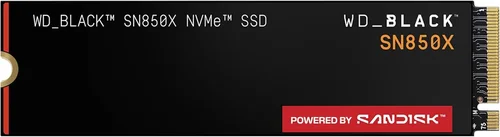
The debate over whether your operating system (OS) must reside on a solid-state drive (SSD) for optimal performance has evolved dramatically over the past decade. In 2026, with SSDs now standard in most new computers and even budget laptops shipping with NVMe storage, the answer is clearer than ever—but the nuances matter more than ever too. Whether you’re building a custom PC, upgrading an aging laptop, or simply trying to squeeze every ounce of speed from your daily driver, understanding the role of SSD storage in OS performance is no longer optional—it’s essential.
This comprehensive buying guide cuts through the noise to deliver expert-level insights into how SSDs impact system responsiveness, boot times, application loading, and overall user experience. We’ll explore not just whether you should install your OS on an SSD, but which type of SSD, how much capacity you truly need, and what trade-offs exist at different price points. From SATA to PCIe Gen5 NVMe drives, from DRAM-less budget options to high-endurance enterprise-grade SSDs, we’ll break down every critical factor so you can make an informed decision that aligns with your performance goals, budget, and usage patterns. By the end of this guide, you’ll know exactly what to look for—and what to avoid—when choosing storage for your operating system.
The market today offers unprecedented choice. Entry-level SSDs deliver performance that would have been considered premium just five years ago, while cutting-edge Gen5 drives push sequential read speeds beyond 10,000 MB/s. Yet, despite these advances, many users still operate with misconceptions—like believing all SSDs are equally fast, or that larger drives always perform better. This guide demystifies those myths and equips you with practical, real-world knowledge to future-proof your system without overspending.

What to Look for When Buying Buying Guide
1. Storage Interface: SATA vs. NVMe
The interface your SSD uses determines its maximum theoretical speed and compatibility with your system. SATA III SSDs, while still widely available, cap out at around 550 MB/s due to the limitations of the SATA bus. They’re reliable and affordable but increasingly outdated for OS use in 2026. In contrast, NVMe (Non-Volatile Memory Express) SSDs connect directly to the PCIe lanes on your motherboard, bypassing the SATA bottleneck entirely.
NVMe drives come in two main form factors: M.2 and U.2. M.2 is by far the most common in consumer systems, offering plug-and-play installation without cables. When shopping, check whether your system supports PCIe Gen3, Gen4, or Gen5. A Gen4 NVMe drive like the Samsung 990 Pro can deliver over 7,000 MB/s, making boot times nearly instantaneous and application launches feel near-instant. However, if your motherboard only supports Gen3, investing in a Gen5 drive won’t yield any real-world benefit—so always match your SSD to your system’s capabilities.
2. NAND Flash Type: TLC vs. QLC vs. SLC
Not all SSDs are built with the same kind of memory cells. NAND flash technology varies significantly in endurance, speed, and cost. Single-Level Cell (SLC) stores one bit per cell and offers the highest endurance and performance but is prohibitively expensive for consumer use. Triple-Level Cell (TLC) stores three bits per cell and strikes the best balance for most users—offering good speed, decent endurance, and reasonable pricing. Quad-Level Cell (QLC) stores four bits per cell, increasing density and lowering cost but at the expense of write speeds and longevity.
For an OS drive, TLC is the sweet spot. QLC drives can suffer from severe performance degradation under sustained writes—something that happens frequently during OS updates, temporary file creation, and background tasks. While modern QLC drives include SLC caching to mask this issue, once the cache fills up, write speeds can plummet to HDD-like levels. If you’re on a tight budget and opting for QLC, ensure it has a robust DRAM cache and avoid filling it beyond 75% capacity.
3. DRAM Cache: Why It Matters for OS Performance
A DRAM cache acts as a high-speed buffer between the SSD controller and NAND flash, storing the Flash Translation Layer (FTL) map that tracks where data is physically located. SSDs with a dedicated DRAM chip (usually 1GB per 1TB of storage) deliver significantly more consistent performance, especially during random read/write operations—exactly the kind of workload your OS generates constantly.
DRAM-less SSDs, often found in ultra-budget models, rely on Host Memory Buffer (HMB) technology to borrow a small amount of system RAM. While HMB works reasonably well for light workloads, it introduces latency and can bottleneck performance when your system is under heavy multitasking load. For an OS drive, always prioritize models with onboard DRAM. The performance difference in real-world usage—especially during boot, app launches, and file indexing—is noticeable and worth the modest price premium.
4. Sequential vs. Random Read/Write Speeds
Marketing materials often highlight sequential read/write speeds (e.g., “7,400 MB/s read”), but these numbers tell only part of the story. Sequential speeds matter for large file transfers—like copying videos or game installations—but your OS spends far more time performing random 4K reads and writes. These small, scattered operations occur when loading system files, opening applications, or accessing the page file.
A drive with high sequential speeds but poor random performance will feel sluggish in daily use, even if it benchmarks impressively. Look for specifications that include random read/write IOPS (Input/Output Operations Per Second). For example, a top-tier NVMe SSD might deliver 1 million random read IOPS, while a budget SATA drive may manage only 50,000. The higher the IOPS, the snappier your system will feel. Real-world testing shows that random performance correlates far more strongly with perceived responsiveness than sequential throughput.
5. Endurance and TBW Rating
Terabytes Written (TBW) is a manufacturer’s estimate of how much data can be written to an SSD over its lifetime before it’s likely to fail. For example, a 1TB Samsung 980 Pro has a TBW rating of 600TB, meaning you could write 164GB per day for 10 years before reaching the limit. While most users will never come close to this threshold, TBW matters for peace of mind and long-term reliability.
OS drives experience frequent small writes—log files, registry updates, temporary files—so endurance is more relevant than you might think. QLC drives typically have lower TBW ratings than TLC counterparts of the same capacity. If you plan to keep your system for 5+ years or use it for development, virtualization, or heavy multitasking, choose a drive with a higher TBW. Also, check the warranty period: a 5-year warranty often indicates confidence in the drive’s longevity.
6. Form Factor and Physical Compatibility
SSDs come in several physical formats, and compatibility is non-negotiable. The most common is the M.2 2280 (22mm wide, 80mm long), which fits most modern motherboards and laptops. However, some ultrabooks use shorter M.2 2242 or 2230 drives, so verify your device’s specifications before purchasing.
SATA SSDs typically use the 2.5-inch form factor, requiring both a SATA data cable and a power connection from your PSU. These are bulkier and less common in new systems but still viable for older desktops or as secondary storage. U.2 drives are rare in consumer setups and primarily used in servers. Always double-check your system’s available slots, clearance (especially near the GPU), and whether your BIOS supports NVMe booting—some older systems require a firmware update.
7. Brand Reputation and Firmware Support
Not all SSD brands are created equal. Established manufacturers like Samsung, Crucial, Western Digital, Kingston, and SK Hynix have proven track records for reliability, consistent performance, and robust firmware ecosystems. They offer tools for monitoring drive health, updating firmware, and performing secure erases—critical for maintaining long-term performance and security.
Avoid no-name or ultra-budget brands that cut corners on components or lack firmware updates. A poorly optimized controller or outdated firmware can lead to stuttering, crashes, or even data loss. Look for brands that provide downloadable utilities (like Samsung Magician or Crucial Storage Executive) and have a history of timely firmware patches. Community forums and professional reviews are excellent resources for identifying brands with strong support.
8. Price per GB and Value Over Time
While it’s tempting to chase the lowest price, evaluating cost per gigabyte tells a more complete story. As of 2026, high-quality TLC NVMe SSDs typically range from $0.06 to $0.12 per GB. A 1TB drive might cost $60–$120, while a 2TB model offers better value at around $0.05–$0.08 per GB.
Consider total cost of ownership: a slightly more expensive SSD with better endurance and performance may save you money in the long run by avoiding premature replacement or system slowdowns. Also, factor in bundled software, warranty length, and whether the drive includes cloning tools—some brands offer free migration software to simplify OS transfers.
Different Types of Buying Guide

Common Buying Mistakes to Avoid
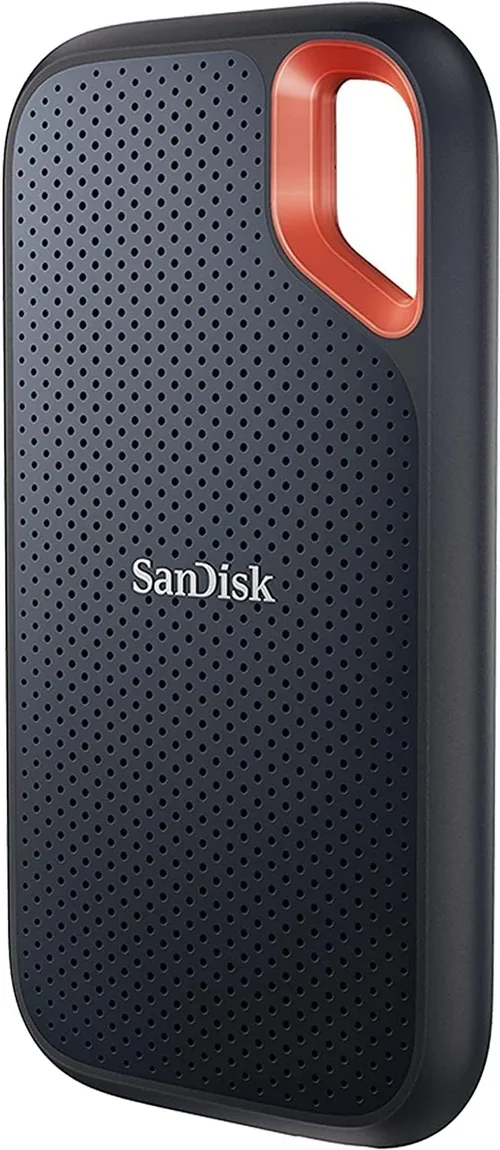
❌ Mistake: Prioritizing Sequential Speeds Over Random Performance
Why it’s bad: Many buyers fixate on marketing claims like “7,000 MB/s read” but ignore random 4K performance, which directly impacts how fast your OS feels in daily use. A drive with high sequential speeds but poor random IOPS will still feel sluggish when opening apps or booting up.
What to do instead: Look for reviews that include real-world benchmarks like PCMark 10 Storage or CrystalDiskMark random tests. Prioritize drives with strong random read performance (aim for 500K+ IOPS for NVMe).
❌ Mistake: Buying a DRAM-less SSD for Your OS Drive
Why it’s bad: DRAM-less SSDs rely on system RAM via HMB, which can cause stuttering under load and reduce overall system responsiveness—especially if you’re multitasking or running memory-intensive applications.
What to do instead: Spend the extra $10–$15 for a drive with onboard DRAM. The consistency and reliability gains are worth it for an OS that’s constantly reading and writing small files.
❌ Mistake: Overlooking Thermal Throttling in M.2 Drives
Why it’s bad: High-performance NVMe drives, especially Gen4 and Gen5 models, generate significant heat. Without proper cooling, they throttle down to prevent damage, drastically reducing speeds during sustained workloads like OS updates or game installations.
What to do instead: If your motherboard doesn’t include an M.2 heatsink, purchase a low-profile aftermarket cooler. Many high-end SSDs now ship with heatsinks, but verify compatibility with your case and GPU clearance.
❌ Mistake: Choosing Capacity Based Solely on Price per GB
Why it’s bad: While larger drives often offer better value, filling an SSD beyond 75–80% capacity degrades performance due to reduced over-provisioning space. A nearly full 2TB drive may perform worse than a half-full 1TB drive.
What to do instead: Buy a drive with at least 20–25% free space. For most users, a 1TB SSD is the minimum for an OS drive in 2026—accounting for Windows 11/12, essential apps, and future updates.
❌ Mistake: Ignoring Firmware Updates and Monitoring Tools
Why it’s bad: Outdated firmware can cause bugs, security vulnerabilities, or performance issues. Without monitoring tools, you won’t know if your drive is failing or nearing its TBW limit.
What to do instead: Choose brands that offer free software suites for health monitoring and firmware updates. Regularly check your drive’s SMART status and apply updates promptly.
❌ Mistake: Assuming All NVMe Drives Are Compatible
Why it’s bad: Some older laptops and prebuilt desktops only support SATA M.2 drives or lack NVMe boot support in BIOS. Installing an incompatible drive may result in it not being detected at all.
What to do instead: Consult your device’s manual or manufacturer website. Look for terms like “PCIe NVMe support” and “UEFI boot.” When in doubt, contact customer support before purchasing.
❌ Mistake: Skipping the OS Migration Process
Why it’s bad: Cloning your old OS to a new SSD incorrectly can lead to boot failures, activation issues, or data loss. Many users attempt manual file copying, which doesn’t transfer system files or boot sectors.
What to do instead: Use reliable cloning software like Macrium Reflect Free, Acronis True Image, or the manufacturer’s own tool (e.g., Samsung Data Migration). Always back up your data first and verify the clone boots successfully before removing the old drive.
Budget Guidelines: How Much Should You Spend?
Entry-Level ($30–$50): At this price, you’re typically looking at SATA SSDs or DRAM-less QLC NVMe drives. These are acceptable for basic computing—web browsing, office work, media playback—but will feel noticeably slower than higher-tier options. Expect boot times of 15–25 seconds and occasional stuttering under load. Only consider this tier if upgrading from an HDD or building on a very tight budget.
Mid-Range ($50–$90): This is the sweet spot for most users. A 1TB TLC NVMe Gen3 or Gen4 drive with DRAM offers excellent performance, reliability, and value. Boot times drop to 8–12 seconds, apps launch instantly, and multitasking feels smooth. Brands like Crucial P5 Plus, WD Black SN770, and Kingston KC3000 deliver outstanding real-world performance in this range.
Premium ($90–$150): Here, you gain access to top-tier Gen4 drives with high endurance, advanced controllers, and robust cooling solutions. These are ideal for gamers, content creators, and power users who demand consistent peak performance. Expect sub-8-second boots, seamless 4K video editing, and rapid game loading. The Samsung 990 Pro and Sabrent Rocket 4 Plus are standout options.
Luxury ($150+): Gen5 NVMe drives dominate this tier, offering blistering speeds over 10,000 MB/s. While impressive on paper, real-world OS benefits are marginal compared to high-end Gen4 drives—unless you’re transferring massive files regularly or running specialized workloads. These drives also require excellent cooling and compatible hardware. Only recommended for enthusiasts or professionals building future-proof workstations.
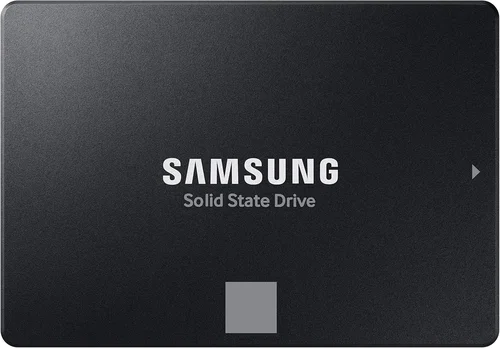
Expert Tips for Getting the Best Deal
– Buy during seasonal sales: Major retailers like Amazon, Newegg, and Best Offer deep discounts during Black Friday, Prime Day, and back-to-school seasons. SSD prices fluctuate frequently, so set price alerts using tools like CamelCamelCamel or Honey.
– Check refurbished or open-box deals: Manufacturer-refurbished SSDs often come with full warranties and can save you 20–30%. Retailers like Micro Center and B&H Photo offer certified open-box units at reduced prices.
– Prioritize warranty and support over minor spec differences: A drive with a 5-year warranty and strong customer service is often a better long-term investment than one with slightly higher speeds but poor support.
– Test before committing: If buying in-store, ask if you can verify compatibility with your system. For online purchases, ensure the retailer has a generous return policy (30 days or more).
– Don’t forget the heatsink: If your case or motherboard lacks M.2 cooling, budget $10–$15 for a quality heatsink. Passive cooling prevents throttling and extends drive lifespan.
– Use manufacturer tools for cloning: Most reputable brands offer free cloning software optimized for their drives. These tools handle partition alignment and boot sector copying more reliably than generic utilities.
– Monitor drive health regularly: Install your manufacturer’s SSD toolkit and check SMART data monthly. Early warning signs like reallocated sectors or high wear levels can alert you to potential failure.
– Consider future upgrades: If building a new system, choose a motherboard with multiple M.2 slots. This allows you to add a secondary SSD later for games or projects without sacrificing OS performance.

Frequently Asked Questions
Q: Can I install my OS on an HDD instead of an SSD in 2026?
A: Technically, yes—but it’s strongly discouraged. While HDDs still function, boot times can exceed 60 seconds, and application launches feel sluggish. Modern operating systems like Windows 11 and macOS are optimized for SSDs, and many features (like Fast Startup) rely on low-latency storage. For any meaningful performance, an SSD is now a necessity, not a luxury.
Q: Will a faster SSD make my older computer feel new?
A: Absolutely—if the bottleneck is storage. Upgrading from an HDD to even a basic SATA SSD can transform a sluggish system into a responsive one. However, if your CPU, RAM, or GPU are severely outdated, the gains will be limited. Always assess your entire system before upgrading.
Q: Do I need a Gen5 SSD for gaming?
A: Not yet. While Gen5 drives load games slightly faster than Gen4, the difference is often just a few seconds. Most games are still designed around Gen3/Gen4 speeds, and DirectStorage (which leverages fast SSDs) is only beginning to see adoption. A high-quality Gen4 drive offers 95% of the benefit at a lower cost.
Q: How much SSD space do I really need for my OS?
A: For Windows 11, Microsoft recommends 64GB minimum, but realistically, you’ll need 100–150GB just for the OS, updates, and essential apps. A 500GB drive fills up quickly; 1TB is the practical minimum in 2026. If you install games or creative software, consider 2TB.
Q: Can I use an external SSD for my OS?
A: Yes, via USB 3.2 Gen 2×2 or Thunderbolt 4, but performance will be limited by the interface. External SSDs are great for portable OS installations or testing, but internal drives offer lower latency and better reliability for daily use.
Q: Will filling my SSD slow it down?
A: Yes, significantly. SSDs need free space for wear leveling and garbage collection. Performance drops sharply when usage exceeds 75–80%. Always keep at least 20% free space for optimal operation.
Q: Are cheaper SSDs safe for storing my operating system?
A: It depends. Reputable budget brands (like Crucial or Kingston) offer reliable TLC drives at low prices. However, avoid unknown brands with no reviews or support. A failed OS drive can mean data loss and hours of reinstallation.
Q: Should I enable TRIM on my SSD?
A: Yes—always. TRIM helps the SSD manage deleted data efficiently, maintaining performance over time. It’s enabled by default in Windows, macOS, and most Linux distributions, but you can verify it in Disk Management or via terminal commands.
Q: Can I dual-boot two OSes on one SSD?
A: Yes, but partition carefully. Allocate sufficient space for each OS (at least 100GB per installation) and use a boot manager like GRUB or Windows Boot Manager. Ensure both OSes support the file system (NTFS for Windows, ext4 for Linux).
Q: What’s the lifespan of a modern SSD?
A: Most consumer SSDs last 5–10 years under normal use. With typical workloads, you’ll likely upgrade your system before the drive wears out. Monitor TBW and warranty terms for peace of mind.
Our Final Recommendations
Best for Budget-Conscious Buyers: Crucial P3 1TB (Gen3 NVMe, DRAM-less but reliable, $45). While DRAM-less, Crucial’s firmware optimization makes it a solid choice for light users upgrading from HDDs.
Best Overall Value: WD Black SN770 1TB (Gen4 NVMe, DRAM, excellent random performance, $65). Offers near-top-tier speed at a mid-range price with strong endurance.
Best Premium Option: Samsung 990 Pro 1TB (Gen4 NVMe, 1GB DRAM, 600TBW, $95). Consistently top-rated for performance, reliability, and software support.
Best for Beginners: Kingston NV2 1TB (Gen4 NVMe, simple installation, $55). User-friendly, widely compatible, and includes cloning software.
Best for Advanced Users: Sabrent Rocket 4 Plus-G 2TB (Gen4 NVMe, 2GB DRAM, 1,200TBW, $130). High capacity, extreme endurance, and excellent thermal performance for demanding workloads.
Conclusion: Making the Right Choice
In 2026, there’s no compelling reason to install your operating system on anything other than an SSD—specifically, a DRAM-equipped TLC NVMe drive. The performance leap over HDDs is transformative, and even budget SSDs now deliver speeds that make computing feel instantaneous. While Gen5 drives offer jaw-dropping benchmarks, real-world OS benefits are still marginal for most users, making Gen4 the intelligent choice for balancing cost, compatibility, and performance.
Your decision should hinge on your specific needs: budget, system compatibility, intended use, and future upgrade plans. Don’t fall for marketing hype—focus on random performance, endurance, and brand reliability. And remember, a well-chosen SSD isn’t just about speed; it’s about stability, longevity, and the confidence that your system will keep up with your demands for years to come.
Take the time to research, compare, and prioritize. Whether you’re breathing new life into an old laptop or building a dream desktop, the right SSD will be the foundation of a smooth, responsive, and enjoyable computing experience. Invest wisely—your operating system deserves nothing less.