
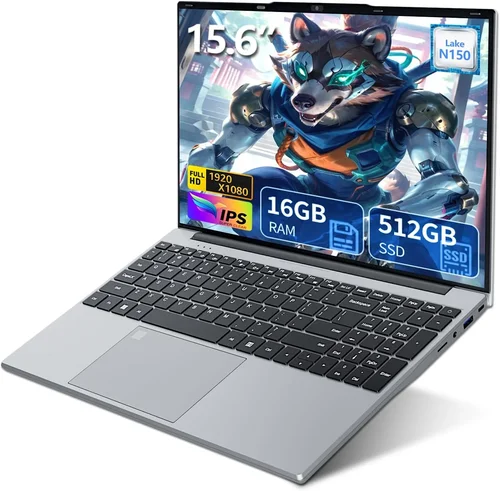
When it comes to choosing a laptop in 2026, one of the most critical decisions you’ll make is whether to go with a solid-state drive (SSD) or a traditional hard disk drive (HDD). This choice doesn’t just affect how fast your laptop boots up or how quickly apps launch—it fundamentally shapes your entire computing experience. Whether you’re a student juggling assignments, a creative professional editing 4K video, a gamer loading massive open-world environments, or a business user running multiple applications simultaneously, the type of storage you choose can make or break your productivity and satisfaction.
The good news? The landscape has evolved dramatically over the past few years. SSDs, once considered a luxury upgrade, have become the standard in most new laptops, while HDDs are increasingly relegated to budget models or niche use cases requiring massive storage at low cost. However, confusion still abounds. Many buyers wonder: “Do I really need an SSD?” or “Can I get away with an HDD if I just need more space?” This guide cuts through the noise. We’ll walk you through every factor that matters—from performance and durability to price and real-world usability—so you can make an informed decision tailored to your needs. By the end, you’ll know exactly which storage type suits your lifestyle, workload, and budget.
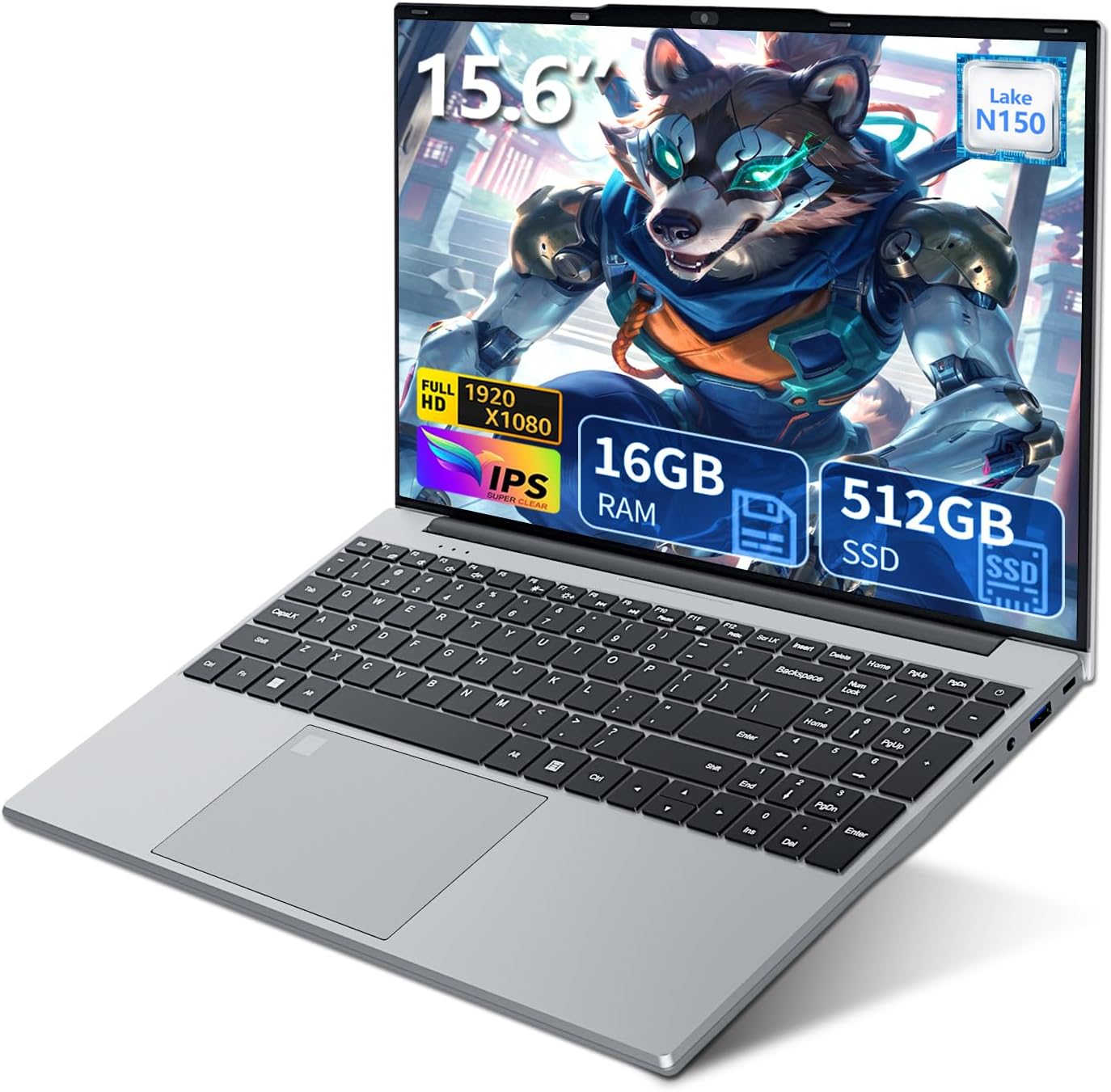
What to Look for When Buying Buying Guide
1. Budget & Price Range
Your budget is often the first and most influential factor in any tech purchase—and storage is no exception. SSDs are generally more expensive per gigabyte than HDDs, but the gap has narrowed significantly. As of 2026, a 512GB SSD might cost around $50–$80, while a 1TB HDD typically runs $40–$60. However, when factored into a full laptop build, the difference becomes even more nuanced. Entry-level laptops with HDDs may start as low as $300, but they often come with weaker processors, less RAM, and outdated designs. In contrast, even budget SSD-equipped laptops now start around $450–$500 and deliver noticeably better performance.
It’s also important to consider long-term value. An SSD extends the usable life of your laptop by keeping it responsive years after purchase, whereas an HDD-equipped machine may feel sluggish within 12–18 months. If you’re on a tight budget, look for refurbished or previous-generation models with SSDs—they offer excellent value without sacrificing modern performance. Avoid “budget traps”: laptops advertised as “great deals” with large HDDs but minimal RAM or slow CPUs often end up costing more in frustration and eventual upgrades.
2. Performance Specifications
Performance is where SSDs truly shine—and HDDs struggle to keep up. SSDs use flash memory with no moving parts, enabling near-instant data access. Typical read/write speeds for SATA SSDs range from 500–550 MB/s, while NVMe PCIe Gen 4 SSDs (common in mid-to-high-end laptops in 2026) can exceed 7,000 MB/s. This translates to real-world benefits: Windows or macOS boots in under 10 seconds, large applications like Adobe Photoshop or Visual Studio launch in seconds, and file transfers happen almost instantly.
HDDs, by contrast, rely on spinning magnetic platters and a mechanical read/write head. Their average speeds hover around 80–160 MB/s, and performance degrades further as the drive fills up or fragments over time. Boot times can stretch to 30–60 seconds, and opening large files or multitasking becomes a waiting game. For tasks like video editing, software development, or gaming—where loading textures, assets, or code libraries is frequent—an SSD isn’t just nice to have; it’s essential. Even everyday web browsing and document work feel snappier on an SSD due to faster system responsiveness and reduced latency.
3. Build Quality & Durability
Durability is a hidden advantage of SSDs that many overlook. Because they contain no moving parts, SSDs are far more resistant to physical shock, vibration, and temperature fluctuations. Drop a laptop with an HDD while it’s running, and you risk head crashes—catastrophic failures where the read/write arm scratches the platter, destroying data. SSDs, being solid-state, can withstand drops, bumps, and even minor impacts without data loss. This makes them ideal for students, travelers, or anyone using their laptop on the go.
HDDs, with their delicate mechanical components, are inherently fragile. They’re fine for stationary desktop replacements but become liabilities in mobile environments. Additionally, HDDs generate more heat and consume more power, which can strain a laptop’s cooling system and reduce battery life. SSDs run cooler and use less energy, contributing to longer battery runtime and quieter operation (no spinning noise). In 2026, with laptops getting thinner and lighter, the reliability and efficiency of SSDs align perfectly with modern design priorities.
4. Features & Functionality
Beyond raw speed, SSDs enable features that enhance usability and security. Many modern laptops with SSDs support hardware-based encryption (like Intel’s AES-NI or TPM 2.0), allowing for secure boot and full-disk encryption without performance penalties. SSDs also enable faster sleep/wake cycles—your laptop resumes from sleep almost instantly, unlike HDDs, which may take several seconds to spin up.
Another functional benefit is compatibility with modern operating systems. Windows 11 and macOS Sonoma are optimized for SSDs, leveraging features like TRIM (which maintains SSD performance over time) and fast startup. Running these OSes on an HDD often results in degraded performance and longer update times. Additionally, SSDs support newer technologies like DirectStorage (for gaming) and rapid file indexing, which improve overall system responsiveness. HDDs simply can’t keep pace with these advancements, making them increasingly obsolete for mainstream use.
5. Brand Reputation
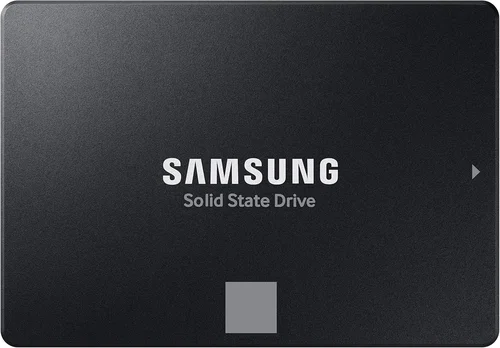
Not all SSDs or HDDs are created equal—brand matters. Reputable manufacturers like Samsung, Crucial, Western Digital, Kingston, and Seagate consistently deliver reliable, high-performance drives with strong firmware support. Samsung’s 990 PRO series, for example, is a favorite among power users for its speed and endurance. Crucial offers excellent value with its P5 Plus line, while Western Digital balances performance and affordability across its WD Black and Blue SSDs.
When buying a laptop, check which brand and model of SSD or HDD it includes. Some OEMs (like certain budget brands) may use lower-tier or rebranded drives with inferior controllers or NAND flash, leading to slower speeds or shorter lifespans. Reading detailed reviews or using tools like CrystalDiskInfo can help you verify the drive inside. For HDDs, Seagate and Western Digital remain the most trusted names, but even their drives are best suited for archival storage rather than primary system use in 2026.
6. Warranty & Support
Warranty terms vary significantly between SSDs and HDDs, reflecting their differing lifespans and failure rates. Most consumer SSDs come with 3–5 year limited warranties and are rated for a certain number of terabytes written (TBW)—a measure of endurance. For example, a 1TB SSD might be rated for 600 TBW, meaning you could write 164GB per day for five years before reaching its limit. In practice, most users never come close to this threshold.
HDDs typically offer 2–3 year warranties and are more prone to mechanical failure over time. Their MTBF (mean time between failures) is generally lower than SSDs, especially in mobile environments. When purchasing a laptop, check the warranty coverage for the entire system, not just the storage. Some manufacturers offer extended warranties or accidental damage protection, which can be worthwhile if you’re investing in a premium SSD-based machine. Always register your product and keep proof of purchase to streamline support if issues arise.
7. Size & Portability
While both SSDs and HDDs come in standard 2.5-inch laptop form factors, SSDs have a clear edge in compact designs. Many ultrabooks and thin-and-light laptops in 2026 use M.2 NVMe SSDs—small, stick-like drives that take up minimal space and weigh almost nothing. This allows manufacturers to create slimmer, lighter laptops without sacrificing performance. HDDs, by contrast, are bulkier and heavier due to their mechanical components, making them unsuitable for ultra-portable designs.
If you prioritize portability—whether for commuting, traveling, or working in cafes—an SSD-based laptop is almost always the better choice. The reduced weight and thickness enhance comfort during long use, and the silent operation means no distracting whirring sounds in quiet environments. Even if you don’t travel often, the sleekness and modern aesthetics of SSD-equipped laptops contribute to a more premium feel.
8. User Reviews & Ratings
Before making a final decision, always consult user reviews and professional benchmarks. Sites like Notebookcheck, PCMag, and Reddit’s r/laptops provide in-depth analysis of real-world performance, thermal behavior, and long-term reliability. Look for patterns: if multiple users report slow boot times or frequent freezing on an HDD model, it’s a red flag. Conversely, consistent praise for fast responsiveness and smooth multitasking on SSD models reinforces their value.
Pay attention to reviews that mention specific workloads similar to yours. A video editor’s experience with a laptop will differ vastly from a casual browser’s. Also, check return rates and customer support experiences—some brands have better service than others. User-generated content, like YouTube unboxings or forum discussions, can reveal quirks not mentioned in official specs, such as thermal throttling or bloatware that slows down even SSD systems.
Different Types of Buying Guide
Common Buying Mistakes to Avoid
❌ Mistake: Prioritizing Storage Capacity Over Speed
Why it’s bad: Choosing a 1TB HDD over a 512GB SSD because “more space is better” ignores the reality of modern computing. A slow drive cripples performance, making even basic tasks frustrating. You’ll spend more time waiting than working.
What to do instead: Opt for a smaller SSD (256GB or 512GB) and use cloud storage (Google Drive, OneDrive) or an external SSD for large files. The speed gain is worth the trade-off.
❌ Mistake: Ignoring the Type of SSD
Why it’s bad: Not all SSDs are equal. A SATA SSD is much slower than an NVMe drive. Buying a laptop with a SATA SSD when an NVMe version is available means missing out on significant performance gains.
What to do instead: Check the specs carefully. Look for “NVMe” or “PCIe” in the description. If it just says “SSD,” it might be SATA—ask the seller or check reviews.
❌ Mistake: Assuming All Budget Laptops Are Equal
Why it’s bad: Some $400 laptops come with SSDs, while others still use HDDs. Blindly picking the cheapest option could land you with a sluggish HDD system.
What to do instead: Compare models at the same price point. A $450 laptop with a 256GB SSD will outperform a $400 model with a 1TB HDD in everyday use.
❌ Mistake: Overlooking Future-Proofing
Why it’s bad: Buying a laptop with an HDD today means you’ll likely need to replace it within 2–3 years as software demands grow. Upgrading later can be costly or impossible in sealed laptops.
What to do instead: Invest in an SSD now, even if it means stretching your budget slightly. It extends the laptop’s lifespan and improves resale value.
❌ Mistake: Neglecting Backup Strategies
Why it’s bad: Both SSDs and HDDs can fail. Relying solely on internal storage without backups risks permanent data loss.
What to do instead: Use cloud backups or an external drive regularly. SSDs fail differently than HDDs (often without warning), so proactive backup is essential.
❌ Mistake: Confusing eMMC with SSD
Why it’s bad: eMMC storage, common in cheap Chromebooks, is slower and less durable than true SSDs. It’s fine for web browsing but inadequate for Windows or macOS.
What to do instead: Verify the storage type. If it says “eMMC” or “embedded storage,” treat it like an HDD—only suitable for very light use.
Budget Guidelines: How Much Should You Spend?
- Entry-Level ($300–$500): At this range, you’ll mostly find laptops with HDDs or eMMC storage. Avoid these unless you’re buying a Chromebook for basic web use. If possible, stretch to $450–$500 for a model with a 256GB SSD—performance will be dramatically better.
- Mid-Range ($500–$900): This is the sweet spot for most buyers. You’ll find reliable laptops with 512GB SATA or NVMe SSDs, capable processors, and 8–16GB of RAM. Ideal for students, remote workers, and casual creators.
- Premium ($900–$1,500): Here, expect NVMe PCIe Gen 4 SSDs (1TB or more), high-refresh displays, and powerful CPUs/GPUs. Perfect for gamers, video editors, and professionals who need speed and reliability.
- Luxury ($1,500+): Top-tier machines with blazing-fast SSDs, premium builds, and cutting-edge features. These are for enthusiasts, developers, and those who demand the absolute best performance and build quality.
Expert Tips for Getting the Best Deal
- Buy during sales events: Black Friday, Prime Day, and back-to-school seasons offer deep discounts on SSD-equipped laptops. Sign up for deal alerts from retailers like Best Buy, Amazon, and Newegg.
- Consider refurbished models: Certified refurbished laptops from manufacturers (Dell, HP, Lenovo) often include SSDs and come with warranties. They’re a safe way to get premium features at lower prices.
- Check retailer return policies: Ensure you can return or exchange the laptop within 14–30 days if the storage doesn’t meet your needs. Some stores let you test performance in-store.
- Upgrade later if possible: Some laptops allow SSD upgrades. If you buy a model with a smaller SSD, you can add a larger one later. Check service manuals before purchasing.
- Use price tracking tools: Websites like CamelCamelCamel or Honey track price history and alert you when a laptop drops to its lowest point.
- Read the fine print: Some “SSD” laptops use slower SATA drives. Always verify the interface (NVMe vs. SATA) in the full specs.
- Test before committing: If buying in-store, ask to see boot time and app launch speed. A quick demo can reveal a lot about real-world performance.

Frequently Asked Questions
Q: Can I upgrade an HDD to an SSD later?
A: Yes, in many laptops—especially older or business-grade models—you can replace the HDD with an SSD. However, ultrabooks and some modern designs have soldered storage, making upgrades impossible. Always check upgradeability before buying.
Q: Is a 256GB SSD enough for everyday use?
A: For most users, yes—especially if you use cloud storage or external drives. Windows 11 uses about 30–40GB, leaving plenty of room for apps and documents. Heavy gamers or video editors may prefer 512GB or more.
Q: Do SSDs really last longer than HDDs?
A: In terms of mechanical failure, yes—SSDs have no moving parts. However, SSDs have a finite number of write cycles. For typical users, this isn’t a concern; most SSDs outlast the laptop itself.
Q: Are external SSDs a good alternative?
A: Absolutely. A fast external SSD (like the Samsung T7) can serve as a portable boot drive or storage expansion. Great for backups or transferring large files between devices.
Q: Why do some expensive laptops still use HDDs?
A: Usually for cost-cutting in budget lines or to offer massive storage (2TB+) at low prices. These are best suited for stationary use or as secondary storage, not primary systems.
Q: Can I dual-boot with an SSD and HDD?
A: Yes. Install the OS and frequently used apps on the SSD for speed, and store media, backups, or archives on the HDD. This hybrid setup offers balanced performance and capacity.
Q: Do SSDs improve gaming performance?
A: Yes—especially in open-world games with large textures. Faster load times, quicker level transitions, and reduced stuttering are common benefits. NVMe SSDs enhance this further.
Q: Is TRIM important for SSDs?
A: Yes. TRIM helps maintain SSD performance over time by clearing unused data blocks. Modern OSes enable it automatically, but it’s good to verify it’s active.
Q: What’s the difference between SATA and NVMe SSDs?
A: SATA SSDs use the older SATA interface (max ~550 MB/s), while NVMe SSDs use the PCIe bus (up to 7,000+ MB/s). NVMe is significantly faster and ideal for demanding tasks.
Q: Should I defragment an SSD?
A: No. Defragmenting an SSD is unnecessary and can reduce its lifespan. SSDs don’t suffer from fragmentation like HDDs, and modern OSes disable defrag for SSDs automatically.
Our Final Recommendations
- Best for Budget-Conscious Buyers: Acer Aspire 5 (2026 model) with 512GB NVMe SSD – offers excellent performance under $600, ideal for students and home users.
- Best Overall Value: Lenovo IdeaPad 5 Pro – balances price, build quality, and a fast 1TB NVMe SSD, perfect for multitasking and productivity.
- Best Premium Option: Dell XPS 13 Plus – features a blazing-fast PCIe Gen 4 SSD, stunning display, and premium aluminum build for professionals.
- Best for Beginners: HP Pavilion Aero 13 – lightweight, easy to use, and equipped with a responsive 512GB SSD, great for first-time laptop buyers.
- Best for Advanced Users: ASUS ROG Zephyrus G14 – packs a 1TB NVMe SSD, powerful GPU, and high-refresh display, built for gamers and creators who demand speed.
Conclusion: Making the Right Choice
The debate between SSD and HDD in laptops is no longer a close one—SSDs win in nearly every category that matters for modern users. While HDDs still have a place in niche scenarios requiring massive, low-cost storage, they’re increasingly outdated for primary system use. SSDs deliver faster performance, greater durability, lower power consumption, and a smoother overall experience that translates into real productivity gains.
As you weigh your options, remember that your choice should align with your specific needs. If you’re a casual user who mostly browses the web and streams video, a SATA SSD will serve you well. If you’re a creative professional or gamer, invest in an NVMe SSD for maximum speed. And if budget is tight, prioritize an SSD over sheer storage capacity—your future self will thank you.
Ultimately, the best laptop is the one that feels responsive, reliable, and ready for whatever you throw at it. In 2026, that means choosing SSD. Don’t let outdated myths or misleading deals steer you toward an HDD. Take the time to compare models, read reviews, and consider long-term value. Your data—and your sanity—deserve it.