
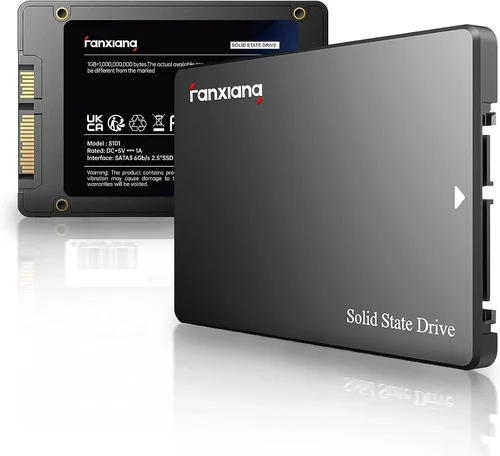
Solid State Drives (SSDs) have revolutionized the way we experience personal computing. Gone are the days of waiting minutes for your operating system to boot or applications to load—today’s SSDs deliver near-instant responsiveness, drastically improving everything from everyday multitasking to high-performance gaming and professional workloads. Whether you’re building a new PC from scratch, upgrading an aging laptop, or simply looking to breathe new life into your current system, choosing the right SSD is one of the most impactful decisions you can make. With so many brands, form factors, and performance tiers on the market, it’s easy to feel overwhelmed. That’s exactly why this comprehensive buying guide exists: to cut through the noise, clarify the technical jargon, and help you make a confident, informed decision.
In this guide, we’ll walk you through every critical aspect of selecting the best SSD for your PC in 2026. You’ll learn how to evaluate key factors like speed, capacity, durability, and compatibility—without getting lost in marketing buzzwords. We’ll compare top-tier brands such as Samsung, Crucial, Western Digital, Kingston, and more, highlighting what sets each apart in terms of real-world performance and reliability. Whether you’re a budget-conscious student, a creative professional working with 4K video, or a hardcore gamer chasing every frame per second, this guide will equip you with the knowledge to find the perfect SSD that aligns with your needs, usage patterns, and budget. By the end, you won’t just know which company makes the best SSD—you’ll know why it’s the best fit for you.
The SSD market in 2026 is more competitive and advanced than ever. NVMe PCIe Gen 5 drives are now mainstream, offering blistering sequential read/write speeds exceeding 10,000 MB/s, while SATA SSDs continue to offer reliable, cost-effective storage for older systems. Meanwhile, innovations in QLC and TLC NAND flash memory, DRAM caching, and power efficiency have made SSDs faster, longer-lasting, and more affordable across all price points. Major manufacturers are also placing greater emphasis on sustainability, software ecosystems, and end-to-end encryption. With options ranging from under $30 for basic 256GB models to over $500 for high-capacity enterprise-grade drives, there’s never been a better time to upgrade—but only if you choose wisely.

What to Look for When Buying Buying Guide
1. Budget & Price Range
Your budget is the foundation of any SSD purchase decision. While it’s tempting to go for the cheapest option available, doing so can lead to compromises in speed, longevity, or even data integrity. Conversely, overspending on a drive with specs far beyond your actual needs is equally inefficient. In 2026, SSD pricing has stabilized significantly thanks to increased production capacity and technological maturity. A 1TB NVMe SSD typically ranges from $60 to $150, depending on brand, performance tier, and included features. Entry-level drives may use QLC NAND, which offers higher density at lower cost but reduced write endurance—ideal for light users who primarily browse, stream, and store documents. Mid-range TLC-based drives strike the best balance for most consumers, offering excellent speed, reliability, and value. Premium drives often include advanced thermal management, extended warranties, and software suites for cloning and monitoring drive health.
When setting your budget, consider not just the upfront cost but also cost-per-gigabyte. For example, a 2TB drive priced at $120 ($0.06/GB) may offer better long-term value than a 1TB drive at $70 ($0.07/GB), especially if you anticipate needing more storage soon. Also, factor in whether you’ll need additional accessories like mounting brackets, heatsinks, or USB enclosures if you’re repurposing an old drive. Always leave room in your budget for potential future upgrades—many users regret buying a 500GB drive only to run out of space within a year.
2. Performance Specifications
Performance is where SSDs truly shine—and where confusion often sets in. The two most commonly cited metrics are sequential read/write speeds (measured in MB/s) and random read/write IOPS (Input/Output Operations Per Second). Sequential speeds matter most for large file transfers, such as copying videos or loading game levels, while random IOPS affect everyday responsiveness—like opening apps, booting your OS, or multitasking. In 2026, PCIe Gen 5 NVMe drives dominate the high-end segment, delivering sequential reads up to 12,000–14,000 MB/s. However, unless you’re working with massive datasets or 8K video editing, these speeds offer diminishing returns for average users. Most gamers and general users will see near-identical real-world performance from a quality PCIe Gen 4 drive (5,000–7,000 MB/s) compared to Gen 5.
Another critical spec is the type of NAND flash used: SLC (Single-Level Cell), MLC (Multi-Level Cell), TLC (Triple-Level Cell), and QLC (Quad-Level Cell). SLC is fastest and most durable but prohibitively expensive; QLC is cheapest and densest but wears out faster under heavy write workloads. For most consumers, TLC remains the gold standard—it offers an excellent balance of speed, endurance, and affordability. Also pay attention to whether the drive includes a DRAM cache. Drives with DRAM buffers maintain consistent performance under load and last longer; DRAM-less models (often labeled “HMB” for Host Memory Buffer) rely on your system’s RAM and can slow down during sustained writes.
3. Build Quality & Durability
Unlike traditional hard drives, SSDs have no moving parts, making them inherently more resistant to physical shock, vibration, and temperature fluctuations. However, not all SSDs are built equally. Build quality encompasses the quality of components (controller, NAND chips, PCB), thermal design, and overall engineering. High-quality controllers from companies like Phison, Silicon Motion, or Marvell manage data flow, error correction, and wear leveling—key factors in long-term reliability. Cheaper drives may use older or less efficient controllers that throttle under sustained load or fail prematurely.
Durability is quantified by Terabytes Written (TBW)—the total amount of data that can be written to the drive before it’s likely to fail. For example, a 1TB Samsung 990 Pro has a TBW rating of 600TB, while a budget 1TB Kingston NV2 might be rated at 200TB. If you’re a content creator who regularly edits and exports large files, a higher TBW is essential. Also consider operating temperature ranges and whether the drive includes a heatsink. PCIe Gen 4 and Gen 5 drives generate significant heat, and without proper cooling, they may throttle performance to prevent damage. Some premium models come with integrated heatsinks or support for motherboard-mounted coolers—important if you’re building in a compact case with limited airflow.
4. Features & Functionality
Beyond raw speed and capacity, modern SSDs offer a suite of features that enhance usability, security, and longevity. One standout feature is hardware-based encryption, such as TCG Opal or IEEE 1667 compliance, which allows for full-disk encryption without taxing your CPU. This is especially valuable for business users or anyone handling sensitive data. Another useful feature is power-loss protection (PLP), which uses capacitors to safely complete pending writes during unexpected shutdowns—critical for workstations and servers but rare in consumer drives.
Software ecosystems are also increasingly important. Brands like Samsung, Crucial, and Western Digital provide free utilities for cloning your old drive, monitoring health via S.M.A.R.T. data, updating firmware, and optimizing performance. These tools can simplify setup and extend the life of your SSD. Additionally, some drives support advanced features like SLC caching (temporarily treating part of TLC/QLC memory as faster SLC) or dynamic thermal throttling algorithms that balance speed and temperature intelligently. While not dealbreakers, these extras can tip the scales when comparing otherwise similar drives.
5. Brand Reputation
Brand reputation matters because it reflects a company’s track record for reliability, innovation, and customer support. In the SSD space, a few names consistently rise to the top: Samsung has long been regarded as the industry leader, known for its in-house NAND production, cutting-edge controllers, and rock-solid firmware. Crucial (a subsidiary of Micron) leverages its parent company’s memory expertise to deliver high-quality, competitively priced drives. Western Digital and its SanDisk brand offer a wide range of options, from budget-friendly Blue series to high-performance Black SN850X. Kingston and ADATA provide solid value, especially in the mid-range segment, while brands like Sabrent and Team Group cater to enthusiasts with overclocked Gen 5 drives.
That said, brand loyalty shouldn’t override objective evaluation. A lesser-known brand might offer better value in a specific category, or a once-reliable brand could have quality control issues in a particular model year. Always cross-reference professional reviews (from sites like Tom’s Hardware, AnandTech, or StorageReview) with user feedback on retail platforms. Look for patterns—consistent praise for endurance, complaints about premature failure, or reports of firmware bugs. A reputable brand with poor execution on a specific drive is still a risky choice.
6. Warranty & Support
Warranty terms are a strong indicator of a manufacturer’s confidence in their product. Most consumer SSDs come with a 3- to 5-year limited warranty, often tied to both time and TBW. For instance, a 5-year warranty with a 600TBW rating means the drive is covered for five years or until you’ve written 600TB—whichever comes first. Premium drives like the Samsung 990 Pro or WD Black SN850X typically offer 5 years and high TBW ratings, reflecting their target audience of power users. Budget drives may only offer 3 years and lower TBW, which is acceptable for light use but risky for heavy workloads.
Customer support quality varies widely. Samsung and Crucial are praised for responsive, knowledgeable support teams and easy RMA processes. Western Digital has improved significantly in recent years, offering live chat and detailed troubleshooting guides. Smaller brands may rely on email-only support with slow response times. Before buying, check the manufacturer’s support page: do they offer firmware updates? Is there a clear warranty claim process? Can you easily check your drive’s health status? A strong warranty backed by reliable support can save you headaches down the line—especially if your drive fails unexpectedly.
7. Compatibility & Form Factor
Not all SSDs fit all systems. The three main form factors are 2.5-inch SATA, M.2 SATA, and M.2 NVMe. 2.5-inch SATA drives connect via SATA power and data cables and are ideal for older laptops or desktops with limited M.2 slots. M.2 drives are compact, plug directly into the motherboard, and come in two types: SATA-based (slower, max ~550 MB/s) and NVMe-based (much faster, using PCIe lanes). NVMe M.2 drives are further categorized by keying (B-key, M-key, or B+M-key) and length (common sizes include 2280, 2260, and 2242—the numbers refer to width and length in millimeters).
Before purchasing, verify your system’s compatibility. Check your motherboard manual or use tools like CPU-Z to see what M.2 slots are available and whether they support PCIe Gen 3, Gen 4, or Gen 5. Some older motherboards only support SATA M.2, while newer high-end boards may offer multiple Gen 5 slots. Also ensure your case has adequate clearance—some large CPU coolers or GPU backplates can interfere with M.2 heatsinks. If you’re upgrading a laptop, confirm the drive thickness (most are 2.3mm, but some ultrabooks require 1.5mm) and whether the BIOS supports NVMe booting.
8. User Reviews & Ratings
While specs and brand reputation provide a solid foundation, real-world user experiences offer invaluable insights. Professional reviews test drives under controlled conditions, but they can’t replicate years of daily use across diverse environments. User reviews on Amazon, Newegg, Best Buy, and Reddit reveal patterns that specs alone can’t show: common failure points, firmware issues, compatibility quirks, or unexpected performance drops after months of use. Look for reviews with detailed descriptions, photos, and verified purchase badges. Pay attention to how the manufacturer responds to complaints—do they offer replacements, admit faults, or ignore concerns?
Be cautious of fake reviews. Extremely positive or negative reviews posted in clusters, with generic language or excessive exclamation points, should raise red flags. Instead, focus on balanced feedback that discusses both pros and cons. For example, a user might praise a drive’s speed but note that it runs hot without a heatsink—a crucial detail for small-form-factor builds. Aggregate ratings (like 4.7/5 stars) are helpful, but dive deeper into the written comments to understand the context. Over time, you’ll develop a sense of which brands and models consistently deliver on their promises.
Different Types of Buying Guide

Common Buying Mistakes to Avoid

❌ Mistake: Ignoring Your System’s Compatibility
Why it’s bad: Buying a cutting-edge PCIe Gen 5 NVMe drive for a five-year-old motherboard that only supports SATA will result in a paperweight. Even within compatible form factors, mismatched keying or slot lengths can prevent installation.
What to do instead: Always check your motherboard or laptop specifications before purchasing. Use tools like Crucial’s Scanner or Samsung’s Advisor to auto-detect compatible drives. When in doubt, consult your device manual or manufacturer support.
❌ Mistake: Prioritizing Peak Speed Over Real-World Performance
Why it’s bad: A drive advertising 14,000 MB/s sequential read speeds may sound impressive, but unless you’re transferring multi-gigabyte files daily, you won’t notice the difference compared to a 7,000 MB/s Gen 4 drive. You’re paying a premium for specs you’ll rarely use.
What to do instead: Focus on random 4K read/write performance and sustained write speeds, which impact everyday tasks more than synthetic benchmarks. For most users, a quality Gen 4 drive offers the best balance of speed, price, and longevity.
❌ Mistake: Overlooking Endurance (TBW) for Heavy Workloads
Why it’s bad: QLC-based budget drives may seem tempting, but their lower write endurance means they wear out faster under constant use—like video editing, database work, or frequent game installations.
What to do instead: Match your drive’s TBW rating to your usage. Light users can safely choose QLC; creators and professionals should opt for TLC or MLC with higher TBW. Check the manufacturer’s datasheet—don’t rely solely on marketing claims.
❌ Mistake: Skipping the Heatsink on High-Performance Drives
Why it’s bad: PCIe Gen 4 and Gen 5 drives generate significant heat. Without adequate cooling, they throttle performance to prevent damage, negating their speed advantages—especially in compact builds or poorly ventilated cases.
What to do instead: Invest in a quality heatsink (many come bundled with premium drives) or ensure your motherboard has a built-in M.2 shield. Monitor temperatures using tools like HWiNFO or CrystalDiskInfo.
❌ Mistake: Buying Based Solely on Brand Loyalty
Why it’s bad: Assuming “Samsung is always best” or “Crucial is unreliable” ignores the fact that every brand has strong and weak product lines. A Samsung budget drive may underperform compared to a similarly priced Kingston or ADATA model.
What to do instead: Evaluate each drive on its own merits—compare specs, reviews, warranty, and price. Use brand reputation as a tiebreaker, not the primary deciding factor.
❌ Mistake: Neglecting Backup and Data Migration Planning
Why it’s bad: Installing a new SSD is only half the battle. Without a plan to migrate your OS, apps, and files, you risk data loss or spending hours reinstalling everything from scratch.
What to do instead: Use cloning software (like Macrium Reflect Free or Samsung Data Migration) to copy your old drive. Always back up critical data before starting. Test the new drive thoroughly before wiping the old one.
❌ Mistake: Falling for “Too Good to Be True” Deals
Why it’s bad: Extremely low prices on high-capacity NVMe drives often indicate counterfeit products, refurbished units sold as new, or drives with hidden defects.
What to do instead: Buy from authorized retailers (Amazon, Newegg, Best Buy, B&H) and verify the seller’s reputation. Check for official warranty registration and avoid third-party sellers with no reviews.
Budget Guidelines: How Much Should You Spend?
Entry-Level ($30–$60 for 1TB): Ideal for basic computing, web browsing, and light office work. Expect SATA or DRAM-less NVMe drives with QLC NAND. Brands like Kingston NV2, Crucial BX500, or WD Green fit here. Performance is adequate for booting Windows and running everyday apps, but avoid heavy multitasking or large file transfers.
Mid-Range ($60–$100 for 1TB): The sweet spot for most users. These drives typically feature TLC NAND, DRAM cache, and PCIe Gen 3 or Gen 4 support. Models like the Samsung 980, Crucial P3 Plus, or WD Blue SN580 offer excellent speed, reliability, and value. Perfect for gaming, streaming, photo editing, and general productivity.
Premium ($100–$180 for 1TB): Designed for enthusiasts and professionals. Expect top-tier controllers, high TBW ratings, advanced thermal management, and bundled software. The Samsung 990 Pro, WD Black SN850X, and Sabrent Rocket 4 Plus dominate this tier. Ideal for 4K/8K video editing, 3D rendering, and high-FPS gaming.
Luxury ($180+ for 1TB): Reserved for extreme workloads and future-proofing. These include PCIe Gen 5 drives with speeds over 10,000 MB/s, massive heatsinks, and enterprise-grade features. Examples: Corsair MP700 Pro, Gigabyte AORUS Gen5 10000. Only recommended if you regularly handle multi-terabyte projects or need maximum bandwidth for AI/ML tasks.

Expert Tips for Getting the Best Deal
1. Time Your Purchase Around Major Sales Events: Black Friday, Cyber Monday, Prime Day, and back-to-school seasons consistently offer the deepest SSD discounts. Sign up for deal alerts from Slickdeals or CamelCamelCamel to track price drops.
2. Buy Directly from Manufacturer Websites for Exclusive Bundles: Samsung, Crucial, and WD often include free software, extended warranties, or gift cards with direct purchases—perks rarely available on retail sites.
3. Consider Refurbished or Open-Box Units from Reputable Sellers: Certified refurbished SSDs from Amazon Renewed or Best Buy Outlet come with warranties and can save you 20–30%. Just ensure they’re from the original manufacturer, not third parties.
4. Check for Firmware Updates Before Buying: Some drives ship with buggy firmware that affects performance or compatibility. Visit the manufacturer’s support page to see if updates are available—and whether they’re easy to install.
5. Leverage Student or Professional Discounts: Many brands offer education pricing through UNiDAYS or direct verification. Adobe Creative Cloud subscribers sometimes get discounts on WD or Samsung drives.
6. Read the Fine Print on Warranties: Some warranties require registration within 30 days of purchase. Others void coverage if the drive is used in a RAID array. Know the terms before you buy.
7. Test Your New Drive Immediately: Use tools like CrystalDiskMark or AS SSD Benchmark to verify advertised speeds. Run a full S.M.A.R.T. health check to ensure the drive is truly new and defect-free.
8. Keep Your Receipt and Packaging: In case of RMA, you’ll need proof of purchase and sometimes the original box. Label your drive with installation date and capacity for easy reference later.

Frequently Asked Questions
Q: Can I use an NVMe SSD in a SATA-only M.2 slot?
A: No. NVMe and SATA M.2 drives use different protocols and physical keying. An NVMe drive will not fit or function in a SATA-only M.2 slot. Always verify your motherboard’s M.2 specification before buying.
Q: Will a faster SSD improve my gaming performance?
A: Yes, but primarily in load times and texture streaming. Games will boot faster, levels will load quicker, and open-world titles will stutter less when traversing large maps. However, FPS (frames per second) is determined by your GPU and CPU, not storage speed.
Q: How long do SSDs typically last?
A: Most consumer SSDs last 5–10 years under normal use, depending on workload and TBW rating. Modern drives are highly reliable, and failure due to wear is rare before the warranty expires. Power surges or manufacturing defects are more common causes of early failure.
Q: Should I enable TRIM on my SSD?
A: Yes. TRIM helps maintain SSD performance by allowing the OS to inform the drive which blocks of data are no longer in use. It’s enabled by default in Windows 10/11, macOS, and most Linux distributions.
Q: Can I install both an NVMe and a SATA SSD in my PC?
A: Absolutely. Most modern motherboards support multiple storage devices. Just ensure you have available M.2 slots and SATA ports. Note that some motherboards disable certain SATA ports when M.2 slots are in use—check your manual.
Q: Is it safe to defragment an SSD?
A: No, and it’s unnecessary. SSDs don’t benefit from defragmentation like HDDs, and the process causes unnecessary write cycles, reducing lifespan. Windows automatically disables defrag for SSDs.
Q: What’s the difference between DRAM and DRAM-less SSDs?
A: DRAM-equipped SSDs have a dedicated memory chip to cache mapping tables, resulting in faster and more consistent performance. DRAM-less drives use your system’s RAM (via HMB) and may slow down under heavy loads. For most users, the difference is minimal, but DRAM is preferred for sustained workloads.
Q: Can I recover data from a failed SSD?
A: It’s possible but challenging and often expensive. Unlike HDDs, SSDs may become completely inaccessible when they fail. Regular backups are essential. Professional data recovery services exist but can cost hundreds of dollars.
Q: Do I need a heatsink for my M.2 SSD?
A: For PCIe Gen 3 drives, usually not. For Gen 4 and Gen 5, yes—especially in small cases or high-ambient-temperature environments. Many motherboards include M.2 heatsinks; if yours doesn’t, consider an aftermarket solution.
Q: Are external SSDs as fast as internal ones?
A: Only if connected via USB 3.2 Gen 2×2 (20 Gbps) or Thunderbolt 4. Most external SSDs max out around 1,050 MB/s due to USB bottlenecks. For maximum speed, internal NVMe remains superior.
Our Final Recommendations
Best for Budget-Conscious Buyers: Crucial P3 1TB – At around $65, this PCIe Gen 3 NVMe drive offers TLC NAND, 3,500 MB/s speeds, and a 5-year warranty. Perfect for upgrading an older system without breaking the bank.
Best Overall Value: Samsung 980 1TB – A reliable, fast Gen 3 drive with excellent real-world performance, low power consumption, and Samsung’s trusted software suite. Priced around $75, it’s hard to beat for everyday use.
Best Premium Option: Samsung 990 Pro 2TB – With PCIe Gen 4 speeds up to 7,450 MB/s, a 1,200TBW rating, and integrated heatsink support, this drive is built for power users. Expect to pay $160–$180, but it’s worth it for demanding workloads.
Best for Beginners: WD Blue SN580 1TB – Simple, reliable, and easy to install. This DRAM-less NVMe drive delivers solid performance for casual users and comes with WD’s intuitive Acronis cloning software.
Best for Advanced Users: Sabrent Rocket 4 Plus-G 2TB – A high-end Gen 4 drive with customizable heatsink options, blazing speeds, and robust build quality. Ideal for enthusiasts who want top-tier performance without jumping to Gen 5 prices.
Conclusion: Making the Right Choice
Choosing the best SSD for your PC isn’t about finding the fastest or most expensive drive—it’s about matching the right combination of performance, capacity, durability, and price to your specific needs. Whether you’re reviving an old laptop, building a dream gaming rig, or setting up a workstation for creative projects, the right SSD can transform your computing experience. By understanding key factors like NAND type, form factor, warranty terms, and real-world performance, you’re now equipped to navigate the crowded marketplace with confidence.
Remember, the “best” SSD is the one that fits your budget, works seamlessly with your system, and delivers the performance you actually need—not the specs you think you want. Don’t rush the decision. Take time to research, read reviews, and consider your long-term usage. And when you do make the switch, you’ll wonder how you ever tolerated the slow load times of traditional hard drives. Your PC deserves the speed, reliability, and responsiveness that only a quality SSD can provide. Make the upgrade—you won’t regret it.