
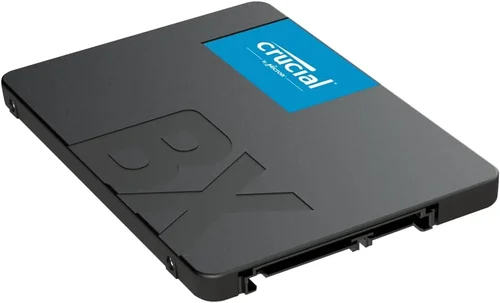
Upgrading your laptop’s storage with a solid-state drive (SSD) is one of the most impactful performance improvements you can make in 2026. Whether you’re replacing a sluggish hard disk drive (HDD) or expanding your existing SSD capacity, choosing the right drive involves more than just picking the fastest or cheapest option. With so many brands, form factors, and technical specifications on the market, it’s easy to feel overwhelmed. This comprehensive guide cuts through the noise to help you make a smart, informed decision based on your real-world needs.
In this article, you’ll learn everything you need to know to select the best SSD for your laptop—from understanding key performance metrics like read/write speeds and endurance ratings, to comparing top brands like Samsung, Crucial, Western Digital, Kingston, and more. We’ll break down the different types of SSDs available today, highlight common pitfalls to avoid, and provide budget-friendly recommendations across multiple price tiers. Whether you’re a casual user, a creative professional, or a power user running demanding applications, this guide will equip you with the knowledge to choose an SSD that delivers reliability, speed, and long-term value.
The SSD market in 2026 is more competitive and advanced than ever. NVMe drives have become the standard for new laptops, offering blazing-fast data transfer rates that dramatically improve boot times, application loading, and file transfers. Meanwhile, SATA SSDs remain a solid choice for older systems or budget builds. With innovations in 3D NAND technology, QLC and TLC memory types, and power-efficient controllers, today’s SSDs are not only faster but also more durable and energy-efficient. However, not all SSDs are created equal—brand reputation, firmware quality, warranty support, and real-world performance can vary significantly. Our goal is to help you navigate these variables and find the perfect SSD for your laptop, no matter your use case or budget.

What to Look for When Buying Buying Guide
1. Budget & Price Range
Your budget is the first and most important factor when choosing an SSD. Prices vary widely depending on capacity, interface type (SATA vs. NVMe), and brand. As of 2026, entry-level 500GB SATA SSDs start around $30–$40, while high-performance 2TB NVMe Gen4 drives can cost $150–$250 or more. It’s tempting to go for the cheapest option, but cutting corners on storage can lead to poor performance, shorter lifespan, and potential data loss.
When setting your budget, consider not just the upfront cost but also the cost per gigabyte (GB). For example, a 1TB SSD at $70 offers better value ($0.07/GB) than a 500GB drive at $40 ($0.08/GB). Also, factor in future needs—will you need more space in a year? If so, investing in a larger capacity now may save you money and hassle later. Mid-range drives ($60–$120 for 1TB) typically offer the best balance of price, performance, and reliability for most laptop users.
2. Performance Specifications
Performance is where SSDs truly shine compared to traditional HDDs. The two most critical performance metrics are sequential read and write speeds, measured in megabytes per second (MB/s). For NVMe SSDs, speeds can range from 2,000 MB/s on entry-level Gen3 drives to over 7,000 MB/s on high-end Gen4 models. SATA SSDs, limited by the SATA III interface, cap out around 550 MB/s.
While peak speeds look impressive on paper, real-world performance depends on more than just raw throughput. Random read/write performance—measured in input/output operations per second (IOPS)—is crucial for everyday tasks like opening applications, multitasking, and loading small files. A drive with high IOPS will feel snappier during normal use, even if its sequential speeds aren’t the highest.
Also consider the controller and NAND type. Modern SSDs use either TLC (triple-level cell) or QLC (quad-level cell) NAND. TLC offers better endurance and performance, making it ideal for heavy workloads. QLC is cheaper and offers higher capacities but wears out faster under constant write loads. For most laptop users, TLC is the safer, more reliable choice.
3. Build Quality & Durability
SSDs have no moving parts, making them inherently more durable than HDDs. However, build quality still varies between manufacturers and models. Look for drives with robust controllers, high-quality NAND flash, and effective thermal management—especially important in thin laptops where heat buildup can throttle performance.
Endurance is another key durability metric, measured in terabytes written (TBW). This indicates how much data can be written to the drive over its lifetime. A 1TB SSD might have a TBW rating of 600–800TB, while a 2TB model could reach 1,200TB or more. Higher TBW ratings generally correlate with better build quality and longer lifespan. For average users writing 20–30GB per day, even a mid-tier SSD should last 5–7 years.
Also check for features like power-loss protection, which prevents data corruption during unexpected shutdowns, and advanced error correction. These are more common in enterprise-grade drives but can be found in premium consumer models from brands like Samsung and Crucial.
4. Features & Functionality
Beyond speed and durability, modern SSDs come with a range of features that enhance usability and security. One of the most important is hardware encryption, often compliant with TCG Opal or IEEE 1667 standards. This allows you to secure your data with full-disk encryption without impacting performance—ideal for business users or anyone handling sensitive information.
Some SSDs include proprietary software suites for monitoring drive health, updating firmware, and cloning data from an old drive. Samsung’s Magician, Crucial’s Storage Executive, and Western Digital’s Dashboard are excellent examples. These tools can simplify installation and help you maintain optimal performance over time.
Another useful feature is thermal throttling management. High-performance NVMe drives can get hot under load, causing them to slow down to prevent damage. Drives with built-in heat spreaders or dynamic thermal protection maintain consistent speeds during sustained workloads. This is especially important in compact laptops with limited airflow.
5. Brand Reputation
Not all SSD brands are created equal. Established manufacturers like Samsung, Crucial, Western Digital, Kingston, and SK Hynix have a proven track record of reliability, performance, and customer support. These companies invest heavily in R&D, quality control, and firmware optimization, which translates to more stable and long-lasting drives.
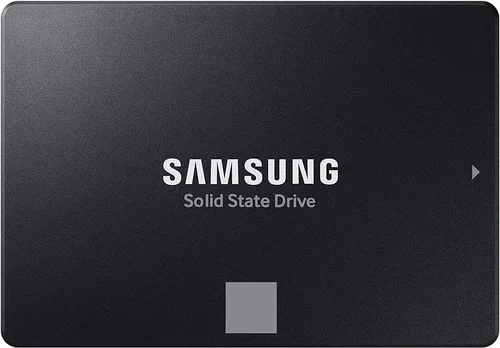
Samsung, for example, is widely regarded as the gold standard in consumer SSDs. Their 990 Pro and 980 Pro models consistently rank among the fastest and most reliable NVMe drives. Crucial, a subsidiary of Micron, offers excellent value with drives like the P5 Plus and X9 Pro, which balance performance and affordability. Western Digital’s WD Black and SanDisk Extreme lines are also top contenders, especially for gamers and content creators.
Avoid no-name or ultra-budget brands that lack transparency about components or firmware. While they may offer tempting prices, the risk of early failure, poor performance, or lack of warranty support isn’t worth the savings. Stick with reputable brands that provide clear specifications and reliable customer service.
6. Warranty & Support
A strong warranty is a strong indicator of a manufacturer’s confidence in their product. Most premium SSDs come with a 5-year limited warranty, covering defects and premature failure. Some brands, like Samsung and Crucial, also offer data recovery services or replacement guarantees, which can be invaluable if your drive fails.
When comparing warranties, pay attention to the terms. Some are time-based (e.g., 5 years from purchase), while others are usage-based (e.g., up to 600TBW). The latter is more common with high-endurance drives. Also, ensure the warranty is transferable if you plan to sell or upgrade your laptop in the future.
Customer support quality varies by brand. Samsung and Crucial offer responsive live chat and phone support, while others may rely solely on email or forums. Check user reviews and support forums to gauge how quickly and effectively a company resolves issues. A good warranty is only useful if the support team stands behind it.
7. Size & Portability
While SSDs are generally compact, form factor matters—especially in laptops. The two most common types are 2.5-inch SATA drives and M.2 NVMe drives. 2.5-inch SSDs are larger and require a SATA connection and power cable, making them suitable for older laptops or desktops. They’re easy to install but take up more space.
M.2 SSDs, on the other hand, are tiny, stick-like drives that plug directly into the motherboard. They come in different lengths (e.g., 2280, 2260) and support either SATA or NVMe protocols. Most modern laptops use M.2 NVMe drives due to their speed and space efficiency. Before buying, check your laptop’s manual or manufacturer website to confirm which form factor and interface it supports.
Portability isn’t just about physical size—it’s also about ease of installation. M.2 drives are simpler to install in most laptops, requiring only a screwdriver. 2.5-inch drives may need a caddy or adapter if replacing an HDD. If you’re not comfortable opening your laptop, consider professional installation or choosing a model known for user-friendly setup.
8. User Reviews & Ratings
Technical specs tell part of the story, but real-world user experiences reveal the rest. Always check customer reviews on trusted platforms like Amazon, Newegg, or Best Buy. Look for patterns in feedback—consistent praise for speed and reliability is a good sign, while recurring complaints about failure rates or poor support should raise red flags.
Pay attention to reviews from users with similar use cases. A drive praised by video editors for handling large 4K files may not be the best fit for a student who mainly browses the web and writes documents. Also, check professional reviews from tech sites like Tom’s Hardware, AnandTech, or PCMag, which conduct rigorous testing and benchmarking.
Be wary of fake or incentivized reviews. Look for detailed, balanced feedback that mentions both pros and cons. A drive with 10,000 five-star reviews but no critical comments may be suspicious. Authentic reviews often include photos, installation tips, and long-term usage insights that can help you make a better decision.
Different Types of Buying Guide

Common Buying Mistakes to Avoid

❌ Mistake: Ignoring Your Laptop’s Compatibility
Why it’s bad: Not all SSDs fit all laptops. Installing an incompatible drive can result in physical damage, poor performance, or complete failure to boot. For example, a Gen4 NVMe drive may not work in a laptop that only supports Gen3, or a 22110 M.2 drive may be too long for your system.
What to do instead: Always check your laptop’s specifications before buying. Look up the model number on the manufacturer’s website or use tools like Crucial’s Scanner to identify compatible drives. When in doubt, consult the user manual or contact support.
❌ Mistake: Choosing the Cheapest Drive Available
Why it’s bad: Ultra-budget SSDs often use inferior components, lack firmware updates, and have high failure rates. You might save $20 upfront but risk losing valuable data or needing a replacement within a year.
What to do instead: Prioritize value over price. Spend a little more for a reputable brand with a solid warranty and positive reviews. A $70 drive from Samsung or Crucial will outperform and outlast a $40 no-name alternative.
❌ Mistake: Overlooking Endurance Ratings
Why it’s bad: SSDs have a finite number of write cycles. If you’re a heavy user—editing videos, running virtual machines, or downloading large files—choosing a low-endurance drive can lead to premature failure.
What to do instead: Check the TBW rating and choose a drive with at least 600TBW for a 1TB model. For intensive workloads, opt for TLC NAND over QLC and consider enterprise-grade options if necessary.
❌ Mistake: Assuming All NVMe Drives Are the Same
Why it’s bad: NVMe is a protocol, not a performance guarantee. A budget NVMe drive may only be slightly faster than a SATA SSD, while a high-end Gen4 drive can be 10x faster. Buying based on interface alone can lead to disappointment.
What to do instead: Compare real-world benchmarks and reviews. Look at both sequential and random performance. If your laptop only supports Gen3, there’s no benefit to buying a Gen4 drive.
❌ Mistake: Skipping Data Backup Before Installation
Why it’s bad: Installing a new SSD often requires wiping the old drive. Without a backup, you risk losing photos, documents, and system files.
What to do instead: Always back up your data before upgrading. Use cloud storage, an external drive, or cloning software to transfer your files safely.
❌ Mistake: Ignoring Thermal Performance
Why it’s bad: High-speed NVMe drives generate heat, which can cause thermal throttling in thin laptops. This reduces performance and can shorten the drive’s lifespan.
What to do instead: Choose drives with good thermal management or consider adding a heatsink if your laptop allows it. Monitor temperatures using tools like HWMonitor after installation.
❌ Mistake: Not Checking Warranty Terms
Why it’s bad: Some warranties are voided if the drive is used in a laptop instead of a desktop, or if the TBW limit is exceeded. You could be left without coverage when you need it most.
What to do instead: Read the fine print. Ensure the warranty covers laptop use and understand the conditions for claims. Register your drive if required.
Budget Guidelines: How Much Should You Spend?
- Entry-Level ($30–$60): Ideal for basic upgrades in older laptops. Look for 500GB–1TB SATA or M.2 SATA SSDs from brands like Kingston or Crucial. Expect decent performance for everyday tasks but lower endurance and fewer features.
- Mid-Range ($60–$120): The sweet spot for most users. 1TB NVMe Gen3 or Gen4 drives from Samsung, Crucial, or WD offer excellent speed, reliability, and warranty support. Perfect for students, professionals, and casual gamers.
- Premium ($120–$200): For power users and creators. High-capacity (2TB+) Gen4 NVMe drives with top-tier performance, advanced features, and 5-year warranties. Great for video editing, 3D rendering, and gaming.
- Luxury ($200+): Top-of-the-line models with cutting-edge technology, extreme endurance, and professional-grade support. Includes drives like the Samsung 990 Pro 4TB or WD Black SN850X. Best for enthusiasts and enterprise use.
Expert Tips for Getting the Best Deal
- Buy during major sales events: Black Friday, Cyber Monday, and Amazon Prime Day offer significant discounts on SSDs. Sign up for price alerts on sites like CamelCamelCamel or Slickdeals.
- Compare prices across retailers: Check Amazon, Newegg, Best Buy, and direct manufacturer stores. Sometimes the manufacturer offers better warranties or bundles.
- Consider refurbished or open-box deals: Certified refurbished SSDs from reputable sellers often come with full warranties and can save you 20–30%.
- Check return policies: Ensure the retailer offers a 30-day return window in case the drive is incompatible or defective.
- Use cloning software: Many brands include free cloning tools to transfer your OS and files from the old drive. This saves time and avoids reinstalling everything.
- Monitor drive health: After installation, use tools like CrystalDiskInfo or the manufacturer’s software to track temperature, wear level, and SMART data.
- Upgrade in pairs: If your laptop has two M.2 slots, consider adding a second SSD for extra storage or RAID configurations.
- Don’t forget the screw: Some laptops require a specific M.2 screw to secure the drive. Check if it’s included or purchase a replacement kit.

Frequently Asked Questions
Q: Can I use an NVMe SSD in a laptop that originally had an HDD?
A: Only if your laptop has an M.2 NVMe slot. Most HDD-only laptops use 2.5-inch bays and SATA connections, so you’d need a SATA SSD or an M.2-to-2.5-inch adapter. Check your laptop’s specs first.
Q: Will a faster SSD improve my laptop’s overall performance?
A: Yes, but only up to a point. An SSD will dramatically improve boot times, app loading, and file access. However, it won’t boost CPU or GPU performance. For best results, pair your SSD with sufficient RAM.
Q: How do I know if my laptop supports NVMe?
A: Check the user manual, manufacturer’s website, or use system information tools like CPU-Z. Look for “M.2” and “NVMe” in the storage section. Some laptops support both SATA and NVMe M.2 drives.
Q: Is it safe to buy SSDs from third-party sellers?
A: It can be, but verify the seller’s rating and return policy. Avoid sellers with low ratings or no contact information. Stick to authorized retailers when possible.
Q: Can I install an SSD myself?
A: Yes, most SSD upgrades are user-friendly. M.2 drives require a screwdriver; 2.5-inch drives may need a caddy. Follow a guide specific to your laptop model.
Q: Do SSDs need defragmentation?
A: No. SSDs don’t benefit from defragmentation and it can reduce their lifespan. Windows and macOS automatically disable defrag for SSDs.
Q: How long do SSDs last?
A: Most consumer SSDs last 5–10 years under normal use. Check the TBW rating and monitor health with diagnostic tools.
Q: What’s the difference between TLC and QLC NAND?
A: TLC stores 3 bits per cell and offers better endurance and performance. QLC stores 4 bits, is cheaper, but wears out faster. Choose TLC for reliability.
Q: Can I use an external SSD as my main drive?
A: Technically yes, but it’s not recommended for daily use due to slower speeds and potential connection issues. Use it for backups or portable storage.
Q: Do I need to enable TRIM?
A: TRIM helps maintain SSD performance by clearing unused data blocks. It’s usually enabled by default in modern operating systems. Check with “fsutil behavior query DisableDeleteNotify” in Windows.
Our Final Recommendations
- Best for Budget-Conscious Buyers: Crucial P3 1TB NVMe Gen3 – Excellent value at under $60, reliable performance, and a 5-year warranty. Perfect for upgrading older laptops.
- Best Overall Value: Samsung 980 1TB NVMe Gen3 – Combines Samsung’s legendary reliability with strong performance and low power consumption. Great for everyday use.
- Best Premium Option: Samsung 990 Pro 2TB NVMe Gen4 – Blazing-fast speeds, top-tier endurance, and advanced thermal control. Ideal for creators and gamers.
- Best for Beginners: Western Digital Blue SN580 1TB NVMe Gen4 – Easy to install, user-friendly software, and solid performance at a reasonable price.
- Best for Advanced Users: SK Hynix Platinum P41 2TB NVMe Gen4 – One of the fastest consumer SSDs available, with exceptional efficiency and endurance for demanding workloads.
Conclusion: Making the Right Choice
Choosing the best SSD for your laptop doesn’t have to be overwhelming. By focusing on your specific needs—whether that’s budget, performance, capacity, or compatibility—you can find a drive that transforms your computing experience. Remember, the goal isn’t to buy the fastest or most expensive SSD, but the one that delivers the best balance of speed, reliability, and value for your use case.
Start by assessing your laptop’s capabilities and your daily workload. Are you a student needing faster boot times? A designer working with large files? Or a gamer wanting quicker load screens? Once you know your priorities, use the factors and recommendations in this guide to narrow down your options. Don’t rush the decision—take time to read reviews, compare specs, and check compatibility.
Investing in a quality SSD is one of the best upgrades you can make for your laptop. It’s not just about speed; it’s about reliability, efficiency, and peace of mind. With the right drive, your laptop will feel like new again—responsive, stable, and ready for whatever you throw at it. So go ahead, make the switch, and enjoy the difference a great SSD can make in 2026 and beyond.