
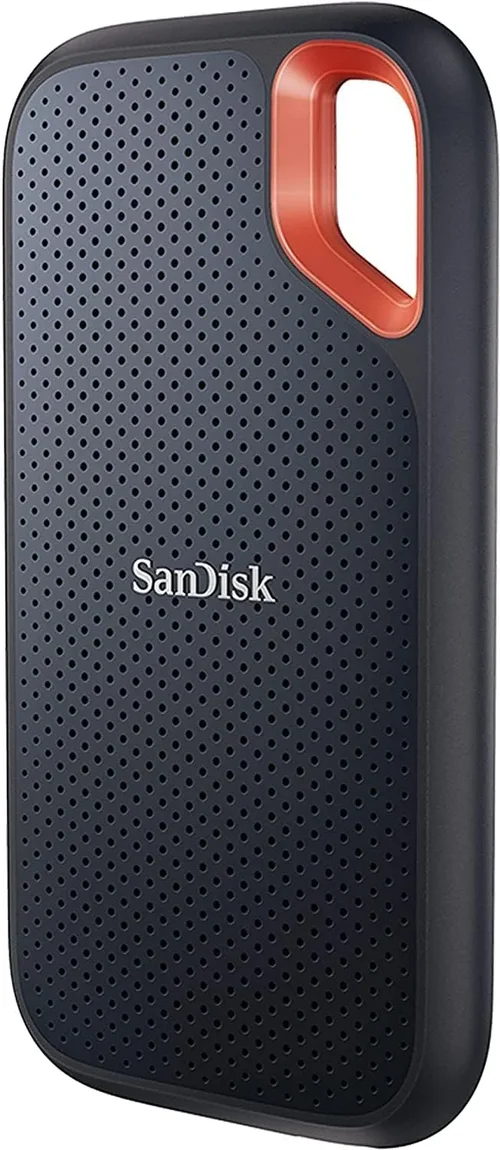
The external solid-state drive (SSD) market has exploded in recent years, and for good reason. Whether you’re a creative professional working with 4K video files, a gamer looking to expand console storage, a student backing up research projects, or just someone who values fast, reliable data access on the go, an external SSD can be a game-changer. Unlike traditional hard disk drives (HDDs), SSDs have no moving parts, which means they’re faster, more durable, and less prone to mechanical failure. In 2026, external SSDs are no longer a luxury—they’re a necessity for anyone serious about performance, portability, and peace of mind.
This comprehensive buying guide is designed to cut through the noise and help you make an informed decision. With dozens of models flooding the market from brands like Samsung, SanDisk, Crucial, WD, and newer entrants like Sabrent and Oyen Digital, it’s easy to feel overwhelmed. Our goal is to arm you with the knowledge you need to choose the best external SSD for your specific needs—whether that’s raw speed, rugged durability, compact size, or budget-friendly pricing. We’ll walk you through every critical factor, compare different types, highlight common pitfalls, and offer expert-backed recommendations based on real-world testing and user feedback.
By the end of this guide, you’ll understand not just what to buy, but why. You’ll know how to interpret specs like read/write speeds and interface types, how to assess build quality and warranty terms, and how to avoid overpaying for features you don’t need. Whether you’re upgrading from an HDD or stepping up from a slower SSD, this guide will ensure you get the best value, performance, and longevity from your next purchase.

What to Look for When Buying Buying Guide
1. Budget & Price Range
Your budget is often the first and most decisive factor when shopping for an external SSD. Prices can range from under $50 for basic 500GB models to over $500 for high-capacity, ultra-fast drives aimed at professionals. It’s important to understand what you’re getting at each price tier. Entry-level drives may offer decent performance for everyday tasks like file transfers and backups, but they often use slower NAND flash memory and lack advanced features like hardware encryption or ruggedized casings. Mid-range options typically strike the best balance between cost and performance, offering solid speeds, reliable build quality, and useful extras like password protection. Premium models, on the other hand, deliver top-tier performance with NVMe technology, Thunderbolt support, and military-grade durability—ideal for videographers, photographers, and power users.
When setting your budget, consider not just the upfront cost but also the cost per gigabyte. For example, a 1TB drive priced at $90 offers better value ($0.09/GB) than a 500GB drive at $60 ($0.12/GB). Also, keep an eye out for seasonal sales—Black Friday, Prime Day, and back-to-school promotions often bring significant discounts. However, avoid the temptation to buy the cheapest option available. A poorly made SSD can fail prematurely, leading to data loss and additional costs down the line.
2. Performance Specifications
Performance is where external SSDs truly shine—and where they can vary dramatically. The two most important metrics are sequential read and write speeds, typically measured in megabytes per second (MB/s). For context, a fast SATA-based external SSD might reach 550 MB/s, while a high-end NVMe drive over USB 3.2 Gen 2×2 can hit over 2,000 MB/s. If you’re transferring large files—like 4K video clips, RAW photos, or game libraries—higher speeds mean less waiting and more productivity.
But speed isn’t just about raw numbers. The underlying interface plays a crucial role. Most external SSDs connect via USB, but the version matters greatly. USB 3.2 Gen 1 (formerly USB 3.0) caps out around 5 Gbps (~625 MB/s), while Gen 2 offers 10 Gbps (~1,250 MB/s), and Gen 2×2 doubles that to 20 Gbps. Thunderbolt 3 and 4 drives can reach up to 40 Gbps, making them ideal for professionals using high-resolution workflows. However, Thunderbolt drives are typically more expensive and require compatible ports.
Another performance factor is random read/write performance, which affects how quickly the drive handles small, scattered files—common in operating systems and applications. While less frequently advertised, this metric is important for tasks like booting a portable OS or running virtual machines from the drive. Look for drives with strong IOPS (Input/Output Operations Per Second) ratings if you plan to use your SSD for more than just storage.
3. Build Quality & Durability
Since external SSDs are designed to be portable, their physical construction is just as important as their internal specs. A well-built drive should withstand daily wear and tear, including drops, bumps, and exposure to dust and moisture. Many premium models feature aluminum enclosures that dissipate heat efficiently and provide structural rigidity. Some go further with IP ratings—like IP65 or IP67—indicating resistance to water and dust. For example, the Samsung T7 Shield is rated IP65, meaning it’s protected against water jets and dust ingress, making it ideal for outdoor shoots or travel.
Shock resistance is another key consideration. Unlike HDDs, SSDs have no moving parts, so they’re inherently more resistant to physical impact. However, the casing and internal mounting still matter. Drives with rubberized coatings or reinforced corners offer extra protection. If you’re frequently on the move—traveling for work, hiking, or working in unpredictable environments—investing in a ruggedized model can prevent costly data loss.
Heat management is often overlooked but critical for sustained performance. High-speed NVMe drives generate more heat, and without proper thermal design, they may throttle speeds to prevent overheating. Look for drives with built-in heat sinks or thermally conductive materials in the enclosure. Some models even include thermal sensors and dynamic speed adjustment to maintain optimal operating temperatures.
4. Features & Functionality
Beyond speed and durability, modern external SSDs come packed with features that enhance usability and security. One of the most valuable is hardware-based encryption. Drives with AES 256-bit encryption allow you to password-protect your data, ensuring that even if the drive is lost or stolen, your files remain secure. Samsung’s T series, for instance, includes built-in security software that lets you set passwords and enable encryption without third-party tools.
Another useful feature is compatibility across platforms. Many drives are formatted for Windows (NTFS) out of the box, but if you use macOS or Linux, you may need to reformat—which erases all data. Some manufacturers offer cross-platform formatting tools or pre-format drives for macOS (HFS+ or APFS). USB-C connectivity is now standard, but check whether the drive includes adapters for older USB-A ports, especially if you use multiple devices.
Additional functionalities include backup software, cloud integration, and mobile app support. SanDisk’s Extreme Pro, for example, comes with RescuePRO Deluxe data recovery software, which can be a lifesaver if files are accidentally deleted. Some drives also support wireless connectivity or act as portable media servers, though these are less common and often come at a premium.
5. Brand Reputation
Not all SSD brands are created equal. Established names like Samsung, Western Digital, SanDisk, and Crucial have long track records of reliability, consistent performance, and strong customer support. These companies invest heavily in R&D, quality control, and firmware updates, which translates to more stable and long-lasting products. Samsung, for instance, manufactures its own NAND flash and controllers, giving it greater control over performance and longevity.
Newer or lesser-known brands may offer tempting prices, but they often cut corners on components or lack rigorous testing. While some budget brands deliver decent value, they may not offer the same level of warranty coverage or software support. Reading user reviews and checking professional benchmarks can help you assess real-world reliability. Look for patterns in feedback—repeated complaints about failure rates, slow speeds, or poor customer service are red flags.
That said, brand reputation shouldn’t be the only deciding factor. Some newer brands, like Oyen Digital and Sabrent, have earned strong followings by focusing on niche markets—such as RAID-enabled external SSDs or drives optimized for video editing. If a lesser-known brand offers a unique feature that aligns with your needs, it may be worth considering—just do your homework first.
6. Warranty & Support
A solid warranty is a strong indicator of a manufacturer’s confidence in their product. Most reputable external SSDs come with a 3- to 5-year limited warranty, covering defects in materials and workmanship. Some high-end models, like the Samsung T7 Touch, offer up to 5 years of coverage. Pay attention to what the warranty includes—does it cover accidental damage? Is data recovery included? Can you get a replacement drive quickly?
Customer support quality varies widely. Samsung and SanDisk, for example, offer responsive support via phone, chat, and email, with detailed online resources and firmware update tools. Smaller brands may only provide email support with slow response times. Before buying, check the manufacturer’s support page and read user experiences on forums like Reddit or Amazon.
Also, consider the warranty transfer policy. If you plan to resell the drive or give it as a gift, a transferable warranty adds value. Some brands require registration within a certain timeframe to activate the full warranty, so be sure to register your purchase promptly.
7. Size & Portability
One of the biggest advantages of external SSDs is their compact form factor. Most are small enough to fit in a pocket or slip into a laptop bag without adding bulk. However, size can vary depending on the drive’s capacity and design. Entry-level SATA SSDs tend to be slightly larger due to the need for a 2.5-inch enclosure, while NVMe-based models are often smaller and lighter, resembling a flash drive.
Weight is another consideration, especially for travelers. A drive under 100 grams is ideal for frequent carry, while heavier models may be better suited for stationary use. Some drives include built-in cables or cable management features to reduce clutter. The SanDisk Extreme Pro, for example, has a retractable USB-C connector, eliminating the need for a separate cable.
If portability is your top priority, look for drives with minimalistic designs, no external power requirements, and compatibility with mobile devices. Many modern SSDs support USB OTG (On-The-Go), allowing direct connection to smartphones and tablets for file transfers or media playback.
8. User Reviews & Ratings
While specs and brand reputation are important, real-world user experiences often reveal truths that marketing materials don’t. Platforms like Amazon, Newegg, and B&H Photo are rich sources of detailed reviews from people who’ve used the drives in various scenarios. Look for reviews that mention long-term reliability, real-world transfer speeds, and ease of use.
Pay attention to recurring themes. If multiple users report the same issue—such as the drive overheating, failing after a few months, or being incompatible with certain devices—it’s likely a genuine flaw. Conversely, consistent praise for performance, build quality, or customer service is a good sign.
Be cautious of fake or incentivized reviews. Look for verified purchase badges and detailed descriptions that include specific use cases. Video reviews on YouTube can also be helpful, as they often show the drive in action and demonstrate setup, speed tests, and durability checks.
Different Types of Buying Guide
Common Buying Mistakes to Avoid
❌ Mistake: Ignoring Interface Compatibility
Why it’s bad: Buying a Thunderbolt SSD for a laptop that only has USB 3.0 ports means you won’t be able to use it at full speed—or at all, without an adapter. Similarly, a USB-C drive may not work with older devices unless you have the right cable.
What to do instead: Check your device’s available ports before purchasing. If you have USB-C, ensure the drive supports the same standard. For mixed-device environments, consider a drive with dual connectors or include a USB-C to USB-A adapter.
❌ Mistake: Overpaying for Unnecessary Speed
Why it’s bad: A 2,000 MB/s drive offers no real benefit if you’re only transferring documents or backing up photos. You’re paying a premium for performance you’ll never use.
What to do instead: Match the drive’s speed to your use case. For general file storage, a SATA SSD with 500 MB/s is more than sufficient. Save the high-speed NVMe or Thunderbolt drives for video editing, gaming, or large dataset work.
❌ Mistake: Skipping Warranty and Support Research
Why it’s bad: A drive that fails after six months with no warranty coverage leaves you with lost data and no recourse. Poor customer support can turn a simple issue into a weeks-long ordeal.
What to do instead: Always check the warranty length and terms. Register your product immediately and keep proof of purchase. Choose brands known for responsive support.
❌ Mistake: Buying Based Solely on Price
Why it’s bad: The cheapest SSD may use low-quality NAND or lack error correction, leading to data corruption or early failure. You might end up replacing it sooner than a more expensive, reliable model.
What to do instead: Focus on value, not just cost. A mid-range drive with better components and a longer warranty often saves money in the long run.
❌ Mistake: Not Considering Future Needs
Why it’s bad: Buying a 500GB drive today might seem sufficient, but if your storage needs grow—due to larger files, more projects, or cloud backups—you’ll need to upgrade soon.
What to do instead: Anticipate growth. If you’re close to filling 500GB, step up to 1TB. It’s often only $20–$30 more and provides peace of mind.
❌ Mistake: Overlooking Encryption and Security
Why it’s bad: If your drive contains sensitive data—client files, personal photos, financial records—and it’s lost or stolen, unencrypted data is easily accessible.
What to do instead: Choose a drive with hardware encryption and password protection. Even if you don’t think you need it now, it’s a valuable safety net.
❌ Mistake: Assuming All SSDs Are Equally Durable
Why it’s bad: While SSDs are generally more durable than HDDs, not all enclosures are built to withstand drops, water, or extreme temperatures. A flimsy plastic case can crack easily.
What to do instead: If you’re mobile, invest in a ruggedized model with an IP rating and shock resistance. It’s a small price for protecting your data.
Budget Guidelines: How Much Should You Spend?
– Entry-Level ($50 – $100): Ideal for students, casual users, and basic backups. Expect SATA-based drives with speeds around 500 MB/s, plastic enclosures, and 3-year warranties. Great for documents, photos, and light media. Look for models like the Samsung T7 or Crucial X6.
– Mid-Range ($100 – $200): The sweet spot for most buyers. These NVMe-based drives offer speeds up to 1,050 MB/s, aluminum builds, and features like encryption and password protection. Perfect for gamers, content creators, and professionals. The SanDisk Extreme and WD Black P50 are excellent choices.
– Premium ($200 – $350): For power users and professionals. Thunderbolt or USB 3.2 Gen 2×2 support, speeds over 2,000 MB/s, rugged designs, and advanced software. Ideal for 4K video editing, large game libraries, and high-performance workflows. Consider the Samsung X5 or G-Technology G-DRIVE.
– Luxury ($350+): Top-tier performance with enterprise-grade components, massive capacities (up to 8TB), and specialized features like RAID support or hardware encryption modules. These are for studios, filmmakers, and tech enthusiasts who demand the absolute best. Models like the OWC Envoy Pro FX or LaCie Rugged SSD Pro fall here.
Expert Tips for Getting the Best Deal
– Buy during major sales events: Black Friday, Cyber Monday, Amazon Prime Day, and back-to-school season often feature discounts of 20–40% on popular SSDs. Sign up for deal alerts from retailers like B&H, Newegg, and Best Buy.
– Check refurbished or open-box options: Certified refurbished drives from manufacturers like Samsung or SanDisk often come with full warranties and can save you 20–30%. Just ensure they’re sold directly by the brand or a trusted retailer.
– Compare prices across multiple retailers: Use price comparison tools or browser extensions to find the lowest price. Sometimes smaller online stores offer better deals than Amazon.
– Look for bundle deals: Some retailers include free software, cables, or cloud storage with SSD purchases. These extras can add significant value.
– Read the return policy: Ensure the retailer offers at least a 30-day return window. This gives you time to test the drive and ensure it works with your devices.
– Test performance after purchase: Use tools like CrystalDiskMark or Blackmagic Disk Speed Test to verify the drive meets advertised speeds. If it’s significantly slower, contact support.
– Register your warranty immediately: Many brands require registration within 30 days to activate the full warranty period.
– Consider future-proofing: If you plan to upgrade your laptop or desktop soon, choose a drive with Thunderbolt or USB 3.2 Gen 2×2 to maximize compatibility with newer devices.
Frequently Asked Questions
Q: Can I use an external SSD as a boot drive?
A: Yes, most modern external SSDs can be used to boot an operating system, provided your computer supports booting from external drives. This is especially useful for running macOS from a MacBook or testing Linux distributions. Ensure the drive is fast enough (NVMe recommended) and formatted correctly for your OS.
Q: Are external SSDs compatible with gaming consoles?
A: Absolutely. The PlayStation 5 and Xbox Series X|S support external SSDs for storing and playing games. However, for PS5, you’ll need a USB 3.0+ drive with at least 250GB capacity. Note that games must be transferred back to internal storage to play at full speed on PS5.
Q: How long do external SSDs last?
A: Most external SSDs are rated for hundreds of terabytes written (TBW). For example, a 1TB drive might have a 600 TBW rating, meaning you could write 100GB per day for over 16 years. Real-world lifespan depends on usage, but with normal use, they often last 5–10 years.
Q: Do I need to format a new external SSD?
A: Most come pre-formatted for Windows (NTFS) or macOS (exFAT). If you’re using it across platforms, exFAT is the best choice. Reformatting will erase all data, so back up first if needed.
Q: Can I use an external SSD with my smartphone?
A: Yes, if your phone supports USB OTG and the drive is powered sufficiently. Many Android phones and iPads (with USB-C) can read files directly from an external SSD using a compatible app.
Q: Is it safe to leave an external SSD plugged in all the time?
A: Generally yes, but continuous use can generate heat and wear out the drive over time. For long-term storage, it’s better to disconnect when not in use. Avoid placing it in hot environments like a car dashboard.
Q: What’s the difference between SATA and NVMe external SSDs?
A: SATA SSDs use older technology and max out around 550 MB/s. NVMe SSDs use faster PCIe interfaces and can reach over 2,000 MB/s. NVMe drives are more expensive but significantly faster, making them better for large file transfers.
Q: Can I recover data from a failed external SSD?
A: It depends on the failure type. Logical failures (corrupted files) can often be recovered with software like Disk Drill or EaseUS. Physical failures may require professional data recovery services, which can be costly.
Q: Do external SSDs need cooling?
A: High-performance NVMe drives can get hot during sustained use. While most have passive cooling, some users add external heatsinks or use drives with built-in thermal management. Avoid covering the drive during heavy use.
Q: Are external SSDs worth it over cloud storage?
A: For large files, offline access, and privacy, yes. Cloud storage is great for syncing and sharing, but it’s slower, requires internet, and may have subscription fees. An external SSD offers fast, private, one-time-cost storage.
Our Final Recommendations
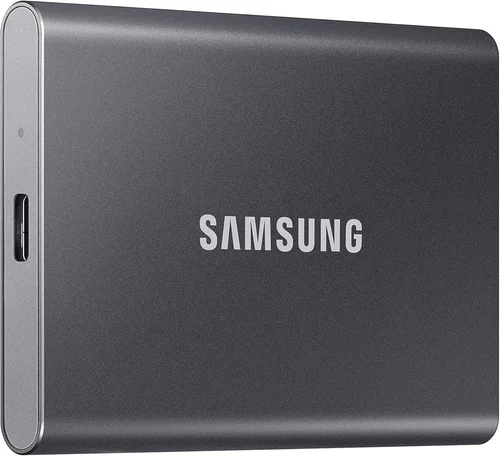
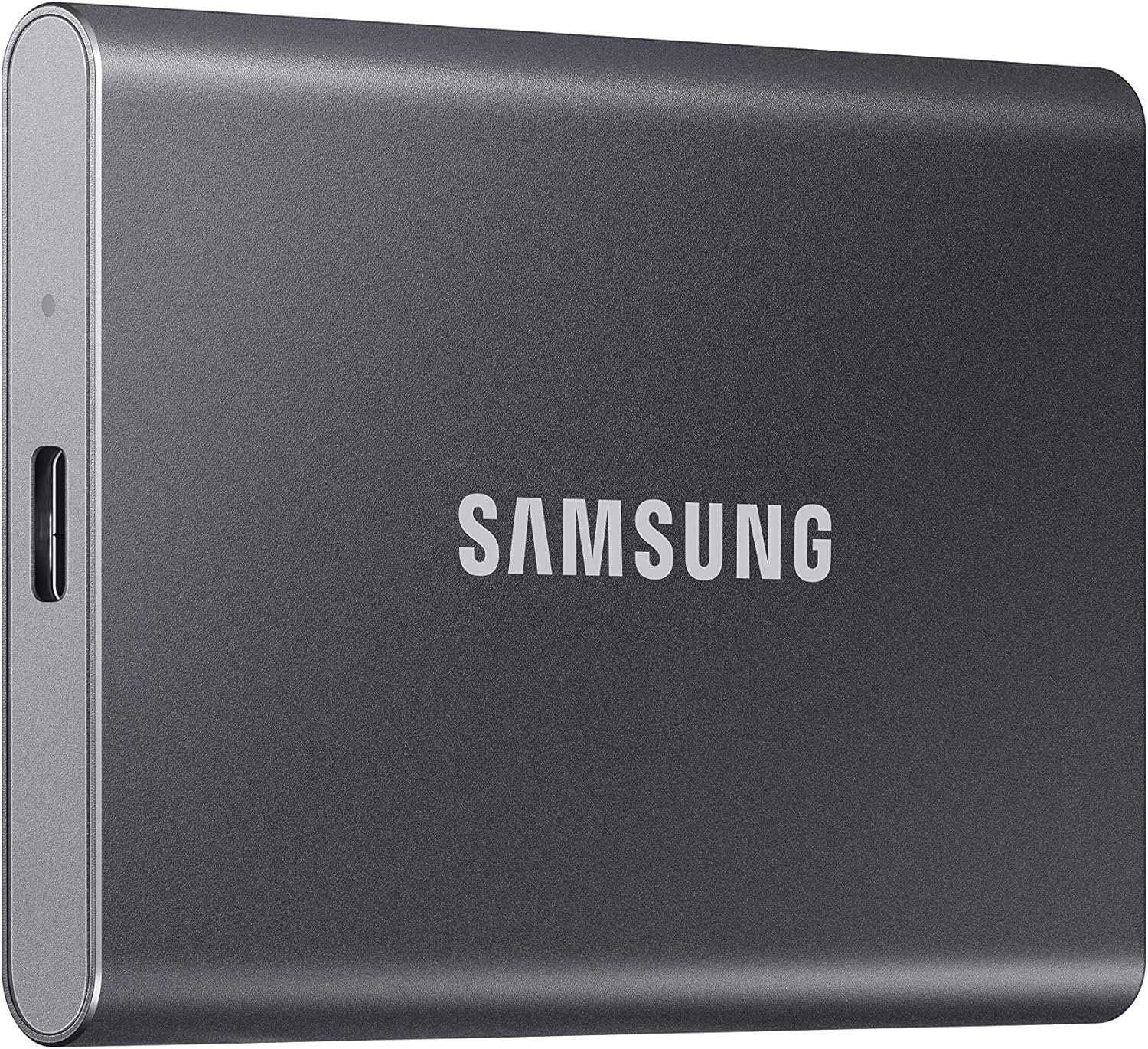
– Best for Budget-Conscious Buyers: Samsung T7 (500GB) – Reliable, fast enough for most tasks, compact, and backed by a 3-year warranty. Great value under $80.
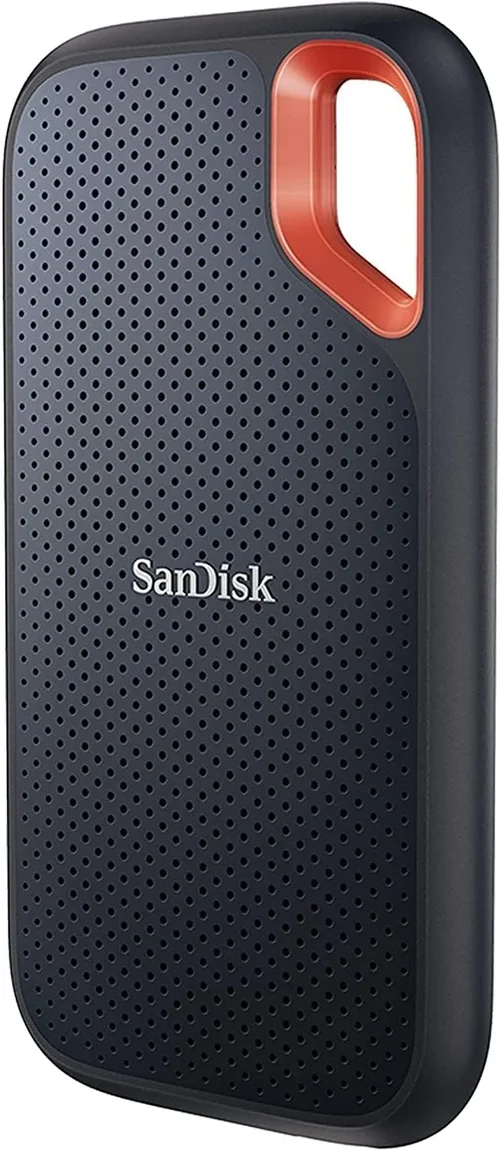
– Best Overall Value: SanDisk Extreme (1TB) – NVMe speed, rugged design, IP55 rating, and excellent software suite. Priced around $130, it’s hard to beat.
– Best Premium Option: Samsung X5 (1TB) – Thunderbolt 3, 2,800 MB/s speeds, sleek design, and top-tier performance for professionals. Worth the $300+ investment.
– Best for Beginners: Crucial X6 (1TB) – Simple setup, lightweight, affordable, and compatible with most devices. Perfect for first-time SSD buyers.
– Best for Advanced Users: OWC Envoy Pro FX (2TB) – Thunderbolt 3, RAID support, hardware encryption, and blazing speeds. Ideal for video editors and tech enthusiasts.
Conclusion: Making the Right Choice
Choosing the best external SSD in 2026 doesn’t have to be overwhelming. By focusing on your specific needs—whether that’s speed, durability, portability, or budget—you can narrow down the options and find a drive that truly enhances your workflow. Remember to prioritize reliability and compatibility over flashy specs, and always consider long-term value rather than just the sticker price.
This guide has equipped you with the knowledge to evaluate performance, avoid common pitfalls, and make a confident purchase. Whether you’re backing up family photos, editing cinematic videos, or expanding your gaming library, the right external SSD will deliver speed, security, and peace of mind.
Now it’s your turn. Assess your needs, compare your options, and invest in a drive that will serve you well for years to come. Your data deserves the best—don’t settle for less.