
The world of storage technology has evolved dramatically over the past decade, and nowhere is that more evident than in the ongoing debate between traditional SSDs and their sleeker, faster cousin—the M.2 drive. Whether you’re building a high-performance gaming rig, upgrading an aging laptop, or simply looking to speed up your daily workflow, choosing the right type of solid-state drive can make all the difference. But with so many options, form factors, and technical jargon floating around, it’s easy to feel overwhelmed. That’s exactly why this comprehensive buying guide exists: to cut through the noise and help you make an informed, confident decision based on your unique needs, budget, and use case.
In this detailed 2026 edition of our SSD vs M.2 buying guide, we’ll walk you through everything you need to know—from understanding the fundamental differences between these two storage types to evaluating real-world performance, compatibility, and value. You’ll learn how to assess key factors like speed, durability, price, and physical fit, avoid common pitfalls that trip up even seasoned tech enthusiasts, and discover which option truly delivers the best bang for your buck. Whether you’re a casual user seeking faster boot times or a content creator handling 8K video files, this guide equips you with the knowledge to choose wisely.
The market today offers an overwhelming array of choices: SATA SSDs that plug into legacy ports, NVMe M.2 drives that scream across PCIe lanes, and even hybrid solutions that blur the lines between categories. Prices range from under $30 for basic 256GB models to well over $500 for cutting-edge 8TB beasts. With manufacturers like Samsung, WD, Crucial, Kingston, and Sabrent constantly pushing the envelope, it’s more important than ever to understand not just what each drive can do, but what it should do for you. By the end of this guide, you won’t just know whether SSD or M.2 is “better”—you’ll know which one is better for you.

What to Look for When Buying Buying Guide
1. Budget & Price Range
Your budget is often the most immediate constraint when shopping for storage, and it directly influences your options. Entry-level SATA SSDs can be found for as little as $25–$40 for a 500GB model, making them ideal for budget builds or older systems. In contrast, high-end NVMe M.2 drives—especially those using PCIe Gen5 interfaces—can cost upwards of $150–$300 for the same capacity. However, price doesn’t always correlate linearly with performance. A mid-range M.2 drive might offer significantly better speeds than a premium SATA SSD, even if it costs slightly less.
When setting your budget, consider total cost of ownership, not just upfront price. For example, a faster M.2 drive may reduce render times in video editing or load times in games, effectively saving you hours over months or years—time that has real value. Conversely, if you’re only using your system for web browsing, email, and office tasks, investing in a top-tier Gen5 M.2 may be overkill. Always ask: “Will I actually benefit from this extra speed?” If the answer is no, a reliable SATA SSD could serve you just as well at a fraction of the cost.
2. Performance Specifications
Performance is where SSDs and M.2 drives diverge most dramatically—and it’s also the factor that most buyers focus on. But raw numbers like “7,000 MB/s” can be misleading without context. Let’s break it down.
First, understand the interface: SATA III SSDs are limited to about 550 MB/s due to the SATA bus bottleneck, regardless of how fast the NAND flash inside is. M.2 drives, however, come in two main flavors—SATA-based M.2 (which still maxes out at ~550 MB/s) and NVMe-based M.2 (which uses PCIe lanes and can reach 3,500 MB/s on Gen3, 7,000 MB/s on Gen4, and even 14,000+ MB/s on Gen5). So not all M.2 drives are created equal!
Next, look at both sequential and random read/write speeds. Sequential speeds matter for large file transfers (like copying a 4K movie), while random speeds impact everyday responsiveness (opening apps, loading levels in games, multitasking). A drive with excellent sequential performance but poor random I/O will feel sluggish during normal use. Also pay attention to IOPS (Input/Output Operations Per Second)—higher IOPS mean better handling of small, scattered files, which is crucial for OS and application performance.
Finally, consider endurance, measured in TBW (Terabytes Written). A higher TBW rating means the drive can withstand more data writes over its lifetime, which is especially important for workloads involving frequent file creation/deletion (e.g., video editing, database work, or server use).
3. Build Quality & Durability
Unlike traditional hard drives, SSDs and M.2 drives have no moving parts, making them inherently more resistant to physical shock, vibration, and temperature fluctuations. However, build quality still varies significantly between brands and models.
Look for drives with robust controllers and high-quality NAND flash memory. TLC (Triple-Level Cell) NAND offers a good balance of speed, endurance, and cost, while QLC (Quad-Level Cell) is cheaper and denser but wears out faster under heavy write loads. SLC and MLC are enterprise-grade and rarely found in consumer drives due to cost.
Thermal management is another critical aspect—especially for M.2 NVMe drives, which can get extremely hot under sustained load. Many high-performance M.2 drives now include built-in heat spreaders or are designed to work with motherboard-mounted heatsinks. Without proper cooling, thermal throttling can drastically reduce performance. If your case has poor airflow or you’re running a compact build (like a mini-ITX PC), prioritize drives with efficient thermal design or plan to add a third-party heatsink.
Also consider the physical construction: some M.2 drives use double-sided PCBs that may not fit in laptops with tight clearances. Always check your device’s manual or manufacturer specs before purchasing.
4. Features & Functionality
Modern SSDs and M.2 drives come packed with features that go beyond basic storage. One of the most important is hardware encryption support, such as TCG Opal or IEEE 1667, which enables full-disk encryption without taxing your CPU. This is essential for professionals handling sensitive data or anyone concerned about privacy.
Another key feature is DRAM cache. Drives with a dedicated DRAM buffer maintain consistent performance during mixed workloads and improve longevity by reducing wear on the NAND. DRAM-less SSDs (often found in budget models) rely on system memory (HMB—Host Memory Buffer), which can work well in light usage but may struggle under sustained loads.
Power efficiency matters too, especially for laptops and mobile workstations. M.2 NVMe drives tend to consume more power than SATA SSDs, which can impact battery life. If you’re upgrading a laptop, check reviews for real-world power draw and thermal behavior.
Some drives also include proprietary software suites for cloning, monitoring health (via SMART data), firmware updates, and performance tuning. Samsung’s Magician, WD’s Dashboard, and Crucial’s Storage Executive are excellent examples. These tools can simplify maintenance and extend drive lifespan.
5. Brand Reputation
Not all storage brands are equal. While you can find decent drives from lesser-known manufacturers, sticking with reputable brands significantly reduces the risk of premature failure, poor support, or compatibility issues. Industry leaders like Samsung, Western Digital, Crucial (a Micron brand), Kingston, and Sabrent have proven track records for reliability, consistent firmware updates, and responsive customer service.
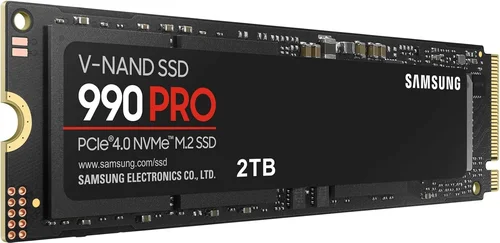
Samsung, for instance, is renowned for its high-end 990 Pro and 980 Pro M.2 drives, which consistently rank among the fastest and most reliable on the market. WD’s Black SN850X and Blue SA550 series offer excellent performance-to-price ratios. Crucial strikes a great balance between affordability and quality, especially with its P3 and P5 Plus lines.
That said, don’t dismiss newer or niche brands outright—some, like TeamGroup or ADATA, offer compelling value in the mid-range segment. Just be sure to read independent reviews and check warranty terms before committing.
6. Warranty & Support
A strong warranty is a strong indicator of a manufacturer’s confidence in their product. Most premium SSDs and M.2 drives come with 5-year limited warranties, often tied to TBW limits (e.g., “5-year or 600 TBW, whichever comes first”). Budget drives may offer only 3 years or even less.
Pay close attention to what the warranty covers. Does it include data recovery? (Spoiler: almost never.) Is it transferable if you sell your PC? Can you get a replacement without returning the defective unit? Also, check how easy it is to initiate a claim—some brands require lengthy forms, proof of purchase, and original packaging, while others offer streamlined online processes.
Customer support quality varies widely. Samsung and Crucial are generally praised for helpful, knowledgeable support teams. Others may leave you waiting days for a response. If long-term reliability is a priority, choose a brand with a solid support infrastructure.
7. Size & Portability
While SSDs and M.2 drives are both compact compared to HDDs, their physical dimensions and installation requirements differ significantly. Traditional 2.5-inch SATA SSDs are about the size of a deck of cards and connect via SATA data and power cables. They’re easy to install in desktops and most laptops but take up more space and add cable clutter.
M.2 drives, on the other hand, are tiny—typically 22mm wide and 42mm, 60mm, or 80mm long (denoted as 2242, 2260, 2280). They plug directly into the motherboard, eliminating cables entirely. This makes them ideal for slim laptops, ultrabooks, and small-form-factor PCs. However, their compact size also means less surface area for heat dissipation, so thermal performance is more critical.
If you’re building a portable external drive, consider that M.2 enclosures are widely available and allow you to create ultra-fast USB 3.2 Gen 2×2 or Thunderbolt 4 external SSDs. These can outperform many internal SATA drives and are perfect for photographers, videographers, and travelers who need high-speed portable storage.
8. User Reviews & Ratings
Never rely solely on manufacturer specs or marketing claims. Real-world user feedback reveals quirks, failures, and performance nuances that benchmarks miss. Check multiple sources: Amazon, Newegg, Best Buy, Reddit (r/buildapc, r/DataHoarder), and professional review sites like Tom’s Hardware, AnandTech, or StorageReview.
Look for patterns in reviews. If dozens of users report the same issue—thermal throttling, sudden disconnects, or early failure—it’s a red flag. Conversely, consistent praise for reliability, ease of installation, or customer service is a good sign. Pay special attention to reviews from users with similar use cases to yours (e.g., gamers, video editors, students).
Also, be wary of fake or incentivized reviews. Genuine feedback often includes specific details about setup, performance in real applications, and long-term usage over months or years.
Different Types of Buying Guide

Common Buying Mistakes to Avoid
❌ Mistake: Assuming All M.2 Drives Are Fast
Why it’s bad: Many buyers assume “M.2 = NVMe = fast,” but that’s not always true. Some M.2 drives use the SATA interface and perform identically to 2.5-inch SATA SSDs—around 550 MB/s. Buying one expecting NVMe speeds leads to disappointment and wasted money.
What to do instead: Always check the drive’s interface specification. Look for “NVMe” or “PCIe” in the product name or description. If it only says “M.2 SATA,” it’s not faster than a regular SSD.
❌ Mistake: Ignoring Motherboard Compatibility
Why it’s bad: Not all motherboards support NVMe or the latest PCIe generations. Installing a Gen5 M.2 drive in a Gen3-only slot will work, but you’ll be limited to Gen3 speeds—and may not even boot if the BIOS lacks proper support.
What to do instead: Consult your motherboard manual or manufacturer’s website. Check for M.2 slot type (Key M, Key B, or both), supported PCIe generation, and whether the slot shares bandwidth with other components (like SATA ports).
❌ Mistake: Overpaying for Speed You’ll Never Use
Why it’s bad: A Gen5 M.2 drive delivering 14,000 MB/s won’t make your web browser load faster or improve Excel calculations. For everyday tasks, the difference between 500 MB/s and 7,000 MB/s is imperceptible.
What to do instead: Match the drive to your workload. Gamers and casual users should prioritize Gen3 or entry-level Gen4. Only invest in Gen5 if you regularly transfer multi-gigabyte files or run I/O-intensive applications.
❌ Mistake: Skipping Thermal Management
Why it’s bad: High-performance NVMe drives generate significant heat. Without adequate cooling, they throttle performance to prevent damage, negating their speed advantage.
What to do instead: Use a motherboard with an M.2 heatsink, or buy a third-party heatsink. In laptops, ensure there’s space above the M.2 slot for airflow. Monitor temps using tools like HWInfo or CrystalDiskInfo.
❌ Mistake: Choosing DRAM-less Drives for Heavy Workloads
Why it’s bad: DRAM-less SSDs use system RAM as a cache, which can cause slowdowns during sustained writes or multitasking. They’re fine for light use but struggle under pressure.
What to do instead: For video editing, gaming, or development work, always choose a drive with a dedicated DRAM cache. The performance and longevity benefits far outweigh the small price difference.
❌ Mistake: Neglecting Firmware Updates
Why it’s bad: Outdated firmware can cause instability, reduced performance, or even data corruption. Manufacturers regularly release updates to fix bugs and improve compatibility.
What to do instead: Register your drive with the manufacturer and check for firmware updates every 6–12 months. Use the brand’s official utility (e.g., Samsung Magician) to apply updates safely.
❌ Mistake: Buying Based Solely on Price per GB
Why it’s bad: The cheapest drive per gigabyte is often QLC-based, DRAM-less, or from an unknown brand—compromising speed, endurance, and reliability.
What to do instead: Consider total value: performance, warranty, brand reputation, and real-world reviews. A slightly more expensive TLC drive with DRAM and a 5-year warranty is almost always a smarter long-term investment.
Budget Guidelines: How Much Should You Spend?
Entry-Level ($25–$60): This tier includes 2.5-inch SATA SSDs and basic M.2 SATA drives in 256GB–500GB capacities. Perfect for upgrading old laptops, building a budget office PC, or adding secondary storage. Expect reliable performance for everyday tasks but limited speed (550 MB/s max). Brands like Crucial BX500 or Kingston A400 offer solid value here.
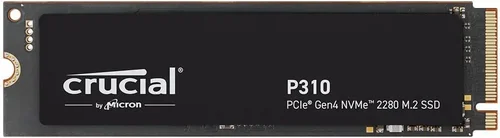
Mid-Range ($60–$150): The sweet spot for most users. Includes NVMe Gen3 and entry-level Gen4 M.2 drives (500GB–1TB). Drives like the WD Black SN770, Samsung 980, or Crucial P3 deliver excellent speed, durability, and features at reasonable prices. Ideal for gamers, students, and home users who want a noticeable performance boost without overspending.
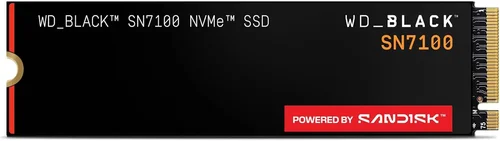
Premium ($150–$300): Targeted at enthusiasts and professionals. Features high-end Gen4 drives (1TB–2TB) with top-tier controllers, DRAM cache, and robust thermal designs. Examples include the Samsung 990 Pro, WD Black SN850X, and Sabrent Rocket 4 Plus. These drives excel in sustained workloads and offer future-proofing for next-gen systems.
Luxury ($300+): Reserved for extreme use cases: 8K video editing, AI training, server applications, or bleeding-edge builds. Includes Gen5 M.2 drives (2TB–8TB) from Samsung, Corsair, or Gigabyte. Expect blistering speeds, advanced encryption, and enterprise-grade endurance—but also premium pricing and higher power consumption.
Expert Tips for Getting the Best Deal
– Buy during major sales events: Black Friday, Cyber Monday, Amazon Prime Day, and back-to-school seasons often feature deep discounts on storage. Sign up for deal alerts from Newegg, Best Buy, or B&H Photo.
– Check refurbished or open-box options: Certified refurbished drives from reputable retailers (like Samsung Renewed or Amazon Renewed) often come with full warranties and can save you 20–40%.
– Compare total cost per GB: Don’t just look at the sticker price. Calculate price per gigabyte (total price ÷ capacity) to compare value across different sizes and brands.
– Prioritize warranty length over minor price differences: A $10 savings isn’t worth it if the cheaper drive has a 3-year warranty instead of 5. Longer warranties usually indicate higher-quality components.
– Read the fine print on TBW ratings: A 1TB drive with 600 TBW will last longer under heavy use than one with 300 TBW, even if they cost the same. Match TBW to your expected write workload.
– Test before finalizing: If possible, run benchmarks (CrystalDiskMark, AS SSD) and monitor temperatures after installation. This helps confirm you’re getting advertised performance and that cooling is adequate.
– Consider future upgrades: If your motherboard has multiple M.2 slots, buy one high-quality drive now and add another later. Avoid filling all slots immediately unless necessary.
– Use manufacturer tools for cloning: Most brands offer free software to clone your old drive to the new one, preserving your OS, apps, and settings without reinstalling everything.

Frequently Asked Questions
Q: Is M.2 always faster than a regular SSD?
A: No. Only M.2 drives that use the NVMe protocol (not SATA) are significantly faster. An M.2 SATA drive performs identically to a 2.5-inch SATA SSD—around 550 MB/s. Always check the interface type before buying.
Q: Can I use an M.2 drive in any laptop or PC?
A: Not necessarily. Your device must have an M.2 slot, and it must support the drive’s key type (usually Key M for NVMe) and length (most common is 2280). Laptops may also have BIOS limitations or physical clearance issues.
Q: Do I need a heatsink for my M.2 drive?
A: For Gen3 and light Gen4 use, a heatsink isn’t critical. But for sustained workloads or Gen4/Gen5 drives, a heatsink is highly recommended to prevent thermal throttling and maintain peak performance.
Q: Will upgrading to an M.2 NVMe make my old PC feel new?
A: It can help, especially if you’re coming from an HDD. But if your CPU, RAM, or motherboard are very old, they may bottleneck the drive’s performance. An M.2 upgrade works best in systems from the last 5–7 years.
Q: Are QLC drives bad?
A: Not inherently—they’re fine for light, read-heavy workloads like media storage or casual gaming. But avoid QLC for tasks involving frequent writes (e.g., video editing, databases). TLC remains the best balance for most users.
Q: How long do SSDs and M.2 drives last?
A: Modern drives typically last 5–10 years under normal use, often outlasting the device itself. Check the TBW rating and warranty period for guidance. Heavy writers should monitor drive health regularly.
Q: Can I use an M.2 drive as external storage?
A: Yes! M.2 NVMe drives can be placed in USB-C or Thunderbolt enclosures to create ultra-fast external SSDs. Just ensure the enclosure supports your drive’s interface (NVMe, not SATA).
Q: Is PCIe Gen5 worth it in 2026?
A: Only if you have a compatible motherboard (AMD X670E/B650E or Intel Z790+) and a workload that benefits from extreme speeds (e.g., 8K video, large dataset processing). For most users, Gen4 offers the best balance of performance and value.
Q: Should I buy a 2TB drive or two 1TB drives?
A: Two drives offer flexibility (OS on one, games/files on another) and can improve organization. But a single 2TB drive simplifies management and often costs less per GB. Choose based on your usage pattern.
Q: Do SSDs need defragmentation?
A: No—and defragmenting an SSD can actually reduce its lifespan. Windows and macOS automatically optimize SSDs using TRIM, which is sufficient for maintenance.
Our Final Recommendations
– Best for Budget-Conscious Buyers: Crucial BX500 1TB SATA SSD – Reliable, affordable, and perfect for upgrading older systems. Great value at under $60.
– Best Overall Value: WD Black SN770 1TB NVMe Gen4 – Blazing-fast speeds, excellent endurance, and competitive pricing. Ideal for gamers and general users.
– Best Premium Option: Samsung 990 Pro 2TB – Top-tier performance, robust thermal design, and legendary reliability. The gold standard for enthusiasts.
– Best for Beginners: Kingston NV2 1TB NVMe Gen3 – Simple installation, solid performance, and low cost. Perfect first NVMe drive.
– Best for Advanced Users: Sabrent Rocket 4 Plus-G 4TB Gen5 – Cutting-edge speed, massive capacity, and built-in heatsink. Built for professionals who demand the absolute best.
Conclusion: Making the Right Choice
Choosing between an SSD and an M.2 drive isn’t about picking a “winner”—it’s about aligning technology with your specific needs, budget, and system capabilities. Traditional SATA SSDs remain a fantastic, cost-effective way to breathe new life into older machines, while M.2 NVMe drives unlock the full potential of modern computing with speeds that were unimaginable just a few years ago. The key is to look beyond marketing buzzwords and focus on real-world performance, compatibility, and long-term value.
As you weigh your options, remember that the best drive is the one that fits seamlessly into your workflow, enhances your productivity, and delivers reliable performance year after year. Don’t chase the highest numbers on a spec sheet; instead, ask yourself what you actually use your computer for. Are you editing videos? Gaming? Just browsing the web? Your answer will guide you toward the right choice far more accurately than any benchmark ever could.
We encourage you to use this guide as your roadmap—not just to find the fastest or cheapest drive, but to make a smart, informed investment in your digital life. Whether you’re building a dream PC, upgrading a laptop, or simply craving faster boot times, the right storage solution is out there. Take your time, do your research, and choose wisely. Your future self—and your files—will thank you.