
Solid-state drives (SSDs) have revolutionized laptop performance, transforming sluggish boot times, laggy file transfers, and frustrating application delays into near-instant responsiveness. Whether you’re upgrading an aging machine or building a new laptop from the ground up, choosing the right SSD is one of the most impactful decisions you can make. In 2026, the SSD market is more competitive than ever—offering blazing speeds, rock-solid reliability, and increasingly affordable prices across a wide range of form factors and technologies. But with so many options available, it’s easy to feel overwhelmed by technical jargon, misleading marketing claims, and rapidly evolving standards like NVMe Gen5 and PCIe 5.0.
This comprehensive buying guide cuts through the noise to help you make an informed, confident decision. You’ll learn how to evaluate SSDs based on your specific needs—whether you’re a student needing reliable storage for essays and presentations, a creative professional working with large video files, or a gamer demanding ultra-fast load times. We’ll break down key factors like performance, compatibility, durability, and value, compare different SSD types, highlight common pitfalls to avoid, and provide expert-backed recommendations tailored to every budget and use case. By the end, you’ll not only know which SSD is best for your laptop—you’ll understand why it’s the right choice.

What to Look for When Buying Buying Guide
1. Form Factor & Compatibility
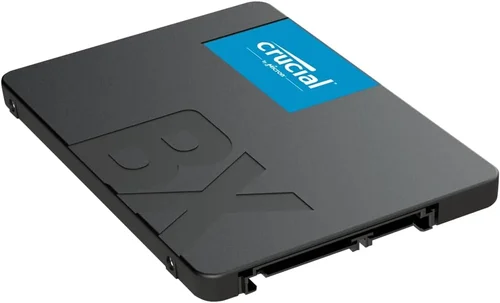
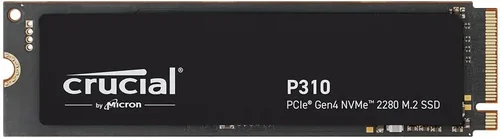
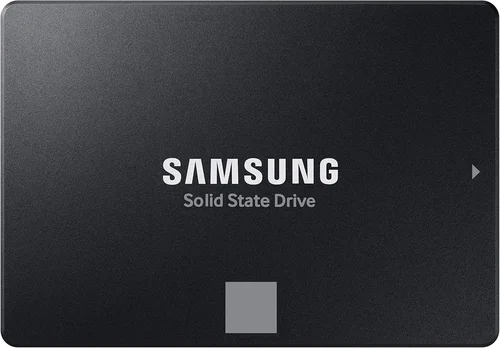
The physical size and connector type of your SSD must match your laptop’s specifications. The two most common form factors are 2.5-inch SATA and M.2. The 2.5-inch drives resemble traditional hard drives and connect via SATA cables—common in older laptops. However, most modern ultrabooks and thin-and-light machines use the compact M.2 form factor, which plugs directly into the motherboard. Within M.2, you’ll encounter different lengths (e.g., 2280 = 22mm wide, 80mm long) and keying notches (B-key, M-key, or B+M), which determine compatibility with your system’s slot. Always check your laptop’s manual or manufacturer website before purchasing. Installing an incompatible SSD is a costly mistake that can’t be undone without returning the drive.
2. Interface & Protocol
Beyond physical compatibility, the interface and communication protocol dictate how fast data moves between your SSD and CPU. SATA III remains widely supported but caps out at around 550 MB/s—fine for basic tasks but limiting for power users. NVMe (Non-Volatile Memory Express) over PCIe lanes offers significantly higher bandwidth. As of 2026, PCIe Gen4 is the sweet spot for most users, delivering sequential read/write speeds up to 7,000/6,500 MB/s. PCIe Gen5 drives are emerging, pushing speeds beyond 12,000 MB/s, but they’re expensive, generate more heat, and require compatible hardware that’s still rare in mainstream laptops. Unless you’re doing heavy video editing or AI workloads, Gen4 offers the best balance of speed, price, and thermal efficiency.
3. Storage Capacity
Capacity directly affects both performance and longevity. While 256GB may seem sufficient for light use, modern operating systems, apps, and games quickly consume space—Windows 11 alone uses over 60GB. We recommend a minimum of 500GB for general users and 1TB or more for creatives, gamers, or anyone storing large media libraries. Larger drives also tend to perform better due to more NAND chips working in parallel and greater over-provisioning (extra space reserved for wear leveling and garbage collection). Additionally, SSDs slow down as they fill up; keeping at least 10–20% free space maintains optimal performance.
4. Performance Specifications
Don’t just focus on peak sequential speeds—real-world performance depends on mixed workloads. Look at both read/write speeds (measured in MB/s) and random IOPS (Input/Output Operations Per Second), which reflect how well the drive handles small, scattered files like those found in OS operations or database queries. For example, a drive rated at 7,000 MB/s sequential read might only deliver 500K IOPS—still excellent, but less impressive than a drive with 600K IOPS if you multitask heavily. Also consider sustained performance: some budget SSDs throttle dramatically under prolonged load due to poor thermal management or lack of DRAM cache.
5. Build Quality & Durability
SSDs have no moving parts, making them inherently more durable than HDDs, but not all NAND flash is created equal. Look for drives using TLC (Triple-Level Cell) or MLC (Multi-Level Cell) NAND—these offer better endurance and longevity compared to QLC (Quad-Level Cell), which sacrifices write cycles for higher density and lower cost. Check the drive’s TBW (Terabytes Written) rating, which indicates how much data can be written over its lifespan. A 1TB TLC SSD might have a 600 TBW rating, while a QLC version could be as low as 200 TBW. For most users, even QLC is sufficient, but professionals should prioritize TLC or enterprise-grade options.
6. DRAM Cache Presence
A DRAM cache acts as a high-speed buffer between the controller and NAND flash, dramatically improving performance—especially during random writes and multitasking. DRAM-less SSDs use system memory (HMB—Host Memory Buffer) instead, which works adequately for light workloads but struggles under sustained pressure. If you plan to edit videos, compile code, or run virtual machines, always choose a drive with onboard DRAM. The performance gap can be substantial: a DRAM-equipped SSD may sustain 3,000 MB/s writes for minutes, while a DRAM-less model drops to 200 MB/s after just 30 seconds.
7. Brand Reputation & Firmware Support
Stick with established brands like Samsung, Crucial, Western Digital, Kingston, SK hynix, and Sabrent. These companies invest heavily in firmware optimization, quality control, and long-term support. Lesser-known brands may offer tempting prices but often cut corners on components or lack reliable firmware updates—critical for security patches and performance tuning. Samsung’s Magician software, for instance, provides real-time health monitoring, secure erase, and performance benchmarks. Reliable firmware also ensures compatibility with future OS updates and reduces the risk of data corruption.
8. Warranty & Support
A longer warranty often reflects manufacturer confidence in product longevity. Most premium SSDs come with 5-year limited warranties, while budget models may offer only 3 years. Pay attention to whether the warranty is time-based, TBW-based, or both—whichever comes first. Some brands also include data recovery services or expedited replacement programs. Avoid drives sold without clear warranty terms, especially on third-party marketplaces. Good customer support can save you hours of frustration if something goes wrong.
Different Types of Buying Guide

Common Buying Mistakes to Avoid
❌ Mistake: Ignoring Laptop Compatibility
Why it’s bad: Buying a PCIe Gen4 SSD for a laptop that only supports Gen3 wastes money and may cause installation issues. Similarly, selecting an M.2 22110 drive for a slot that only fits 2280 will leave you with a useless component.
What to do instead: Always verify your laptop’s SSD specifications in the user manual, service guide, or by using tools like Crucial’s System Scanner. When in doubt, contact the manufacturer.
❌ Mistake: Prioritizing Peak Speed Over Real-World Performance
Why it’s bad: Marketing materials highlight maximum sequential speeds, but everyday tasks rely more on random I/O and sustained writes. A drive that throttles after 30 seconds won’t help during a long video export.
What to do instead: Read professional reviews that test real-world scenarios (e.g., file copying, app loading, game installs). Look for consistency in performance graphs, not just peak numbers.
❌ Mistake: Choosing QLC NAND for Heavy Workloads
Why it’s bad: QLC drives offer high capacity at low cost but suffer from slower write speeds and reduced endurance. Frequent large file transfers or database operations can wear them out quickly.
What to do instead: Reserve QLC for secondary storage or light use. For primary drives, stick with TLC NAND—even if it means slightly less capacity for your budget.
❌ Mistake: Overlooking Thermal Throttling
Why it’s bad: High-performance NVMe drives generate significant heat. In thin laptops with poor airflow, this can cause thermal throttling—drastically reducing speed to prevent damage.
What to do instead: Choose drives with built-in heat spreaders or consider adding a small thermal pad. Avoid running sustained heavy workloads on Gen4/Gen5 drives in compact chassis without adequate cooling.
❌ Mistake: Skipping the DRAM Cache
Why it’s bad: DRAM-less SSDs may look identical on spec sheets but perform poorly under mixed workloads. You’ll notice lag when opening multiple apps or saving large projects.
What to do instead: Always check if the drive includes DRAM. If it doesn’t, ensure your laptop has ample RAM (16GB+) to compensate via HMB—but know the limitations.
❌ Mistake: Buying Based Solely on Price
Why it’s bad: The cheapest SSD often uses inferior components, lacks firmware updates, or has a short warranty. You might save $20 now but lose hundreds in lost productivity or data recovery later.
What to do instead: Balance cost with reliability. Mid-range drives from reputable brands usually offer the best long-term value.
❌ Mistake: Not Backing Up Before Upgrading
Why it’s bad: Installing a new SSD typically requires reinstalling the OS or cloning your existing drive. Without a backup, you risk permanent data loss.
What to do instead: Use cloud storage or an external drive to back up critical files before starting. Tools like Macrium Reflect or Samsung Data Migration simplify cloning.
Budget Guidelines: How Much Should You Spend?
- Entry-Level ($30–$60): Ideal for basic upgrades in older laptops. Expect SATA III or PCIe Gen3 drives with 500GB capacity, often QLC NAND and limited DRAM. Perfect for web browsing, office work, and light media consumption. Brands like Kingston NV2 or Crucial BX500 fit here.
- Mid-Range ($60–$120): The sweet spot for most users. You’ll find reliable TLC-based PCIe Gen3 or Gen4 drives (1TB) with DRAM caches and 5-year warranties. Great for students, remote workers, and casual gamers. Examples include the Samsung 980, WD Black SN770, and Crucial P5 Plus.
- Premium ($120–$250): Designed for power users and professionals. These offer top-tier Gen4 performance (7,000+ MB/s), robust thermal management, and high endurance ratings. Ideal for video editors, developers, and gamers with high-end laptops. Consider the Samsung 990 Pro, SK hynix Platinum P41, or Sabrent Rocket 4 Plus.
- Luxury ($250+): Reserved for enthusiasts and workstation users. Includes PCIe Gen5 drives (if your laptop supports it), 2TB+ capacities, and advanced features like hardware encryption or power-loss protection. Only justified for extreme workloads or future-proofing high-end systems.
Expert Tips for Getting the Best Deal
- Buy during seasonal sales: SSD prices fluctuate throughout the year. Historical data shows the best discounts occur in November (Black Friday/Cyber Monday), July (Prime Day), and August (back-to-school). Avoid buying right after new models launch—prices are highest then.
- Stick to trusted retailers: Purchase from authorized sellers like Amazon (sold by Amazon, not third parties), Newegg, Best Buy, or directly from manufacturers. Beware of counterfeit drives on lesser-known marketplaces—they often have fake capacity or degraded NAND.
- Compare total cost of ownership: A slightly more expensive drive with a longer warranty and better endurance may save money long-term. Factor in potential replacement costs and downtime.
- Check return policies: Ensure the retailer offers at least a 30-day return window. Some brands also provide “advance replacement” where they ship a new drive before you return the old one.
- Test before relying on it: After installation, run benchmarks (CrystalDiskMark, AS SSD) and check SMART data (via CrystalDiskInfo) to confirm the drive is healthy and performing as expected.
- Consider used/refurbished cautiously: While refurbished drives from reputable sources can be safe, avoid used SSDs—you can’t know their write history or remaining lifespan.
- Don’t forget the cloning software: Many manufacturers include free cloning tools with their drives. Use them to migrate your OS and apps seamlessly without reinstalling everything.
- Future-proof wisely: If your laptop supports PCIe Gen4, go for it—even if you don’t need the speed today. It ensures your system stays relevant for years.

Frequently Asked Questions
Q: Can I upgrade my laptop’s SSD myself?
A: In most modern laptops, yes—but it depends on the model. Ultrabooks often have soldered storage, making upgrades impossible. Check your laptop’s service manual or iFixit guides. If there’s an accessible M.2 or 2.5-inch bay, you can usually swap it out with basic tools.
Q: Will a faster SSD improve gaming performance?
A: It reduces load times and texture streaming stutter, especially in open-world games like Cyberpunk 2077 or Starfield. However, it won’t boost FPS—that’s handled by your GPU and CPU. For gaming, prioritize capacity and consistent read speeds over peak benchmarks.
Q: Do I need a heatsink for my M.2 SSD?
A: Only if your laptop has space for one or if you’re using a high-wattage Gen4/Gen5 drive in a compact chassis. Many laptops include a small metal shield over the M.2 slot that acts as a passive cooler. Adding an aftermarket heatsink can help, but ensure it doesn’t interfere with other components.
Q: How long do SSDs last?
A: Modern consumer SSDs typically last 5–10 years under normal use. The TBW rating gives a more accurate estimate—for example, a 1TB drive with 600 TBW could write 100GB daily for over 16 years. Failure is usually gradual, with warnings via SMART data.
Q: Is NVMe always better than SATA?
A: In terms of speed, yes—but SATA is sufficient for basic tasks and offers broader compatibility. If your laptop only has a SATA slot, upgrading from an HDD to SATA SSD is still a massive improvement.
Q: Can I use an external SSD as my primary drive?
A: Technically yes, especially with USB 3.2 Gen 2×2 or Thunderbolt 4, but it’s not ideal for daily OS use due to potential latency and connection reliability. Best reserved for backups, media storage, or portable projects.
Q: What’s the difference between DRAM and DRAM-less SSDs?
A: DRAM-equipped drives have a dedicated memory chip to map data locations, enabling faster access and better endurance. DRAM-less drives rely on system RAM (HMB), which works but degrades under heavy load. Always prefer DRAM for primary drives.
Q: Are cheaper SSDs safe for storing important files?
A: They’re generally safe for short-term use, but invest in a reputable brand with good reviews for critical data. Enable TRIM, avoid filling the drive beyond 80%, and maintain regular backups regardless of drive quality.
Q: Do SSDs need defragmentation?
A: No—and you should never defrag an SSD. Defragmentation increases write cycles unnecessarily and reduces lifespan. Windows and macOS automatically optimize SSDs using TRIM commands.
Q: Can I install two SSDs in my laptop?
A: Only if your laptop has multiple M.2 slots or supports both M.2 and 2.5-inch drives. Many ultrabooks have only one slot, so choose your primary drive wisely. Some gaming laptops offer dual M.2 configurations.
Our Final Recommendations
- Best for Budget-Conscious Buyers: Crucial P3 1TB (PCIe Gen3) – Offers excellent value with TLC NAND, DRAM cache, and 5-year warranty at under $70. Perfect for upgrading older systems without breaking the bank.
- Best Overall Value: Samsung 980 1TB (PCIe Gen3) – Reliable, fast, and backed by Samsung’s legendary firmware support. Consistently ranks among the top performers in real-world tests and comes with useful software tools.
- Best Premium Option: Samsung 990 Pro 2TB (PCIe Gen4) – Delivers near-maximum Gen4 speeds, superb endurance (1,200 TBW), and advanced thermal management. Ideal for creators and gamers who demand top-tier performance.
- Best for Beginners: WD Blue SN580 1TB (PCIe Gen4) – Easy to install, quiet operation, and includes Acronis True Image for hassle-free cloning. Great first NVMe drive for those new to upgrades.
- Best for Advanced Users: SK hynix Platinum P41 2TB (PCIe Gen4) – Combines cutting-edge NAND technology with exceptional power efficiency and sustained performance. A favorite among tech enthusiasts and benchmarkers.
Conclusion: Making the Right Choice
Choosing the best SSD for your laptop isn’t just about chasing the highest numbers on a spec sheet—it’s about aligning technology with your real-world needs, budget, and future plans. Whether you’re breathing new life into an aging machine or maximizing the potential of a high-end ultrabook, the right SSD can transform your computing experience. Remember to prioritize compatibility, balance speed with endurance, and never underestimate the value of a reputable brand and solid warranty.
Take the time to assess your usage patterns: Do you mostly browse and stream? A reliable mid-range Gen3 drive will serve you well. Are you editing 4K video or compiling code daily? Invest in a high-endurance Gen4 model with ample capacity. And always back up before you upgrade—your data is irreplaceable.
With the insights from this guide, you’re now equipped to navigate the 2026 SSD landscape with confidence. Don’t rush the decision, but don’t delay your upgrade either—every day with a slow drive is a missed opportunity for productivity, creativity, and enjoyment. Make the switch, and feel the difference immediately.