
Solid‑state drives have become the backbone of modern computing, whether you are building a gaming rig, upgrading a laptop, or expanding a workstation for video editing. The market in 2026 is flooded with options that span every price point, form factor, and performance tier, making it easy to feel overwhelmed. This guide cuts through the noise by explaining the technical details that actually matter, highlighting the most common pitfalls, and giving you a clear framework for matching a drive to your specific workload and budget.
By the end of this article you will understand the difference between SATA, PCIe 3.0, PCIe 4.0, and the emerging PCIe 5.0 interfaces, know how NAND type and DRAM cache affect real‑world speed and longevity, and be able to spot a genuine deal versus a marketing gimmick. We also break down pricing tiers, share expert buying tactics, answer the questions we hear most often, and finish with concrete model recommendations for every type of user.

What to Look for When Buying Buying Guide
1. Form Factor & Interface
The physical shape and electrical interface of an SSD dictate compatibility and maximum throughput. The most common form factors are 2.5‑inch SATA, M.2 2280 (the stick‑shaped module that plugs directly into a motherboard), and the newer M.2 2230 used in ultra‑thin laptops. SATA drives top out around 560 MB/s sequential read/write because they share the legacy AHCI protocol. NVMe drives, which use the PCIe bus, start at roughly 1,500 MB/s for PCIe 3.0 x4, climb to 7,000 MB/s for PCIe 4.0 x4, and now exceed 12,000 MB/s with PCIe 5.0 x4. Before you buy, verify your motherboard or laptop supports the desired generation and keying (M‑key for NVMe, B‑key for SATA).
2. Performance Specifications
Sequential read/write speeds dominate marketing sheets, but random 4K IOPS (input/output operations per second) often determine how snappy an OS feels. For gaming and general productivity, a drive with 500 K–800 K random read IOPS and 400 K–600 K random write IOPS is plenty. Content creators working with 8K video or large databases should target drives that sustain >1 M random read IOPS and >800 K random write IOPS. Also check sustained write performance after the SLC cache fills; some budget TLC/QLC drives drop to 300–500 MB/s once the cache is exhausted.
3. NAND Type & Endurance
NAND flash comes in several flavors: SLC (single‑level cell), MLC (multi‑level cell), TLC (triple‑level cell), and QLC (quad‑level cell). SLC offers the highest endurance (up to 100 K program/erase cycles) but is prohibitively expensive for consumers. MLC sits in the middle, while TLC is the sweet spot for most mainstream drives, delivering 1,500–3,000 TBW (terabytes written) on a 1 TB model. QLC pushes capacity per die higher and lowers cost, but endurance drops to 300–600 TBW. Many modern TLC drives include a DRAM cache or a portion of the NAND operated in SLC mode to absorb burst writes, preserving both speed and lifespan.
4. Capacity & Price per GB
Price per gigabyte generally improves as capacity increases, but the curve flattens above 2 TB. A 500 GB drive may cost $0.12/GB, while a 2 TB model can dip to $0.07/GB. However, larger drives also provide more parallel NAND channels, which translates to higher sustained throughput. If you need 1 TB for the OS and a few games, a 1 TB drive is usually the best value. For media libraries or VM storage, stepping up to 2 TB or 4 TB often yields better $/GB and performance.
5. Thermal Management & Power Consumption
High‑performance NVMe drives can hit 80–90 °C under heavy load, triggering thermal throttling that cuts speeds by 30 % or more. Many motherboards now ship with M.2 heatsinks; if yours does not, consider a drive with an integrated graphene or aluminum heat spreader, or buy an aftermarket heatsink for $10–$15. Power draw matters for laptops: a PCIe 4.0 drive typically consumes 5–7 W active, while a PCIe 5.0 model can draw 9–12 W, reducing battery life. Look for drives with a low‑power idle state (L1.2 sub‑state) if mobile endurance is a priority.
6. Warranty, Endurance Rating (TBW) & Support
Manufacturers express durability as TBW (terabytes written) or DWPD (drive writes per day) over the warranty period, usually 5 years. A 1 TB TLC drive with 600 TBW and a 5‑year warranty is a solid baseline. Some brands (Samsung, Western Digital, Crucial) offer 5‑year limited warranties with advance replacement, while budget brands may only provide 3 years and require you to ship the drive at your own cost. Check the RMA process and whether the vendor provides a dedicated SSD management tool for firmware updates and health monitoring.
7. Brand Reputation & Software Ecosystem
Established brands invest heavily in controller firmware validation, which reduces the chance of data‑loss bugs. They also ship proprietary software (Samsung Magician, WD Dashboard, Crucial Storage Executive) that enables secure erase, over‑provisioning, and performance benchmarking. Lesser‑known brands may use the same Phison or Silicon Motion controllers but skip the extensive validation, leading to higher early‑failure rates. Reading professional reviews and community forums (e.g., Reddit’s r/hardware, Tom’s Hardware) can reveal hidden issues before you commit.
Different Types of Buying Guide

Common Buying Mistakes to Avoid
❌ Mistake: Chasing Only Peak Sequential Speeds
Why it’s bad: Marketing loves to plaster 7,000 MB/s on the box, but most workloads (OS boot, game loading, app launch) are limited by random 4K performance and latency. A drive with 7,000 MB/s sequential but only 300 K random read IOPS will feel slower than a 5,000 MB/s drive with 800 K random IOPS.
What to do instead: Look at both sequential and random specs, and prioritize random read/write IOPS for general use. Check independent reviews that measure real‑world game load times and application start‑up.
❌ Mistake: Ignoring Form Factor Compatibility
Why it’s bad: Buying an M.2 2280 NVMe drive for a laptop that only accepts M.2 2230 SATA, or a 2.5‑inch drive for a motherboard lacking a 2.5‑inch bay, leads to returns and wasted time.
What to do instead: Consult your device’s service manual or manufacturer’s spec sheet. Verify keying (M‑key vs B‑key) and maximum supported length (2230, 2242, 2260, 2280).
❌ Mistake: Overlooking Thermal Throttling
Why it’s bad: A high‑end PCIe 4.0/5.0 drive without adequate cooling will throttle within minutes of sustained writes, dropping to PCIe 3.0 speeds. This negates the premium you paid.
What to do instead: Ensure your motherboard has an M.2 heatsink or buy a drive with a built‑in heat spreader. For laptops, choose a drive rated for low power and good thermal efficiency.
❌ Mistake: Buying QLC for Heavy Write Workloads
Why it’s bad: QLC drives excel at read‑heavy, capacity‑focused tasks (media libraries, backups). Under constant write pressure (video capture, database logging) they exhaust their SLC cache quickly and wear out faster.
What to do instead: Match NAND type to workload: TLC with DRAM cache for mixed use, QLC only for read‑dominant or archival storage.
❌ Mistake: Skipping Firmware Updates
Why it’s bad: Controllers often ship with bugs that affect performance, compatibility, or data integrity. Vendors release firmware patches that can unlock higher speeds or fix rare corruption scenarios.
What to do instead: After installation, run the vendor’s SSD management tool and apply any available firmware updates. Schedule a check every 6–12 months.
❌ Mistake: Assuming All Brands Offer Equal Warranty Service
Why it’s bad: A 5‑year warranty on paper may require you to pay shipping both ways, have a long turnaround, or deny claims for “excessive wear” even within TBW limits.
What to do instead: Read the warranty fine print. Prefer brands with advance replacement (they ship a new drive before you return the faulty one) and a clear TBW/DWPD policy.
Budget Guidelines: How Much Should You Spend?
SSD pricing has stabilized, but the “sweet spot” shifts with each generation. Below is a practical breakdown for a 1 TB baseline; scale roughly linearly for other capacities.
Entry‑Level ($30 – $70)
Drives in this bracket are typically SATA 2.5‑inch or PCIe 3.0 x4 NVMe with TLC NAND but no DRAM cache. Expect sequential reads of 500–2,100 MB/s and random IOPS around 200–400 K. They are perfect for reviving an old laptop, adding a secondary game library, or serving as a boot drive for a light‑use office PC. Brands like Kingston (A400), Crucial (BX500), and TeamGroup (GX2) dominate here. Warranty is usually 3 years with 200–300 TBW.
Mid‑Range ($70 – $150)
This is where most enthusiasts should land. You get PCIe 4.0 x4 NVMe with DRAM cache (or a large SLC cache) and TLC NAND rated 600–800 TBW. Sequential speeds hit 5,000–7,400 MB/s; random read IOPS exceed 800 K. Drives such as the WD Black SN770, Samsung 990 EVO, Crucial P5 Plus, and Lexar NM790 sit here. They handle gaming, video editing, and virtual machines comfortably. Warranty extends to 5 years with advance replacement on most models.
Premium ($150 – $300)
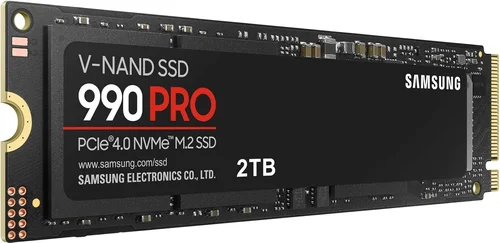
Premium drives push the PCIe 4.0 envelope with higher‑end controllers (Phison E18, Samsung Pascal) and larger DRAM buffers (1–2 GB). They sustain >6,500 MB/s writes after cache exhaustion and deliver 1 M+ random read IOPS. Examples: Samsung 990 Pro, WD Black SN850X, Seagate FireCuda 530. These are aimed at professionals who need consistent throughput for 8K timelines, large‑scale compiles, or heavy database work. Warranty remains 5 years, often with 1,200 TBW on 2 TB models.
Luxury ($300+)
Luxury tier covers first‑generation PCIe 5.0 drives (e.g., Corsair MP700, Gigabyte AORUS Gen5 10000) and enterprise‑class U.2/U.3 drives adapted for consumer boards. They boast 12,000–14,000 MB/s sequential and 1.5 M+ random IOPS, but require robust cooling (often active fans) and a PCIe 5.0‑capable CPU/motherboard. Prices start around $300 for 1 TB and climb steeply. These are only justified for early adopters, AI researchers, or content creators who can monetize the time saved.
Expert Tips for Getting the Best Deal
- Time your purchase around major sales events. Black Friday, Cyber Monday, Amazon Prime Day, and back‑to‑school promotions (July‑August) consistently drop NVMe prices 10‑20 % below MSRP. Sign up for price‑track alerts on sites like CamelCamelCamel or Keepa.
- Buy from authorized retailers. Gray‑market sellers may offer lower prices but often void the manufacturer warranty. Stick to Amazon (shipped by Amazon), Newegg, Best Buy, Micro Center, or the vendor’s own store.
- Leverage bundle deals. Motherboard + SSD combos, or GPU + SSD bundles, can shave $20‑$40 off the drive. Check the motherboard manufacturer’s promo page before buying separately.
- Consider open‑box or certified refurbished. Retailers like Micro Center and Best Buy sell open‑box NVMe drives with full warranty at 15‑25 % off. Verify the seal is intact and the drive shows zero power‑on hours in SMART.
- Use cash‑back and credit‑card rewards. Many cards offer 2‑5 % back on electronics purchases; combine with a retailer’s loyalty program for extra savings.
- Check the return policy. A 30‑day no‑questions‑asked return window lets you benchmark the drive in your system and swap if performance or thermals disappoint.
- Monitor firmware release notes. Some drives launch with conservative firmware; a later update can unlock higher write speeds or fix compatibility quirks. Factor this into your “real‑world” performance expectations.

Frequently Asked Questions
Q: Can I use a PCIe 4.0 NVMe SSD in a PCIe 3.0 slot?
A: Yes. The drive will operate at PCIe 3.0 x4 speeds (up to ~3,500 MB/s). You lose the extra bandwidth but gain full compatibility. The reverse (PCIe 3.0 drive in a 4.0 slot) also works, simply running at 3.0 speeds.
Q: Do I need a heatsink for my M.2 SSD?
A: For PCIe 3.0 and most PCIe 4.0 drives under typical desktop loads, the motherboard’s built‑in M.2 shield is sufficient. For sustained heavy writes (video rendering, large file transfers) or PCIe 5.0 drives, an aftermarket heatsink or a drive with an integrated graphene/aluminum spreader prevents throttling.
Q: How much over‑provisioning should I allocate?
A: Most modern controllers reserve 7‑10 % of raw NAND for wear‑leveling and garbage collection automatically. You can manually add another 5‑10 % via the vendor’s tool if you run workloads with very high write amplification (e.g., database logs). For general use, the default is fine.
Q: Is DRAM cache essential?
A: DRAM‑less drives (often called “HMB” – Host Memory Buffer) use a slice of system RAM for mapping tables. They are slightly slower in random write latency but the gap has narrowed. For boot drives and gaming, a good DRAM‑less PCIe 4.0 drive (e.g., WD Black SN770) is indistinguishable from a DRAM‑equipped model. For heavy multitasking or professional workloads, a DRAM cache still offers a measurable edge.
Q: Can I clone my old SATA SSD to a new NVMe drive?
A: Absolutely. Use free tools like Macrium Reflect Free, Samsung Data Migration, or Acronis True Image (often bundled with WD drives). Ensure the target NVMe is at least as large as the source partition. After cloning, set the NVMe as the primary boot device in BIOS/UEFI.
Q: What does TBW mean and why does it matter?
A: TBW (Terabytes Written) is the total amount of data the manufacturer guarantees you can write before the drive may exceed its rated error rate. A 1 TB TLC drive with 600 TBW can endure writing the full capacity 600 times. For typical consumer workloads (10‑20 GB/day), 600 TBW lasts decades. Choose higher TBW if you run‑TBW drives for write‑intensive tasks.
Q: Are external portable SSDs as fast as internal NVMe drives?
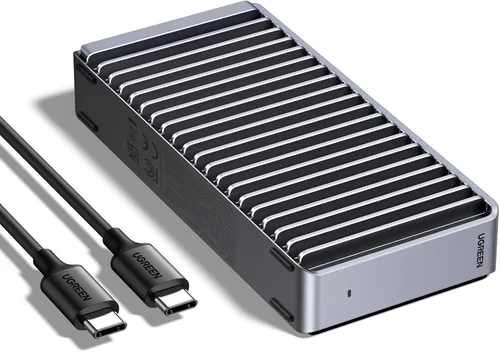
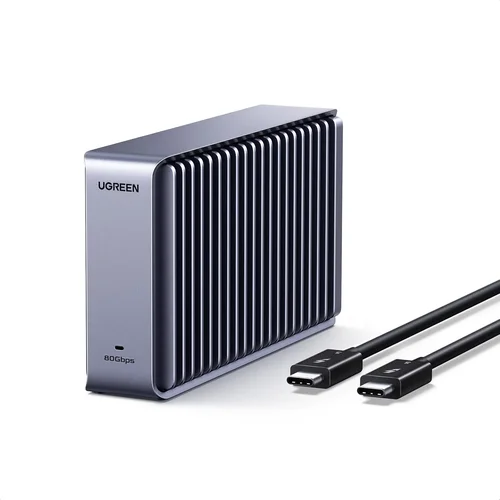
A: The best USB 3.2 Gen 2×2 (20 Gbps) or USB4/Thunderbolt 3/4 external enclosures can reach 2,000‑3,000 MB/s, close to PCIe 3.0 internal speeds. However, they add latency from the bridge controller and cable, and they draw power from the host port. For pure speed, internal NVMe remains superior.
Q: Should I buy a 2 TB drive now or two 1 TB drives?
A: A single 2 TB drive usually costs less per GB, uses one M.2 slot, and offers higher parallelism (more NAND dies) for better sustained writes. Two 1 TB drives give redundancy (you can mirror) and flexibility (separate OS and data), but consume two slots and may cost more overall.
Q: How do I securely erase an SSD before selling it?
A: Use the drive’s built‑in Secure Erase command via the vendor’s tool (Samsung Magician, WD Dashboard) or the open‑source nvme-cli on Linux. This resets all NAND cells to a factory state and is far more reliable than a simple quick format.
Our Final Recommendations
Best for Budget‑Conscious Buyers – Crucial P3 Plus 1 TB
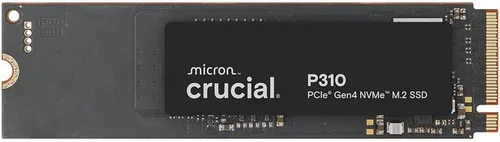
The P3 Plus is a PCIe 4.0 x4 DRAM‑less drive that regularly sells under $70. It delivers 5,000 MB/s sequential reads, 400 K random read IOPS, and a 220 TBW rating. While not the fastest, it beats any SATA drive by a wide margin and includes a 5‑year warranty. Ideal for upgrading an older laptop or adding a secondary game library on a tight budget.
Best Overall Value – WD Black SN770 1 TB
WD’s SN770 hits the sweet spot: PCIe 4.0, DRAM‑less but with a large SLC cache, 5,150 MB/s reads, 800 K random read IOPS, and 600 TBW. It often retails around $85‑$95, includes a 5‑year warranty with advance replacement, and runs cool enough for most laptops without a heatsink. It handles gaming, content creation, and everyday multitasking with ease.
Best Premium Option – Samsung 990 Pro 2 TB
The 990 Pro uses Samsung’s in‑house Pascal controller and 1 GB LPDDR4 DRAM. It sustains 7,450 MB/s reads, 6,900 MB/s writes, and 1.1 M random read IOPS. Endurance is 1,200 TBW on the 2 TB model, backed by a 5‑year warranty and excellent Magician software. It’s the go‑to for video editors, 3D artists, and anyone who needs consistent high throughput.
Best for Beginners – Kingston KC3000 1 TB
Kingston’s KC3000 bundles a Phison E18 controller with 1 GB DRAM, delivering 7,000 MB/s reads and 1 M random read IOPS. It ships with a simple, user‑friendly SSD Manager that handles firmware updates and secure erase in a few clicks. Pricing hovers around $110, making it an approachable step up from entry‑level without overwhelming a first‑time builder.
Best for Advanced Users – Seagate FireCuda 530 2 TB (with Heatsink)
The FireCuda 530 pairs a Phison E18 controller with 2 GB DRAM and a robust aluminum heatsink. It hits 7,300 MB/s reads, 6,900 MB/s writes, and 1.2 M random read IOPS. Endurance is an industry‑leading 2,550 TBW on the 2 TB model, and Seagate includes a 5‑year warranty plus three‑year data‑recovery service. Enthusiasts who run heavy write workloads (VM clusters, database servers) will appreciate the headroom.
Conclusion: Making the Right Choice
Choosing an SSD in 2026 is less about chasing the highest number on a spec sheet and more about aligning the drive’s architecture — interface, NAND type, controller, and thermal design — with your actual workload and budget. Start by confirming your system’s supported form factor and PCIe generation, then decide whether you need the raw speed of PCIe 5.0 or the proven value of a PCIe 4.0 TLC drive with DRAM. Factor in endurance (TBW), warranty terms, and the vendor’s software ecosystem, because those details often determine long‑term satisfaction more than a few extra megabytes per second.
Use the budget tiers and expert tips in this guide to time your purchase, verify compatibility, and avoid common traps like overheating or mismatched NAND. Whether you’re reviving a five‑year‑old laptop with a $45 SATA drive or outfitting a workstation with a $300 PCIe 5.0 beast, the right SSD will deliver the single most noticeable performance boost in any modern computer.
Ready to upgrade? Pick the category that matches your needs, check the latest prices on your preferred retailer, and apply the pro tips to lock in the best deal. Your system — and your workflow — will thank you.