

If you’re still using a traditional hard disk drive (HDD) in your desktop or laptop, you’re missing out on one of the most transformative upgrades you can make to your computer. Swapping out that aging mechanical drive for a SATA SSD can breathe new life into even the oldest systems, delivering faster boot times, quicker application launches, and a noticeably snappier overall experience. While NVMe drives have grabbed headlines with their blazing speeds, SATA SSDs remain a smart, reliable, and cost-effective choice—especially for older systems, budget builds, or anyone looking to maximize value without sacrificing performance.
This comprehensive buying guide is designed to cut through the noise and help you make an informed decision. Whether you’re upgrading a family laptop, building a secondary PC, or simply want faster file access, we’ll walk you through everything you need to know. You’ll learn how to evaluate key specs like speed, endurance, and reliability, understand the differences between brands and models, avoid common pitfalls, and find the best SATA SSD for your specific needs and budget. By the end, you’ll have the confidence to choose a drive that delivers real-world performance and long-term value.
The SATA SSD market in 2026 is more competitive than ever. With prices continuing to drop and technology maturing, even entry-level drives now offer performance that would have been considered premium just a few years ago. Major manufacturers like Samsung, Crucial, Western Digital, and Kingston continue to innovate, while newer brands offer compelling alternatives at lower price points. Despite the rise of NVMe, SATA SSDs still dominate in compatibility—they work with virtually any system made in the last 15 years—and offer excellent performance for everyday computing tasks. This guide will help you navigate the options and pick the right drive for your setup.

What to Look for When Buying Buying Guide
1. Budget & Price Range
Your budget is often the first and most important factor when choosing a SATA SSD. Prices have dropped significantly over the past few years, making solid-state storage more accessible than ever. As of 2026, you can find reliable 500GB SATA SSDs for under $40, while 1TB models typically range from $50 to $80, depending on brand and performance. Higher-capacity drives (2TB and above) can cost $120 or more, but they’re ideal for users who need ample storage for games, media, or professional workloads.
When setting your budget, consider not just the upfront cost but also the long-term value. A slightly more expensive drive with better endurance or a longer warranty may save you money in the long run by reducing the risk of failure. Avoid ultra-cheap, no-name brands that may use lower-quality NAND flash or lack proper firmware optimization—these can lead to data loss or premature failure. Instead, aim for a balance between affordability and reliability. For most users, spending $60–$80 on a 1TB drive from a reputable brand offers the best combination of capacity, performance, and peace of mind.
2. Performance Specifications
While SATA SSDs are limited by the SATA III interface’s maximum theoretical speed of 6 Gbps (about 550–560 MB/s), real-world performance can vary between models. Look for drives that consistently deliver sequential read and write speeds close to this limit—typically around 540–560 MB/s for reads and 500–530 MB/s for writes. These speeds are more than sufficient for everyday tasks like web browsing, office work, media playback, and even light gaming.
More important than peak speeds is sustained performance under load. Some budget SSDs use slower TLC or QLC NAND and may throttle during large file transfers or prolonged use. Check reviews to see how a drive performs in real-world scenarios, such as copying large folders or running multiple applications simultaneously. Random read/write performance (measured in IOPS) also matters for system responsiveness—higher IOPS means faster access to small files, which improves boot times and application loading. Aim for drives with at least 80,000–100,000 IOPS for random 4K reads.
3. Build Quality & Durability
Not all SSDs are built the same. The quality of the NAND flash memory, controller, and firmware plays a huge role in a drive’s reliability and lifespan. Look for drives that use 3D TLC (Triple-Level Cell) NAND, which offers a good balance of speed, endurance, and cost. Avoid QLC (Quad-Level Cell) drives unless you’re on a very tight budget and don’t plan to write large amounts of data frequently—QLC is slower and wears out faster under heavy use.
Endurance is measured in terabytes written (TBW), which indicates how much data can be written to the drive over its lifetime. For example, a 1TB drive with a 600 TBW rating can theoretically write 600 terabytes before it may start to fail. Most consumer drives offer 150–600 TBW for 1TB models, which is more than enough for typical use. Heavy users—such as content creators or developers—should look for higher TBW ratings. Also, check if the drive includes power-loss protection or error correction features, which help prevent data corruption during unexpected shutdowns.
4. Features & Functionality
Modern SATA SSDs come with a range of features that can enhance performance, security, and ease of use. One of the most useful is built-in encryption support, such as TCG Opal or IEEE 1667, which allows you to secure your data with hardware-based encryption. This is especially valuable for laptops or systems that may be lost or stolen.
Another important feature is DRAM cache. Drives with a dedicated DRAM buffer perform significantly better under mixed workloads and maintain consistent speeds during large transfers. DRAM-less SSDs are cheaper but can suffer from performance drops when the cache fills up. For most users, a DRAM-equipped drive is worth the slight premium.
Some drives also include software utilities for monitoring health, updating firmware, and cloning your existing drive. Samsung’s Magician, Crucial’s Storage Executive, and Western Digital’s Dashboard are excellent examples. These tools can help you maintain your drive and ensure it’s running optimally. Additionally, look for drives that support S.M.A.R.T. (Self-Monitoring, Analysis, and Reporting Technology), which allows your system to monitor the drive’s health and predict potential failures.
5. Brand Reputation
Brand matters when it comes to SSDs. Established manufacturers like Samsung, Crucial, Western Digital, Kingston, and SanDisk have a proven track record of producing reliable, high-performance drives. These companies invest heavily in R&D, use high-quality components, and offer robust customer support. Samsung, for instance, is known for its industry-leading reliability and performance, while Crucial (a subsidiary of Micron) offers excellent value with drives built using Micron’s own NAND.
That said, some lesser-known brands like Team Group, ADATA, and PNY have improved significantly in recent years and now offer competitive products at lower prices. However, be cautious with completely unknown brands or those with limited reviews. A reputable brand not only ensures better build quality but also increases the likelihood of receiving timely firmware updates and responsive customer service if issues arise.
6. Warranty & Support
A strong warranty is a good indicator of a manufacturer’s confidence in their product. Most reputable SATA SSDs come with a 3- to 5-year limited warranty. Samsung and Crucial, for example, typically offer 5-year warranties on their mainstream drives. The warranty usually covers defects in materials and workmanship but may not cover physical damage or misuse.
Pay attention to the warranty terms—some manufacturers require registration, while others offer hassle-free replacements. Also, check if the warranty is prorated (meaning you get less compensation over time) or full-replacement. Full-replacement warranties are preferable. Additionally, consider the availability of customer support. Can you easily contact the manufacturer via phone, email, or live chat? Are drivers and firmware updates readily available? Good support can make a big difference if you encounter issues.
7. Size & Form Factor
Most SATA SSDs use the 2.5-inch form factor, which is the same size as traditional laptop hard drives. This makes them easy to install in desktops (with a mounting bracket) or laptops that have a 2.5-inch drive bay. However, some systems—especially ultra-thin laptops or small form factor PCs—may require a different form factor.
For these cases, look for M.2 SATA SSDs, which are much smaller and connect directly to the motherboard via an M.2 slot. These drives use the same SATA interface but come in a compact stick-like design. Common sizes include M.2 2242, 2260, and 2280 (the numbers refer to width and length in millimeters). Make sure your system supports M.2 SATA before purchasing—many M.2 slots are designed for NVMe drives only.
Another option is the mSATA (mini-SATA) form factor, though it’s becoming increasingly rare. If your system has an mSATA slot, ensure compatibility before buying. For most users, a standard 2.5-inch SATA SSD will be the best choice due to its widespread compatibility and ease of installation.
8. User Reviews & Ratings
While specs and brand reputation are important, real-world user feedback provides invaluable insight. Look for reviews on trusted tech sites like Tom’s Hardware, AnandTech, or PCMag, as well as customer reviews on retail platforms like Amazon, Newegg, or Best Buy. Pay attention to patterns—if multiple users report the same issue (e.g., slow write speeds, early failure, or compatibility problems), it’s a red flag.
User reviews can also reveal how a drive performs in specific use cases. For example, gamers might comment on load times, while content creators may discuss performance during video editing. Be wary of overly positive or negative reviews that seem fake or exaggerated. Instead, focus on detailed, balanced feedback from verified purchasers. Also, check the date of the reviews—older reviews may not reflect current firmware or manufacturing changes.
Different Types of Buying Guide

Common Buying Mistakes to Avoid

❌ Mistake: Choosing the Cheapest Drive Available
Why it’s bad: Ultra-low-cost SSDs often cut corners on components, using inferior NAND or outdated controllers. This can lead to poor performance, higher failure rates, and data loss. In the long run, replacing a failed drive and recovering data can cost more than buying a reliable one upfront.
What to do instead: Prioritize value over the lowest price. Look for drives from reputable brands with good reviews and solid warranties. A $10–$20 premium can make a huge difference in reliability.
❌ Mistake: Ignoring DRAM Cache
Why it’s bad: DRAM-less SSDs may seem like a bargain, but they rely on system memory (HMB) or slower caching methods, which can cause performance drops during heavy use. This leads to slower file transfers and reduced system responsiveness.
What to do instead: Choose a drive with a dedicated DRAM cache unless you’re only using it for light tasks like web browsing or document editing. The performance boost is worth the small cost increase.
❌ Mistake: Overlooking Endurance Ratings
Why it’s bad: If you plan to write large amounts of data regularly—such as video editing, game installations, or database work—a low-endurance drive may wear out quickly. QLC drives, in particular, have lower TBW ratings and are not ideal for heavy workloads.
What to do instead: Check the TBW rating and choose a drive with at least 300–600 TBW for a 1TB model. For professional use, consider enterprise-grade or high-endurance consumer drives.
❌ Mistake: Buying the Wrong Form Factor
Why it’s bad: Purchasing a 2.5-inch SSD for a system that only supports M.2 (or vice versa) means the drive won’t fit or work. This leads to wasted money and return hassles.
What to do instead: Check your system’s specifications before buying. Look for the drive bay size or M.2 slot compatibility in your laptop or motherboard manual.
❌ Mistake: Skipping Firmware Updates
Why it’s bad: Outdated firmware can cause bugs, performance issues, or compatibility problems. Some drives have had critical fixes released after launch.
What to do instead: After installation, download the manufacturer’s software tool and check for firmware updates. Keep your drive updated to ensure optimal performance and security.
❌ Mistake: Not Backing Up Before Upgrading
Why it’s bad: Cloning or migrating your OS to a new SSD can sometimes fail, leading to data loss if you don’t have a backup.
What to do instead: Always create a full system backup before starting the upgrade process. Use tools like Macrium Reflect, Acronis True Image, or the manufacturer’s cloning software.
❌ Mistake: Assuming All SATA SSDs Are the Same
Why it’s bad: While SATA SSDs are limited by the interface, internal components vary widely. A Samsung 870 EVO will outperform a no-name DRAM-less drive in almost every scenario.
What to do instead: Compare models based on real-world benchmarks and user reviews, not just specs on paper. Look for consistent performance under load.
Budget Guidelines: How Much Should You Spend?
Entry-Level ($30–$50): This range is ideal for basic upgrades or secondary storage. You’ll find 500GB drives from brands like Kingston, PNY, or Team Group. These are great for older laptops or budget desktops. Expect decent performance for everyday tasks, but avoid heavy workloads. Look for TLC NAND and at least a 3-year warranty.
Mid-Range ($50–$90): This is the sweet spot for most users. A 1TB drive in this range—such as the Crucial MX500 or Samsung 870 QVO—offers excellent performance, reliability, and features like DRAM cache and encryption. These drives handle multitasking, gaming, and light content creation with ease.
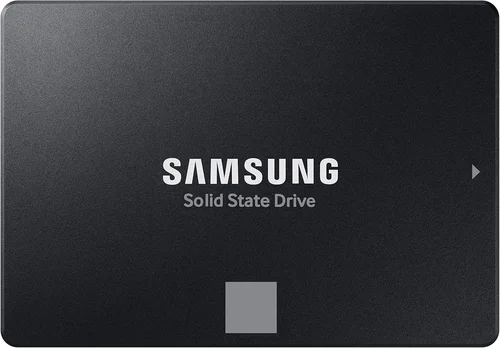
Premium ($90–$150): For enthusiasts and power users, premium SATA SSDs like the Samsung 870 EVO or Western Digital Blue SA510 deliver top-tier performance, high endurance, and advanced features. These are ideal for workstations, media servers, or anyone who wants the best possible SATA experience.
Luxury ($150+): At this level, you’re paying for maximum capacity (2TB or more), enterprise-grade reliability, or specialized features like power-loss protection. Drives like the Samsung 870 PRO or Intel SSD D3-S4520 are overkill for most consumers but excel in demanding environments.
Expert Tips for Getting the Best Deal
– Buy during seasonal sales: Major shopping events like Black Friday, Cyber Monday, and Amazon Prime Day often feature deep discounts on SSDs. Retailers like Newegg, Best Buy, and B&H Photo also run promotions throughout the year.
– Compare prices across retailers: Use price comparison tools or check multiple sites before purchasing. Sometimes, a drive may be cheaper at one store even if it’s listed at the same price elsewhere.
– Check for bundle deals: Some manufacturers offer SSDs bundled with cloning software, mounting brackets, or USB enclosures. These can add value, especially if you’re upgrading a laptop.
– Read the fine print on warranties: Ensure the warranty covers the drive for the full term and understand the replacement process. Some brands require you to pay shipping for returns.
– Test your drive after installation: Use tools like CrystalDiskMark or AS SSD Benchmark to verify performance. This ensures you received a working product and helps detect any issues early.
– Consider refurbished or open-box options: Reputable retailers like Amazon Renewed or Best Buy Outlet often sell certified pre-owned SSDs at a discount. These come with warranties and are a great way to save money.
– Don’t forget about installation: If you’re not comfortable installing the drive yourself, factor in the cost of professional help. Many computer repair shops offer affordable upgrade services.
– Monitor drive health regularly: Use the manufacturer’s software to check S.M.A.R.T. status and temperature. Early detection of issues can prevent data loss.
Frequently Asked Questions
Q: Can I use a SATA SSD in an older computer?
A: Yes, as long as your system has a SATA port (most desktops and laptops from 2008 onward do). SATA SSDs are backward compatible with SATA II and even SATA I, though speeds will be limited to the older interface’s maximum.
Q: Is a SATA SSD faster than an HDD?
A: Absolutely. Even the slowest SATA SSD is significantly faster than any HDD in terms of boot time, application launch, and file access. You’ll notice the difference immediately.
Q: Do I need to enable AHCI in BIOS?
A: Most modern systems have AHCI (Advanced Host Controller Interface) enabled by default, which is required for optimal SSD performance. If you’re upgrading an older system, check your BIOS settings and enable AHCI if necessary.
Q: Can I use a SATA SSD as a boot drive?
A: Yes, and it’s highly recommended. Installing your operating system on an SSD will dramatically improve system responsiveness. You can clone your existing drive or perform a fresh OS install.
Q: How long do SATA SSDs last?
A: Most consumer SATA SSDs are designed to last 5–10 years under normal use, depending on workload and TBW rating. For typical users, failure due to wear is rare—most drives outlast their usefulness.
Q: Should I defragment my SSD?
A: No. Defragmentation is unnecessary and can reduce the lifespan of an SSD. Windows and macOS automatically disable defragmentation for SSDs and use TRIM instead to maintain performance.
Q: What’s the difference between SATA and NVMe SSDs?
A: NVMe SSDs use the PCIe interface and are much faster than SATA SSDs, but they require an M.2 or U.2 slot and a compatible motherboard. SATA SSDs are slower but more widely compatible and often cheaper.
Q: Can I use a SATA SSD in a RAID setup?
A: Yes, SATA SSDs can be used in RAID arrays for increased performance or redundancy. However, ensure your motherboard and RAID controller support SSDs and consider the impact on warranty and endurance.
Q: Do I need a heatsink for my SATA SSD?
A: Generally, no. SATA SSDs generate less heat than NVMe drives and don’t require active cooling. However, in tightly enclosed cases, ensure adequate airflow to prevent thermal throttling.
Q: What happens if my SSD fails?
A: If your SSD fails under warranty, contact the manufacturer for a replacement. Always keep regular backups to prevent data loss. Some data recovery services can retrieve data from failed drives, but success is not guaranteed.
Our Final Recommendations
Best for Budget-Conscious Buyers: Crucial MX500 1TB – Offers excellent performance, DRAM cache, and a 5-year warranty at a very competitive price. Ideal for upgrading older systems or building a budget PC.
Best Overall Value: Samsung 870 EVO 1TB – Combines top-tier performance, high endurance (600 TBW), and Samsung’s reliable Magician software. A proven favorite among enthusiasts and professionals.
Best Premium Option: Western Digital Blue SA510 1TB – Delivers consistent speeds, strong endurance, and WD’s reliable Dashboard software. Great for content creators and power users.
Best for Beginners: Kingston KC600 1TB – Easy to install, includes cloning software, and offers solid performance for everyday use. Perfect for first-time upgraders.
Best for Advanced Users: Samsung 870 PRO 2TB – Built for heavy workloads with high endurance (1,200 TBW), power-loss protection, and enterprise-grade reliability. Ideal for workstations and servers.
Conclusion: Making the Right Choice
Choosing the right SATA SSD doesn’t have to be overwhelming. By focusing on your specific needs—whether it’s budget, performance, capacity, or compatibility—you can find a drive that delivers real-world benefits without breaking the bank. Remember to prioritize reputable brands, check real-world reviews, and avoid common pitfalls like skipping DRAM or ignoring endurance ratings.
While NVMe drives offer faster speeds, SATA SSDs remain a smart, reliable, and cost-effective choice for most users. They’re perfect for upgrading older systems, building budget PCs, or adding fast storage to any machine. With prices at historic lows and technology more mature than ever, there’s never been a better time to make the switch.
Take the time to assess your usage, compare your options, and invest in a drive that will serve you well for years to come. Whether you’re speeding up a family laptop or building a high-performance workstation, the right SATA SSD can make all the difference. Upgrade today—and experience the speed, reliability, and satisfaction that only solid-state storage can deliver.