
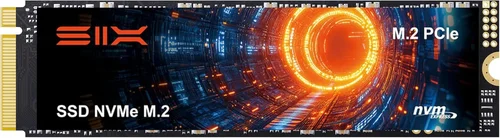
If you’re building a new PC, upgrading your laptop, or simply looking to breathe new life into an aging system, one of the most impactful upgrades you can make is swapping out a traditional hard drive or SATA SSD for a high-speed NVMe M.2 SSD. These tiny yet powerful storage drives have revolutionized how we experience computing—delivering lightning-fast boot times, near-instant application launches, and seamless multitasking. Whether you’re a gamer chasing frame-perfect load screens, a content creator handling 4K video files, or a professional managing large datasets, the right NVMe M.2 SSD can dramatically improve your workflow and overall system responsiveness.
But with so many options flooding the market in 2026—from budget-friendly models to cutting-edge PCIe 5.0 beasts—it’s easy to feel overwhelmed. How do you know which drive offers the best balance of speed, reliability, and value? What specs actually matter in real-world use? And how much should you really be spending? This comprehensive buyer’s guide cuts through the noise to help you make an informed decision. You’ll learn exactly what to look for, avoid common pitfalls, understand performance trade-offs, and discover top-tier recommendations tailored to different needs and budgets.
The NVMe M.2 SSD market has matured significantly over the past few years. Once considered a luxury reserved for enthusiasts, these drives are now mainstream, with prices dropping steadily while capacities and speeds continue to climb. Major manufacturers like Samsung, WD, Crucial, Kingston, and Sabrent dominate the space, but newer players like TeamGroup and Corsair are also making waves with competitive offerings. With PCIe 4.0 now standard on most modern platforms and PCIe 5.0 gaining traction in high-end builds, there’s never been a better time to upgrade. This guide will walk you through every critical factor—from NAND type and controller quality to thermal management and warranty terms—so you can confidently choose the best NVMe M.2 SSD for your specific use case.

What to Look for When Buying Buying Guide
1. Interface & Protocol Compatibility
The foundation of any NVMe M.2 SSD is its interface and protocol. Most drives today use the M.2 form factor (measuring 22mm wide and varying in length—commonly 80mm, labeled as “2280”) and connect via the PCIe (Peripheral Component Interconnect Express) bus using the NVMe (Non-Volatile Memory Express) protocol. This combination allows for significantly higher bandwidth compared to older SATA-based SSDs, which are capped at around 550 MB/s. Modern NVMe drives leverage PCIe lanes directly from the CPU or chipset, enabling speeds that can exceed 7,000 MB/s on PCIe 4.0 and even 12,000+ MB/s on PCIe 5.0.
Before purchasing, verify your system’s compatibility. Check your motherboard or laptop specifications to confirm whether it supports PCIe 3.0, 4.0, or 5.0. While newer drives are backward compatible (a PCIe 4.0 drive will work in a PCIe 3.0 slot, just at reduced speeds), investing in a PCIe 5.0 drive for a PCIe 3.0 system doesn’t make sense unless you plan to upgrade your platform soon. Also, ensure your system has an available M.2 slot—some older laptops or mini-PCs may only support SATA M.2 drives, which won’t deliver NVMe-level performance.
2. Performance Specifications
When evaluating performance, focus on two key metrics: sequential read/write speeds and random read/write IOPS (Input/Output Operations Per Second). Sequential speeds matter most for large file transfers—like copying video projects or loading game levels—while random IOPS reflect how well the drive handles many small, simultaneous requests, such as opening multiple browser tabs or running database queries.
For most users, a drive with 3,500–5,000 MB/s sequential read speeds is more than sufficient. Enthusiasts and professionals working with 8K video or massive datasets may benefit from PCIe 4.0 drives hitting 7,000 MB/s or PCIe 5.0 models pushing past 10,000 MB/s. However, real-world gains beyond 5,000 MB/s are often marginal for typical desktop use. Random performance is equally important: look for drives rated at 500,000+ IOPS for mixed workloads. Don’t rely solely on manufacturer claims—third-party benchmarks from sites like Tom’s Hardware or AnandTech provide more realistic performance data under sustained loads.
3. NAND Flash Type & Endurance
The type of NAND flash memory used in an SSD directly impacts its speed, longevity, and cost. In 2026, the most common types are TLC (Triple-Level Cell) and QLC (Quad-Level Cell). TLC stores three bits per cell and offers a great balance of performance, endurance, and affordability—it’s the sweet spot for most consumers. QLC stores four bits per cell, allowing for higher capacities at lower prices, but sacrifices write speed and endurance due to increased wear on cells.
Endurance is measured in TBW (Terabytes Written)—the total amount of data that can be written to the drive over its lifetime. A 1TB TLC drive might offer 600–700 TBW, while a similarly sized QLC drive could be rated for only 200–400 TBW. For everyday computing, even QLC is more than adequate, but if you’re frequently writing large files (e.g., video editing, VM usage), opt for TLC. Some premium drives now use PLC (Penta-Level Cell), but these remain niche due to reliability concerns and are not recommended for most users.
4. Controller & DRAM Cache
The SSD controller acts as the brain of the drive, managing data flow, error correction, wear leveling, and garbage collection. High-quality controllers—like those from Phison, Silicon Motion, or Marvell—are essential for consistent performance and longevity. Cheaper drives may use lesser-known or older controllers that struggle under sustained workloads, leading to slowdowns or instability.
DRAM cache is another critical component. Drives with a dedicated DRAM buffer (typically 1GB per 1TB of storage) maintain faster speeds during random access and improve overall responsiveness. DRAM-less SSDs use system memory (HMB—Host Memory Buffer) instead, which can work well for light tasks but often falters under heavy multitasking or large file operations. If performance consistency matters to you—especially for gaming or productivity—avoid DRAM-less models unless they’re from a trusted brand with proven HMB implementation.
5. Thermal Management & Throttling
High-speed NVMe drives generate significant heat, especially PCIe 4.0 and 5.0 models. Without proper cooling, they can throttle—reducing performance to prevent overheating. This is particularly problematic in compact laptops or small-form-factor PCs where airflow is limited. Many premium drives now include built-in heat spreaders or thermal pads, but these aren’t always sufficient under sustained loads.
Consider your system’s cooling capabilities. If your motherboard has an M.2 heatsink, pair it with a drive that doesn’t already have a bulky heatsink (to avoid fit issues). For desktops, aftermarket M.2 coolers are inexpensive and effective. Laptop users should prioritize low-profile drives or those with efficient thermal designs. Monitoring tools like HWiNFO or CrystalDiskInfo can help you track drive temperatures and detect throttling during real-world use.
6. Brand Reputation & Reliability
Not all SSDs are created equal—even if they share the same specs on paper. Established brands like Samsung, Western Digital, Crucial, and Kingston have a proven track record of delivering reliable, well-supported products with consistent firmware updates and strong customer service. Lesser-known brands may offer tempting prices, but they often cut corners on components, firmware, or quality control.
Look for brands that publish detailed reliability metrics (like annualized failure rates) and offer transparent support channels. User forums and professional reviews can reveal patterns of issues—such as sudden failures, firmware bugs, or poor RMA experiences. A slightly higher upfront cost for a reputable brand is almost always worth it for peace of mind and long-term reliability.
7. Warranty & Support
Warranty terms vary widely across manufacturers but generally range from 3 to 5 years. More importantly, check whether the warranty is based on time (e.g., 5 years) or usage (e.g., 600 TBW), whichever comes first. A 5-year/600 TBW warranty on a 1TB drive is standard for mid-to-high-tier models. Some brands, like Samsung, offer extended warranties if registered online.
Customer support quality matters too. Can you easily initiate an RMA? Is technical assistance responsive? Brands with regional service centers (like Samsung or WD) often provide faster replacements than those relying on third-party distributors. Always register your drive upon purchase to activate full warranty coverage.
8. Capacity Needs vs. Budget
Capacity directly affects price, but also performance and longevity. NVMe SSDs typically start at 250GB and go up to 8TB (with 4TB being the most practical high-capacity option in 2026). While 250GB may suffice for a basic OS install, it fills up quickly with modern games and applications. We recommend a minimum of 500GB for most users, with 1TB being the ideal sweet spot for performance, capacity, and value.
Larger drives often perform better due to more parallel NAND channels and higher over-provisioning (extra space reserved for wear leveling and garbage collection). A 2TB drive will generally sustain higher write speeds longer than a 500GB model of the same series. Balance your storage needs against your budget—don’t overspend on capacity you won’t use, but avoid going too small just to save money.
Different Types of Buying Guide

Common Buying Mistakes to Avoid
❌ Mistake: Ignoring Your System’s PCIe Generation
Why it’s bad: Buying a PCIe 5.0 drive for a PCIe 3.0 system wastes money and offers no real benefit. You’ll pay a premium for performance your hardware can’t utilize.
What to do instead: Match your drive to your platform. If you have a PCIe 3.0 system, stick with a high-quality PCIe 3.0 drive. Only invest in PCIe 4.0 or 5.0 if your motherboard supports it.
❌ Mistake: Choosing Based Solely on Peak Speed Numbers
Why it’s bad: Manufacturers often advertise maximum sequential speeds achieved under ideal lab conditions. Real-world performance—especially during sustained writes or mixed workloads—can be much lower.
What to do instead: Read independent reviews that test real-world scenarios like game loading, file copying, and multitasking. Look for drives with consistent performance, not just peak numbers.
❌ Mistake: Overlooking Thermal Throttling in Small Form Factors
Why it’s bad: In laptops or mini-PCs, high-speed drives can overheat and throttle, negating their performance advantages and potentially shortening lifespan.
What to do instead: Choose drives with efficient thermal designs or consider adding a slim heatsink. Monitor temps during heavy use and avoid stacking multiple high-power components in tight spaces.
❌ Mistake: Skimping on Capacity to Save Money
Why it’s bad: A 250GB drive fills up fast with Windows 11, modern games (many over 100GB), and apps. Low capacity also reduces performance due to less over-provisioning.
What to do instead: Aim for at least 500GB, but ideally 1TB. The price per GB drops significantly at higher capacities, making 1TB the best value for most users.
❌ Mistake: Buying the Cheapest Drive Without Checking Components
Why it’s bad: Ultra-cheap drives often use inferior NAND, outdated controllers, or lack DRAM—leading to poor performance, instability, or early failure.
What to do instead: Stick to reputable brands and verify key specs like NAND type, controller model, and DRAM presence. A few extra dollars upfront can save headaches later.
❌ Mistake: Neglecting Warranty and Support
Why it’s bad: SSDs can fail without warning. Without a solid warranty or responsive support, you risk losing data and facing lengthy replacement processes.
What to do instead: Prioritize drives with at least a 5-year warranty and check user experiences with RMA processes. Register your drive immediately after purchase.
❌ Mistake: Assuming All M.2 Slots Support NVMe
Why it’s bad: Some M.2 slots only support SATA protocol, meaning an NVMe drive won’t work—or will run at SATA speeds.
What to do instead: Consult your motherboard or laptop manual to confirm NVMe support. Look for labels like “M.2 PCIe” or “NVMe compatible.”
Budget Guidelines: How Much Should You Spend?
Entry-Level ($30–$60 for 1TB): This tier includes PCIe 3.0 TLC drives or budget PCIe 4.0 QLC models. Perfect for basic upgrades, secondary storage, or older systems. Expect decent everyday performance but limited sustained write speeds. Examples: Crucial P3, Kingston NV2.
Mid-Range ($60–$100 for 1TB): The sweet spot for most users. These are typically PCIe 4.0 TLC drives with DRAM, offering excellent speed, reliability, and value. Ideal for gaming, office work, and light content creation. Examples: Samsung 980 Pro, WD Black SN850X.
Premium ($100–$180 for 1TB): Designed for enthusiasts and professionals. Features top-tier controllers, high-endurance TLC NAND, robust thermal solutions, and blazing PCIe 4.0 or early PCIe 5.0 speeds. Great for 4K/8K video editing, heavy multitasking, and future-proofing. Examples: Sabrent Rocket 4 Plus, Corsair MP700.
Luxury ($180+ for 1TB): Cutting-edge PCIe 5.0 drives with extreme speeds (10,000+ MB/s), advanced cooling, and enterprise-grade reliability. Only justified for specialized workloads or users who demand absolute peak performance. Examples: Gigabyte AORUS Gen5 10000, MSI Spatium M570.
Expert Tips for Getting the Best Deal
- Time your purchase: SSD prices tend to drop in Q4 (holiday sales) and Q2 (post-launch lulls). Avoid buying right after a new generation launches—wait 2–3 months for price stabilization.
- Buy from authorized retailers: Stick to Amazon (sold by Amazon, not third parties), Newegg, Best Buy, or direct from manufacturer sites. This ensures genuine products and valid warranties.
- Compare price per GB: Don’t just look at total cost—calculate $/GB. A 2TB drive at $120 ($0.06/GB) may be a better deal than a 1TB at $70 ($0.07/GB).
- Check for bundle deals: Some manufacturers offer free cloning software, heatsinks, or extended warranties with purchase. Samsung’s Data Migration Tool, for example, simplifies OS transfers.
- Read return policies: Ensure the retailer allows returns if the drive doesn’t fit or perform as expected. Opened SSDs are often non-returnable, so double-check compatibility first.
- Test before committing: Once installed, run benchmarks (CrystalDiskMark, AS SSD) and monitor temps. If performance is inconsistent or temps exceed 70°C under load, consider a different model or better cooling.
- Consider refurbished options: Manufacturer-refurbished drives (e.g., Samsung Certified Refurbished) often come with full warranties and significant savings—just avoid third-party “renewed” listings.
- Don’t forget backup: Even the best SSD can fail. Always maintain backups using cloud services or external drives—especially before major OS updates.

Frequently Asked Questions
Q: Can I use an NVMe M.2 SSD in a SATA-only M.2 slot?
A: No. NVMe and SATA M.2 drives use different protocols and physical keying (the notch position on the connector). An NVMe drive will not fit or function in a SATA-only slot. Always verify your slot type before buying.
Q: Will a faster SSD make my games load quicker?
A: Yes, but with diminishing returns. Moving from HDD to NVMe cuts load times dramatically. Upgrading from PCIe 3.0 to 4.0 may shave a few seconds off, but the difference is often negligible unless you’re loading massive open-world games with high-res textures.
Q: Do I need a heatsink for my NVMe SSD?
A: It depends. In well-ventilated desktops with motherboard heatsinks, it’s often unnecessary. In laptops, small-form-factor PCs, or when running sustained workloads (rendering, compiling), a heatsink helps prevent throttling and extends drive life.
Q: How long do NVMe SSDs last?
A: Modern TLC NVMe drives typically last 5–10 years under normal use. With average daily writes of 20–50GB, even a 600 TBW drive will outlast most systems. QLC drives have lower endurance but are still sufficient for light users.
Q: Can I clone my old drive to a new NVMe SSD?
A: Absolutely. Most reputable brands provide free cloning software (e.g., Acronis for WD, Samsung Data Migration). Alternatively, use Macrium Reflect Free or Clonezilla for a cross-platform solution.
Q: Is PCIe 5.0 worth it in 2026?
A: For most users, no—yet. While PCIe 5.0 offers double the bandwidth of PCIe 4.0, real-world benefits are minimal outside niche applications like 8K video editing or AI training. Wait until prices drop and more software optimizes for the extra speed.
Q: What’s the difference between M.2 2280 and other sizes?
A: The number refers to dimensions: 22mm wide × 80mm long. 2280 is the most common. Other sizes like 2242 or 22110 exist but are rare in consumer devices. Always check your system’s supported lengths.
Q: Can I use two NVMe SSDs in RAID?
A: Yes, if your motherboard supports NVMe RAID (most modern AMD and Intel boards do). RAID 0 can boost speeds but increases failure risk—always back up critical data.
Q: Do NVMe SSDs consume more power?
A: Slightly. High-performance PCIe 4.0/5.0 drives draw more power under load than SATA SSDs, which can impact laptop battery life. For mobile use, consider lower-power models like the Samsung 990 EVO.
Q: What happens if my NVMe SSD fails?
A: Modern SSDs include wear leveling and error correction, but sudden failure is possible. If under warranty, contact the manufacturer for an RMA. Always keep backups—SSDs don’t give warning signs like clicking HDDs.
Our Final Recommendations
Best for Budget-Conscious Buyers: Crucial P3 1TB (PCIe 3.0 QLC) – At under $50, it delivers reliable NVMe speeds for everyday tasks without breaking the bank. Great for upgrading older systems.
Best Overall Value: Samsung 980 Pro 1TB (PCIe 4.0 TLC) – Consistently top-tier performance, excellent endurance, and Samsung’s renowned reliability. A proven workhorse for gamers and creators alike.
Best Premium Option: WD Black SN850X 2TB (PCIe 4.0 TLC) – Blazing speeds, robust thermal design, and gamer-focused features like RGB lighting (optional). Ideal for high-end builds.
Best for Beginners: Kingston NV2 1TB (PCIe 4.0 QLC) – Simple, affordable, and easy to install. Comes with Kingston’s SSD Manager tool for health monitoring—perfect for first-time upgraders.
Best for Advanced Users: Sabrent Rocket 4 Plus-G 2TB (PCIe 4.0 TLC) – Tuned for maximum sustained performance with a built-in heatsink. Excellent for content creators and power users who push their systems hard.
Conclusion: Making the Right Choice
Choosing the best NVMe M.2 SSD in 2026 isn’t just about chasing the highest speed rating—it’s about finding the right balance of performance, reliability, capacity, and value for your specific needs. Whether you’re building a budget PC, upgrading a laptop, or assembling a high-end workstation, the factors outlined in this guide will help you navigate the crowded marketplace with confidence. Remember to prioritize compatibility, real-world performance over marketing specs, and long-term support. Avoid common pitfalls like ignoring thermal limits or overlooking warranty terms, and always consider your actual usage patterns before splurging on unnecessary features.
Ultimately, the “best” SSD is the one that fits your system, meets your performance expectations, and stays within your budget—without compromising on quality. With prices more accessible than ever and technology advancing rapidly, there’s never been a better time to make the switch to NVMe. Take the time to research, compare, and invest wisely. Your future self—enjoying faster boot times, smoother multitasking, and quicker file access—will thank you. Ready to upgrade? Use this guide as your roadmap, and you’ll walk away with a drive that delivers both speed and satisfaction for years to come.