
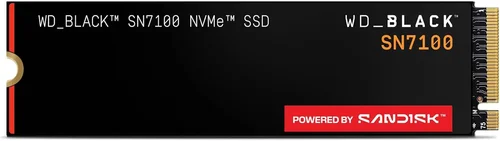
If you’re building or upgrading a PC in 2026, one of the most impactful decisions you’ll make is choosing the right M.2 SSD. Whether you’re a gamer chasing faster load times, a content creator handling massive video files, or just someone tired of waiting for your computer to boot up, the storage drive plays a pivotal role in your system’s responsiveness and overall performance. With the rapid evolution of solid-state storage technology, the market is flooded with options—ranging from budget-friendly SATA-based drives to blazing-fast PCIe Gen5 NVMe SSDs that push data speeds into the stratosphere. But with so many choices, how do you know which one is truly the best for your needs?
This comprehensive buying guide is designed to cut through the noise and help you make an informed decision. You’ll learn not only what to look for in an M.2 SSD but also how to avoid common pitfalls, understand performance trade-offs, and identify the sweet spot between price and performance. We’ll break down the technical jargon, compare different types of drives, and offer expert insights based on real-world usage scenarios. By the end of this guide, you’ll have a clear roadmap to selecting the ideal M.2 SSD that fits your budget, use case, and future upgrade plans.
The M.2 SSD market in 2026 is more diverse and competitive than ever. Major brands like Samsung, Western Digital, Crucial, Kingston, and Sabrent continue to innovate, while newer players like Phison-powered OEMs and Chinese manufacturers are driving prices down without sacrificing much quality. Meanwhile, the shift from PCIe Gen3 to Gen4 and now Gen5 has opened up new performance tiers, especially for high-end desktops and workstations. At the same time, laptop users and budget builders still benefit from reliable, affordable Gen3 and even SATA-based M.2 drives. This guide will help you navigate all these variables and choose the right drive for your specific setup.

What to Look for When Buying Buying Guide
1. Budget & Price Range
Your budget is often the first and most important filter when shopping for an M.2 SSD. Prices can vary dramatically depending on capacity, speed, and technology. As of 2026, you can find entry-level 1TB M.2 SSDs for under $50, while high-performance 4TB Gen5 drives can cost $500 or more. It’s essential to balance your spending with your actual needs—overpaying for speed you’ll never use is just as wasteful as buying a slow drive that bottlenecks your system.
Start by determining how much storage you realistically need. A 500GB drive might suffice for a basic office PC, but gamers and creators should aim for at least 1TB. Consider future-proofing: if you plan to keep your system for 3–5 years, investing a little more now can save you from needing an upgrade later. Also, watch for seasonal sales—Black Friday, Prime Day, and back-to-school periods often bring significant discounts on SSDs.
2. Performance Specifications
Performance is where M.2 SSDs truly shine, but not all drives are created equal. The key metrics to focus on are sequential read/write speeds and random read/write IOPS (Input/Output Operations Per Second). Sequential speeds matter most for large file transfers—like copying a 4K video or installing a game—while random IOPS affect everyday responsiveness, such as opening apps or multitasking.
For example, a PCIe Gen3 NVMe SSD might offer around 3,500 MB/s read and 3,000 MB/s write, which is already a massive improvement over SATA SSDs. Gen4 drives double that, with top models hitting 7,000–7,400 MB/s. Gen5 drives push beyond 10,000 MB/s, but they often require better cooling and are overkill for most users. Random performance is equally important: look for drives with high 4K random read/write IOPS (e.g., 600K+), especially if you multitask heavily or run virtual machines.
3. Build Quality & Durability
Not all SSDs are built to the same standard. Build quality affects longevity, thermal performance, and reliability. Look for drives from reputable manufacturers that use high-quality NAND flash memory—preferably TLC (Triple-Level Cell) or MLC (Multi-Level Cell) over cheaper QLC (Quad-Level Cell), which wears out faster under heavy write loads.
Thermal management is another critical factor. High-speed Gen4 and Gen5 SSDs generate significant heat, which can throttle performance if not properly cooled. Many premium drives now come with built-in heatsinks or are designed to work with motherboard M.2 heatsinks. If you’re building a compact PC or using a laptop, ensure the drive doesn’t overheat under sustained load. Also, check the drive’s endurance rating, measured in TBW (Terabytes Written). A 1TB drive with 600 TBW will last longer under heavy use than one with 300 TBW.
4. Features & Functionality
Beyond raw speed, consider the features that enhance usability and reliability. DRAM cache is a major differentiator: drives with a dedicated DRAM buffer perform better under sustained workloads and last longer. DRAM-less SSDs are cheaper but can suffer from performance drops when the cache fills up.
Other features to look for include hardware encryption (like TCG Opal or AES-256), which is essential for business users or anyone storing sensitive data. Some drives also support advanced power management, useful for laptops to extend battery life. Additionally, check for compatibility with your system’s interface—most modern motherboards support NVMe, but older systems may only support SATA M.2 drives. Always verify your motherboard’s M.2 slot type (Key M, B+M, etc.) and supported PCIe generation.
5. Brand Reputation
Brand matters—especially when it comes to reliability and customer support. Established brands like Samsung, Western Digital, and Crucial have proven track records for quality control, firmware updates, and long-term reliability. Samsung’s 990 Pro, for instance, is widely regarded as one of the most reliable Gen4 drives on the market.
That said, newer brands and OEMs (like those using Phison controllers) can offer excellent value. Just be cautious with no-name brands or drives sold at suspiciously low prices—they may use inferior components or lack proper firmware support. Reading professional reviews and user feedback can help you gauge a brand’s reputation. Also, consider regional availability: some brands have better support in certain countries, which can affect warranty claims and replacement times.
6. Warranty & Support
A solid warranty is a strong indicator of a manufacturer’s confidence in their product. Most premium M.2 SSDs come with 5-year warranties, while budget drives may only offer 3 years. The warranty often ties into the TBW rating—higher endurance usually means longer coverage.
Check what the warranty covers: does it include data recovery? Is it transferable if you sell your PC? Some brands, like Samsung and WD, offer excellent customer support with easy RMA processes. Others may require you to deal with third-party distributors. Also, ensure the drive is registered properly—some warranties require online registration within a certain period of purchase.
7. Size & Portability
While all M.2 SSDs share the same form factor (typically 2280—22mm wide, 80mm long), size can still matter depending on your build. In compact PCs, laptops, or mini-ITX systems, space is at a premium. Some drives come with bulky heatsinks that may not fit in tight enclosures or interfere with GPU clearance.
If you’re building a small form factor PC, look for low-profile drives or consider adding a slim aftermarket heatsink. For laptops, ensure the drive is compatible with your model—some ultrabooks only support shorter M.2 lengths (like 2242 or 2260). Also, portability isn’t just about physical size: if you plan to use the SSD in an external enclosure, consider drives with good thermal performance and compatibility with USB 3.2 Gen 2×2 or Thunderbolt 4 enclosures for maximum speed.
8. User Reviews & Ratings
Never rely solely on manufacturer specs. Real-world user reviews provide invaluable insights into long-term reliability, thermal behavior, and compatibility issues. Check trusted tech forums like Reddit’s r/buildapc, Tom’s Hardware, and AnandTech, as well as retailer reviews on Amazon, Newegg, and Best Buy.
Pay attention to patterns: if multiple users report the same issue—like sudden disconnects, slowdowns after a few months, or firmware bugs—it’s a red flag. Conversely, consistent praise for performance, durability, or ease of installation is a good sign. Also, look for reviews from users with similar use cases to yours. A drive praised by video editors may not be ideal for casual gamers, and vice versa.
Different Types of Buying Guide

Common Buying Mistakes to Avoid
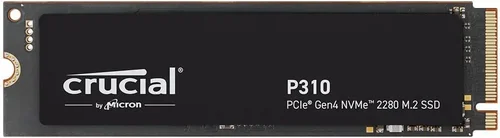
❌ Mistake: Ignoring Your Motherboard’s M.2 Compatibility
Why it’s bad: Not all M.2 slots support NVMe or the latest PCIe generations. Installing a Gen5 SSD in a Gen3-only slot will severely limit performance, and some older boards may not recognize NVMe drives at all.
What to do instead: Check your motherboard manual or manufacturer’s website to confirm which M.2 slots support NVMe and what PCIe generation they use. If you’re unsure, look for the “Key” type (usually Key M for NVMe) and verify bandwidth limits.
❌ Mistake: Choosing QLC Over TLC for Heavy Workloads
Why it’s bad: QLC NAND is cheaper and denser but wears out much faster under sustained write loads. This can lead to premature failure if you’re editing videos, running databases, or installing large games frequently.
What to do instead: Opt for TLC-based drives for any system that will see regular heavy use. QLC is acceptable for light tasks like web browsing or office work, but avoid it for primary drives in workstations or servers.
❌ Mistake: Overlooking Thermal Throttling
Why it’s bad: High-speed Gen4 and Gen5 SSDs can overheat during prolonged use, causing performance to drop significantly. This is especially problematic in laptops or tightly packed desktop builds.
What to do instead: Choose drives with built-in heatsinks or ensure your case has adequate airflow. Consider adding an aftermarket M.2 heatsink if your motherboard doesn’t include one. Monitor temperatures using tools like HWInfo or CrystalDiskInfo.
❌ Mistake: Buying Based Solely on Peak Speed
Why it’s bad: Marketing often highlights maximum sequential speeds, but real-world performance depends on random IOPS, cache behavior, and sustained write speeds. A drive that peaks at 7,000 MB/s may slow to a crawl once its cache fills up.
What to do instead: Look at sustained performance benchmarks and reviews that test real-world scenarios. Pay attention to how the drive performs after the SLC cache is exhausted, especially for large file transfers.
❌ Mistake: Skipping the DRAM Cache
Why it’s bad: DRAM-less SSDs use system memory (HMB) for caching, which can lead to inconsistent performance and higher CPU usage. They’re also more prone to slowdowns under heavy multitasking.
What to do instead: Always prefer drives with a dedicated DRAM cache for primary OS and application storage. DRAM-less drives are acceptable for secondary storage or backup drives.
❌ Mistake: Not Checking Warranty Terms
Why it’s bad: Some warranties are voided if the drive exceeds its TBW limit, even if it’s still functioning. Others require registration within 30 days or only cover manufacturing defects, not wear and tear.
What to do instead: Read the fine print before buying. Choose brands with transparent, user-friendly warranty policies. Register your drive promptly and keep proof of purchase.
❌ Mistake: Assuming All M.2 SSDs Are Interchangeable
Why it’s bad: M.2 drives come in different lengths (2242, 2260, 2280) and key types (B, M, B+M). Using the wrong size or key can prevent installation or cause compatibility issues.
What to do instead: Measure your available space and check your motherboard’s supported M.2 sizes. Most consumer drives are 2280, but compact systems may require shorter variants.
Budget Guidelines: How Much Should You Spend?
- Entry-Level ($30–$60 for 1TB): Ideal for basic computing, light gaming, and older systems. Look for reliable SATA or Gen3 NVMe drives from brands like Crucial or Kingston. Expect decent performance for everyday tasks but limited endurance and no advanced features.
- Mid-Range ($60–$100 for 1TB): The sweet spot for most users. Gen3 and entry-level Gen4 NVMe drives offer excellent speed, good endurance, and reliable performance. Great for gaming, productivity, and general use. Brands like WD Black SN770 or Samsung 980 offer great value here.
- Premium ($100–$200 for 1TB): For enthusiasts and professionals. High-end Gen4 drives with top-tier controllers, DRAM cache, and robust cooling. Perfect for content creation, 4K gaming, and multitasking. Examples include the Samsung 990 Pro and WD Black SN850X.
- Luxury ($200+ for 1TB): Cutting-edge Gen5 drives with speeds exceeding 10,000 MB/s. Best for workstations, AI development, or future-proof builds. These drives often include advanced thermal solutions and are overkill for average users. Consider the Sabrent Rocket 5 or Corsair MP700 Pro.
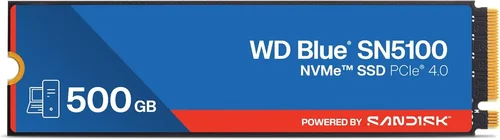
Expert Tips for Getting the Best Deal
- Buy During Major Sales Events: Black Friday, Cyber Monday, Amazon Prime Day, and back-to-school sales often feature deep discounts on SSDs. Sign up for deal alerts from retailers like Newegg, Best Buy, and B&H.
- Compare Prices Across Retailers: Use price comparison tools like Google Shopping or CamelCamelCamel to track historical prices and spot genuine deals.
- Check Refurbished or Open-Box Options: Reputable retailers often sell certified refurbished SSDs at 20–30% off with full warranties. These are a great way to save on premium models.
- Read the Return Policy: Ensure the retailer offers a hassle-free return window (at least 30 days) in case the drive is defective or incompatible.
- Test Before Committing: Once installed, run benchmarks (like CrystalDiskMark) and monitor temperatures. If performance is inconsistent or the drive overheats, consider returning it.
- Register Your Drive Immediately: Some warranties require registration within 30 days. Do it as soon as you install the drive to avoid issues later.
- Consider Bundled Deals: Some motherboards or prebuilt PCs come with free or discounted SSDs. These can be a great value if the drive meets your needs.
- Watch for Firmware Updates: Manufacturers occasionally release firmware updates that improve performance or fix bugs. Check the brand’s support page periodically.
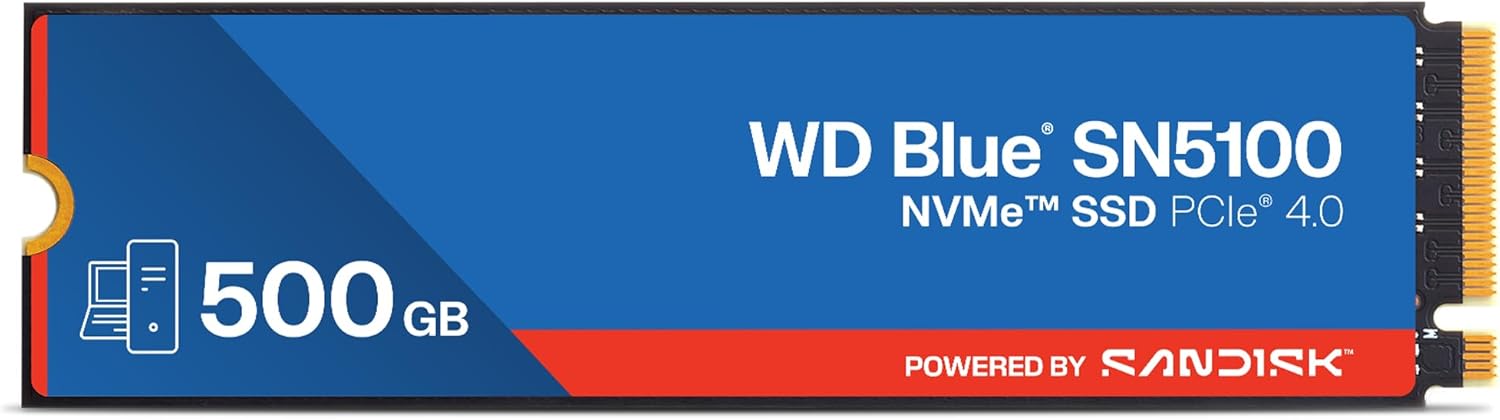
Frequently Asked Questions
Q: Can I use an M.2 SSD in a laptop?
A: Yes, but only if your laptop has an M.2 slot and supports the drive’s interface (SATA or NVMe). Check your laptop’s manual or manufacturer’s website for compatibility. Some ultrabooks only support shorter M.2 lengths (like 2242).
Q: Is a Gen5 SSD worth it in 2026?
A: For most users, no. Gen5 drives offer incredible speeds but require compatible motherboards, robust cooling, and are overkill for gaming or general use. They’re best suited for professional workloads like 8K video editing or AI training.
Q: How do I install an M.2 SSD?
A: Power off your PC, ground yourself, locate the M.2 slot on your motherboard, insert the drive at a 30-degree angle, and secure it with the mounting screw. Ensure the drive is properly seated and the heatsink (if used) doesn’t interfere with other components.
Q: Can I clone my old drive to a new M.2 SSD?
A: Yes, using cloning software like Macrium Reflect, Acronis True Image, or Samsung Data Migration. This allows you to transfer your OS, apps, and files without reinstalling everything.
Q: Do I need a heatsink for my M.2 SSD?
A: It depends. Gen3 and SATA drives rarely need one, but Gen4 and Gen5 drives benefit greatly from cooling, especially under sustained load. Many motherboards include M.2 heatsinks—use them if available.
Q: How long do M.2 SSDs last?
A: Most modern SSDs last 5–10 years under normal use, depending on TBW rating and usage patterns. Heavy write workloads (like video editing) will wear them out faster. Monitor health using tools like CrystalDiskInfo.
Q: Can I use an M.2 SSD as external storage?
A: Yes, with an M.2 NVMe to USB enclosure. Look for USB 3.2 Gen 2×2 or Thunderbolt 4 enclosures for maximum speed. Ensure the enclosure supports your drive’s size and interface.
Q: What’s the difference between NVMe and SATA M.2?
A: NVMe uses the PCIe interface for much faster speeds (up to 7,000+ MB/s), while SATA M.2 is limited to ~600 MB/s. NVMe is ideal for performance, SATA for budget builds.
Q: Should I buy a 2TB SSD or two 1TB drives?
A: For most users, a single 2TB drive is simpler and often more cost-effective. However, two 1TB drives can offer redundancy (RAID 1) or separate partitions for OS and data, which some prefer for organization.
Our Final Recommendations
- Best for Budget-Conscious Buyers: Crucial P3 1TB (Gen3 NVMe) – Reliable, affordable, and widely compatible. Great for upgrading older systems or building a budget PC.
- Best Overall Value: WD Black SN770 1TB (Gen4 NVMe) – Excellent performance, low power consumption, and competitive pricing. Ideal for gamers and general users.
- Best Premium Option: Samsung 990 Pro 2TB (Gen4 NVMe) – Top-tier performance, robust endurance, and excellent thermal management. Perfect for creators and enthusiasts.
- Best for Beginners: Kingston NV2 1TB (Gen4 NVMe) – Easy to install, reliable, and backed by a strong warranty. A great first NVMe drive.
- Best for Advanced Users: Sabrent Rocket 5 2TB (Gen5 NVMe) – Blazing-fast speeds, built-in heatsink, and excellent for high-end workstations. Requires a Gen5-compatible motherboard.
Conclusion: Making the Right Choice
Choosing the best M.2 SSD in 2026 doesn’t have to be overwhelming. By focusing on your specific needs—whether that’s budget, performance, or future-proofing—you can narrow down the options and find a drive that delivers real value. Remember, the “best” SSD isn’t always the fastest or most expensive; it’s the one that fits your use case, budget, and system compatibility.
Take the time to research, read reviews, and compare specs. Don’t fall for marketing hype—look beyond peak speeds and consider real-world performance, durability, and support. And always prioritize reliability over raw numbers. A slightly slower drive from a trusted brand with a solid warranty is often a smarter long-term investment than a flashy newcomer with questionable longevity.
Whether you’re upgrading an old laptop, building a high-end gaming rig, or setting up a professional workstation, the right M.2 SSD can transform your computing experience. Use this guide as your roadmap, and you’ll be well-equipped to make a confident, informed decision. Your system—and your patience—will thank you.