

Choosing the right storage drive for your laptop isn’t just a technical decision—it’s a practical one that affects everything from how fast your computer boots up to how smoothly your favorite apps run. Whether you’re upgrading an older machine, building a new setup, or simply replacing a failing drive, understanding the differences between HDDs (Hard Disk Drives) and SSDs (Solid State Drives) is essential. With laptops becoming thinner, lighter, and more performance-driven than ever, your choice of storage can make or break your overall computing experience.
In this comprehensive guide, we’ll walk you through every critical factor to consider when deciding between an HDD and an SSD for your laptop in 2026. You’ll learn how to evaluate performance, durability, capacity, price, and compatibility based on your specific needs—whether you’re a student, creative professional, gamer, or casual user. We’ll also debunk common myths, highlight frequent buying mistakes, and provide expert-backed recommendations tailored to different budgets and use cases. By the end, you’ll have all the knowledge you need to confidently choose the best storage solution for your laptop.
The laptop storage market has evolved dramatically over the past decade. While HDDs once dominated due to their low cost per gigabyte, SSDs have rapidly taken over as the preferred choice for most users thanks to falling prices and massive performance gains. Today, even budget laptops often come with at least a small SSD, while high-end models feature NVMe SSDs that deliver blazing-fast speeds. Yet, HDDs still hold value in specific scenarios—especially where large storage capacity is needed at minimal cost. This guide cuts through the noise to help you understand not just what each type offers, but when it makes sense to choose one over the other.

What to Look for When Buying Buying Guide
1. Budget & Price Range
Your budget is often the first and most decisive factor when choosing between an HDD and SSD. HDDs remain significantly cheaper per gigabyte, making them attractive for users who need terabytes of storage without breaking the bank. For example, a 2TB HDD might cost around $50–$70, while a comparable SSD could run $150–$250 or more. However, SSD prices have dropped steadily, and even 1TB SSDs are now accessible to budget-conscious buyers for under $60 during sales.
That said, don’t let upfront cost alone dictate your decision. Consider total value: an SSD may cost more initially but can extend your laptop’s usable life by improving responsiveness, reducing boot times, and minimizing wear from mechanical failure. If you’re on a tight budget but still want SSD benefits, consider a smaller SSD (256GB or 512GB) for your operating system and essential apps, paired with cloud storage or an external HDD for bulk files.
2. Performance Specifications
Performance is where SSDs truly shine—and HDDs fall behind. SSDs use flash memory with no moving parts, allowing near-instant data access. Typical SATA SSDs offer read/write speeds of 500–550 MB/s, while NVMe SSDs (connected via M.2 slots) can exceed 3,500 MB/s—over six times faster. This translates to dramatically quicker boot times (often under 10 seconds), faster application launches, and snappier multitasking.
HDDs, by contrast, rely on spinning platters and a mechanical read/write head. Their speeds typically range from 80–160 MB/s, and performance degrades further when the drive becomes fragmented or near full capacity. Real-world impact? An HDD-equipped laptop may take 30–60 seconds to boot, and loading large files or games can feel sluggish. If speed matters—for video editing, gaming, programming, or even everyday productivity—an SSD is almost always the better choice.
3. Build Quality & Durability
Durability is a major differentiator. Because HDDs contain moving parts, they’re vulnerable to shock, vibration, and physical drops—common risks for laptop users. A sudden jolt while the drive is active can cause head crashes, leading to data loss or complete failure. SSDs, with no mechanical components, are inherently more rugged. They can withstand drops, temperature fluctuations, and everyday bumps far better than HDDs.
This makes SSDs ideal for students, travelers, or professionals who work on the go. Many modern ultrabooks and business laptops now ship exclusively with SSDs not just for speed, but for reliability. If your laptop lives in a backpack or you frequently move between locations, an SSD significantly reduces the risk of drive failure.
4. Features & Functionality
Beyond raw speed and durability, consider advanced features. Most modern SSDs support TRIM (a command that maintains performance over time), wear leveling (to prolong lifespan), and encryption (like AES-256 for security). NVMe SSDs also support PCIe Gen4 or Gen5 interfaces, enabling ultra-high bandwidth for future-proofing.
HDDs offer fewer smart features, though some enterprise-grade models include vibration resistance or power-loss protection. However, they lack native encryption in many consumer models and don’t benefit from technologies like SLC caching (used in SSDs to boost short-term write speeds). Additionally, SSDs consume less power, which translates to longer battery life—a critical advantage for mobile users.
5. Brand Reputation
Not all drives are created equal, even within the same category. Reputable brands like Samsung, Crucial, Western Digital, Kingston, and Sabrent consistently deliver reliable SSDs with strong firmware support and consistent performance. Samsung’s 870 EVO and 980 PRO series, for instance, are benchmarks in the industry for stability and speed.
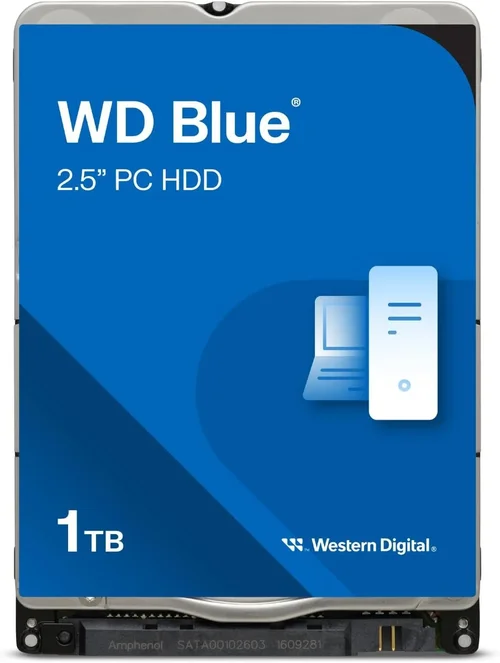
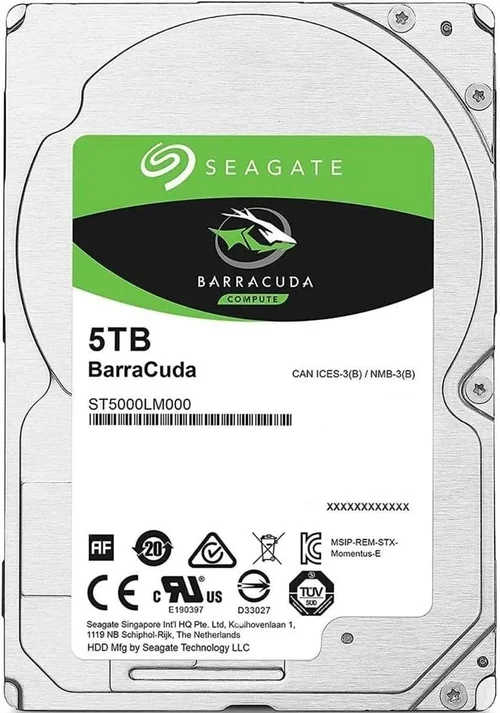
For HDDs, Western Digital (WD Blue, WD Black), Seagate (BarraCuda, IronWolf), and Toshiba remain top choices. Avoid no-name or ultra-cheap brands, especially for SSDs, as they may use lower-grade NAND flash or lack proper error correction, leading to premature failure. Checking professional reviews and user feedback on trusted platforms like Amazon, Newegg, or Tom’s Hardware can help validate a brand’s track record.
6. Warranty & Support
Warranty terms reflect a manufacturer’s confidence in their product. Most quality SSDs come with 3–5 year warranties, often tied to terabytes written (TBW)—a metric indicating endurance. For example, a 1TB SSD might have a 600 TBW rating, meaning you could write 600 terabytes of data over its lifespan before warranty coverage ends. Higher-end models may offer even longer coverage.
HDD warranties typically range from 2–5 years but are usually time-based rather than usage-based. However, because HDDs are more prone to mechanical failure, some users prefer drives with longer warranties or optional extended coverage. Always register your drive after purchase to activate support, and keep proof of purchase handy.
7. Size & Portability
While both HDDs and SSDs come in standard 2.5-inch form factors for laptops, SSDs have a clear edge in physical versatility. Many laptops now use M.2 SSDs—small, stick-like drives that plug directly into the motherboard, saving space and weight. These are common in ultrabooks, thin-and-light models, and gaming laptops where internal real estate is limited.
HDDs are bulkier and heavier due to their mechanical design, which can be a drawback in ultra-portable laptops. If you’re upgrading an older laptop that only supports 2.5-inch drives, you’re limited to those form factors—but even then, 2.5-inch SSDs are lighter and generate less heat than their HDD counterparts.
8. User Reviews & Ratings
Never underestimate the power of real-world feedback. User reviews reveal patterns that specs sheets can’t: inconsistent performance, firmware bugs, compatibility issues, or premature failures. Look for drives with consistently high ratings (4+ stars) across multiple platforms, and pay attention to recurring complaints.
For example, some budget SSDs may advertise high speeds but throttle under sustained loads due to poor thermal management. Others might useQLC NAND, which offers high density but lower endurance and slower write speeds compared to TLC or MLC. Reading detailed reviews from tech sites like AnandTech, PCMag, or Linus Tech Tips can provide deeper insights into long-term reliability.
Different Types of Buying Guide

Common Buying Mistakes to Avoid
❌ Mistake: Prioritizing Capacity Over Speed
Why it’s bad: Choosing a large HDD solely for its terabytes of space ignores the daily frustration of slow performance. You’ll spend more time waiting for files to load, apps to launch, and the system to respond—especially as the drive fills up.
What to do instead: Opt for a moderate-capacity SSD (512GB is a sweet spot in 2026) and use cloud storage or an external drive for large media collections. The speed gain far outweighs the inconvenience of managing storage.
❌ Mistake: Ignoring Form Factor Compatibility
Why it’s bad: Not all laptops support M.2 NVMe SSDs. Some older models only accept 2.5-inch SATA drives, while newer ultrabooks may lack 2.5-inch bays entirely. Buying the wrong type means you can’t install it.
What to do instead: Check your laptop’s manual or manufacturer specs before purchasing. Use tools like Crucial’s Scanner or Samsung’s Advisor to verify compatibility. When in doubt, consult a technician.
❌ Mistake: Buying the Cheapest SSD Without Checking NAND Type
Why it’s bad: Budget SSDs often use QLC (Quad-Level Cell) NAND, which stores more data per cell but wears out faster and slows down under heavy writes. This can lead to degraded performance and shorter lifespan.
What to do instead: Prefer TLC (Triple-Level Cell) or MLC NAND for better endurance and consistent speeds. Look for drives with DRAM caches, which improve performance and longevity.
❌ Mistake: Overlooking Power Efficiency
Why it’s bad: HDDs consume more power due to spinning platters, which drains laptop batteries faster. On long flights or remote work sessions, this can be a dealbreaker.
What to do instead: Choose an SSD—especially an NVMe model with low idle power draw. Even SATA SSDs use significantly less energy than HDDs, extending battery life by 30–60 minutes in typical usage.
❌ Mistake: Assuming All SSDs Are Equal
Why it’s bad: A $30 no-name SSD may seem like a bargain, but it likely lacks proper error correction, thermal throttling protection, or reliable firmware. These can cause crashes, data corruption, or sudden failure.
What to do instead: Stick to reputable brands with proven track records. Read professional reviews and check warranty terms. A slightly higher upfront cost pays off in reliability.
❌ Mistake: Neglecting Backup Strategy
Why it’s bad: Whether you choose HDD or SSD, no drive lasts forever. Failing to back up important data puts you at risk of permanent loss from failure, malware, or accidental deletion.
What to do instead: Implement the 3-2-1 backup rule: 3 copies of your data, on 2 different media, with 1 offsite (e.g., cloud). Use automated backup software like Macrium Reflect or Time Machine.
❌ Mistake: Upgrading Without Cloning or Fresh Install
Why it’s bad: Simply swapping drives without transferring your OS leads to reinstalling everything from scratch—a time-consuming process prone to missing settings or licenses.
What to do instead: Use cloning software (like Acronis True Image or Macrium Reflect) to copy your existing drive to the new one. Alternatively, perform a clean OS install for optimal performance.
Budget Guidelines: How Much Should You Spend?
Entry-Level ($30–$60): At this price, you’re likely looking at 256GB–512GB SATA SSDs or 1TB–2TB HDDs. SSDs in this range (like the Crucial BX500 or Kingston A400) offer solid everyday performance for web browsing, office apps, and light multitasking. HDDs provide ample space for media but will feel sluggish. Best for students or secondary laptops.
Mid-Range ($60–$120): This is the sweet spot for most users. You can get a 1TB SATA SSD (Samsung 870 EVO) or a 1TB NVMe SSD (WD Black SN770). These deliver excellent speed, reliability, and capacity for gaming, photo editing, and general productivity. Ideal for mainstream laptops and upgrades.
Premium ($120–$250): Here, you’ll find high-end NVMe SSDs with PCIe Gen4 support (Samsung 990 PRO, Sabrent Rocket 4 Plus) in 1TB–2TB capacities. These are perfect for video editors, developers, and gamers who need maximum throughput and low latency. Also includes rugged external SSDs for professionals on the move.
Luxury ($250+): Top-tier options include 4TB+ NVMe drives, enterprise-grade SSDs with power-loss protection, or specialized drives for AI workloads. These are overkill for most users but justified for servers, workstations, or enthusiasts building future-proof systems.
Expert Tips for Getting the Best Deal
– Buy during major sales events: Retailers consistently discount storage drives during holidays and shopping festivals. Patience can save you $30–$80 on a quality SSD.
– Check refurbished or open-box options: Certified refurbished SSDs from manufacturers like Samsung or Crucial often come with full warranties and cost 20–30% less than new units.
– Compare TBW ratings, not just capacity: A 1TB SSD with 600 TBW will last longer under heavy use than one with 300 TBW, even if both cost the same.
– Use manufacturer tools: Brands like Samsung and Crucial offer free compatibility checkers and migration software—take advantage to ensure a smooth upgrade.
– Read the fine print on warranties: Some warranties are voided if the drive is used in a desktop instead of a laptop, or if third-party tools are used for cloning.
– Test before finalizing: After installation, run benchmarks (CrystalDiskMark, AS SSD) to verify advertised speeds. Monitor temperatures with HWInfo to avoid thermal throttling.
– Consider future needs: Buying a slightly larger SSD now (e.g., 1TB instead of 512GB) prevents needing another upgrade in 1–2 years as software grows larger.
– Don’t forget the enclosure: If repurposing an old SSD as external storage, invest in a quality USB 3.2 Gen 2 enclosure for full speed potential.

Frequently Asked Questions
Q: Can I install both an HDD and SSD in my laptop?
A: It depends on your laptop’s design. Some models have space for a 2.5-inch drive plus an M.2 slot, allowing dual storage. Others only support one drive. Check your service manual or look for empty bays inside the chassis. If space is limited, consider replacing the optical drive (if present) with a caddy for a second drive.
Q: Will an SSD improve gaming performance?
A: Yes—but mostly in load times, not frame rates. Games installed on an SSD will launch faster, and levels or textures will load more quickly. However, FPS (frames per second) depends on your GPU and CPU. For open-world games like Cyberpunk 2077 or Starfield, an SSD significantly reduces stuttering and pop-in.
Q: How long do SSDs really last?
A: Modern SSDs are extremely durable. A typical 1TB TLC SSD with 600 TBW could last over 10 years even if you write 164GB per day. Most users will never reach the write limit. Wear is more affected by usage patterns than time.
Q: Are external SSDs worth it?
A: Absolutely. External SSDs offer portable, fast storage for backups, media, or transferring large files between devices. Look for USB 3.2 Gen 2 (10Gbps) or Thunderbolt 3/4 support for best performance. Models like the Samsung T7 or SanDisk Extreme are excellent choices.
Q: Do I need DRAM on my SSD?
A: DRAM acts as a cache for the SSD’s mapping table, improving performance and longevity. DRAM-less SSDs (often budget models) use system memory (HMB) instead, which works but can slow down under heavy workloads. For most users, a DRAM-equipped SSD is worth the small premium.
Q: Can I recover data from a failed SSD?
A: It’s possible but challenging and expensive. Unlike HDDs, SSDs often fail suddenly with little warning, and data recovery requires specialized tools. Prevention—through regular backups—is far more reliable than recovery.
Q: Is NVMe always faster than SATA?
A: In theory, yes—NVMe uses the PCIe bus, which has much higher bandwidth than SATA III (6Gbps). However, for everyday tasks like web browsing or document editing, the difference is barely noticeable. NVMe shines in large file transfers, video editing, and gaming.
Q: Should I defragment my SSD?
A: No—and doing so can reduce its lifespan. SSDs don’t benefit from defragmentation because they have no moving parts. Windows automatically disables defrag for SSDs and runs TRIM instead, which maintains performance.
Q: What’s the difference between SATA and NVMe M.2 drives?
A: Both use the M.2 slot, but SATA M.2 SSDs are limited to ~550 MB/s, while NVMe M.2 drives use PCIe lanes and can exceed 7,000 MB/s (Gen5). Check your laptop’s specs—some M.2 slots only support SATA, not NVMe.
Q: Can I upgrade my laptop’s storage myself?
A: Most laptops allow user-upgradeable storage, but some ultrabooks (like certain MacBooks or Dell XPS models) have soldered SSDs. Always verify upgradeability before purchasing. Tools like iFixit provide free teardown guides.
Our Final Recommendations
Best for Budget-Conscious Buyers: Crucial BX500 1TB SATA SSD – Reliable, affordable, and significantly faster than any HDD. Perfect for upgrading older laptops without breaking the bank.
Best Overall Value: Samsung 980 (Non-Pro) 1TB NVMe SSD – Excellent performance, strong endurance, and competitive pricing. Ideal for most users seeking speed and reliability.
Best Premium Option: Samsung 990 PRO 2TB NVMe SSD – Top-tier Gen4 performance with exceptional thermal management. Built for demanding workloads and future-proofing.
Best for Beginners: Kingston NV2 1TB NVMe SSD – Easy to install, comes with cloning software, and offers solid everyday performance at a great price.
Best for Advanced Users: Western Digital Black SN850X 2TB – High sustained speeds, robust firmware, and optimized for gaming and content creation. Includes downloadable dashboard for monitoring.
Conclusion: Making the Right Choice
The debate between HDD and SSD isn’t about which is “better” in absolute terms—it’s about matching the right technology to your needs, budget, and usage patterns. In 2026, SSDs are the clear winner for performance, durability, and efficiency, making them the default choice for most laptop users. However, HDDs still serve a vital role for bulk storage, archival, and budget builds where capacity trumps speed.
As you weigh your options, prioritize what matters most: Do you need lightning-fast boot times and app launches? Choose an SSD. Are you storing thousands of photos, videos, or backups? An HDD (or hybrid approach) might make sense. Remember, you don’t have to pick just one—many users combine a smaller SSD for the OS with an external HDD for media.
Ultimately, the best drive is the one that aligns with your lifestyle. Whether you’re a student juggling assignments, a creator editing 4K footage, or a traveler needing reliable performance on the go, investing in the right storage solution will enhance your productivity, protect your data, and extend your laptop’s lifespan. Use this guide as your roadmap, avoid common pitfalls, and make a confident, informed decision. Your future self—and your laptop—will thank you.