
Choosing the right storage drive—whether a hard disk drive (HDD) or a solid-state drive (SSD)—is one of the most critical decisions you’ll make when building, upgrading, or buying a computer. It’s not just about capacity; it’s about speed, reliability, longevity, and how well the drive fits your specific needs. Whether you’re a student storing lecture notes, a creative professional editing 4K video, a gamer loading massive open-world titles, or a business owner backing up sensitive data, the right storage solution can dramatically impact your productivity and user experience.
In today’s fast-evolving tech landscape, the gap between HDDs and SSDs has never been wider—or more confusing. While SSDs dominate in performance and efficiency, HDDs still hold strong in cost-per-gigabyte value for bulk storage. Newer technologies like NVMe SSDs, SATA III SSDs, hybrid drives, and even emerging options like PCIe 5.0 SSDs add layers of complexity to an already crowded market. With so many brands, form factors, and technical specs to consider, it’s easy to feel overwhelmed. That’s why this comprehensive guide exists: to cut through the noise, demystify the jargon, and help you make a confident, informed decision in 2026.
By the end of this guide, you’ll understand the core differences between HDDs and SSDs, know exactly what to look for in terms of performance, durability, and value, and be equipped with practical tips to avoid common pitfalls. We’ll walk you through budget considerations, compare different drive types, highlight expert strategies for getting the best deal, and answer frequently asked questions based on real-world usage scenarios. Whether you’re spending $50 or $500, this guide ensures you get the most out of your investment.

What to Look for When Buying Buying Guide
1. Budget & Price Range
Your budget is often the first and most decisive factor when choosing between an HDD and an SSD. HDDs remain significantly cheaper per gigabyte, making them ideal for users who need large amounts of storage without breaking the bank. For example, a 4TB HDD typically costs around $80–$100, while a comparable SSD could run $300–$400 or more. On the other hand, SSDs offer superior speed and responsiveness, which may justify the higher cost for performance-focused users.
When setting your budget, consider not just the upfront cost but also long-term value. An SSD might cost more initially, but it can extend the usable life of older systems by drastically improving boot times, application loading, and overall system responsiveness. Conversely, if you’re archiving photos, videos, or backups that don’t require frequent access, an HDD’s lower price per terabyte makes it a smarter choice. Always ask yourself: “How will I use this drive?” If speed matters, lean toward SSDs. If capacity matters more than performance, HDDs are still relevant.
2. Performance Specifications
Performance is where SSDs truly shine—and where HDDs begin to show their age. The key metrics to evaluate include read/write speeds, input/output operations per second (IOPS), and latency. Modern NVMe SSDs can deliver sequential read speeds exceeding 7,000 MB/s, while even high-end SATA SSDs top out around 550 MB/s. In contrast, a typical 7200 RPM HDD manages only about 80–160 MB/s.
IOPS, which measures how many small files a drive can handle per second, is especially important for multitasking, gaming, and database operations. SSDs routinely achieve tens or hundreds of thousands of IOPS, whereas HDDs struggle to reach a few hundred due to mechanical limitations. Latency—the time it takes for the drive to respond to a request—is also vastly lower on SSDs, often under 0.1 milliseconds compared to 5–15 ms on HDDs.
For most users, these differences translate into tangible benefits: faster boot times (often under 10 seconds with an SSD), near-instant app launches, smoother multitasking, and reduced loading screens in games. If your workflow involves heavy file transfers, video editing, or running virtual machines, an SSD isn’t just nice to have—it’s essential.
3. Build Quality & Durability
Durability is a major differentiator between HDDs and SSDs. HDDs contain moving parts—spinning platters and a read/write head—that make them vulnerable to physical shock, vibration, and wear over time. Dropping an HDD while it’s operating can cause catastrophic failure. SSDs, being entirely electronic with no moving components, are far more resilient. They can withstand drops, temperature fluctuations, and constant use without mechanical degradation.
This makes SSDs the clear winner for laptops, portable external drives, and environments where reliability is paramount. For desktop users in stable settings, HDDs can still last 5–7 years with proper care, but SSDs often exceed that lifespan with minimal performance loss. Look for drives with high MTBF (Mean Time Between Failures) ratings—many enterprise-grade SSDs boast over 1.5 million hours—and consider shock resistance specs if portability is a concern.
4. Features & Functionality
Beyond raw speed and capacity, modern drives come with a suite of features that enhance usability and security. Look for SSDs with DRAM cache, which significantly improves performance and longevity by buffering data writes. DRAM-less SSDs are cheaper but can suffer from slowdowns under sustained workloads.
Encryption support is another critical feature, especially for business or privacy-conscious users. Many SSDs now include hardware-based AES 256-bit encryption compliant with TCG Opal standards, allowing secure self-encrypting drive (SED) functionality without taxing your CPU. Some drives also offer power-loss protection, which ensures data integrity during unexpected shutdowns—a must-have for workstations and servers.
For external drives, consider interface compatibility (USB 3.2 Gen 2, Thunderbolt 3/4), ruggedized enclosures, and software suites for backup and cloning. Brands like Samsung, Crucial, and WD often bundle useful utilities that simplify drive management. Always check whether the drive supports your system’s interface—NVMe drives won’t work in SATA-only M.2 slots, and vice versa.
5. Brand Reputation
Not all storage brands are created equal. While price and specs matter, choosing a reputable manufacturer can save you from headaches down the line. Established brands like Samsung, Western Digital, Crucial (a Micron brand), Kingston, and Seagate have proven track records for quality control, firmware stability, and customer support.
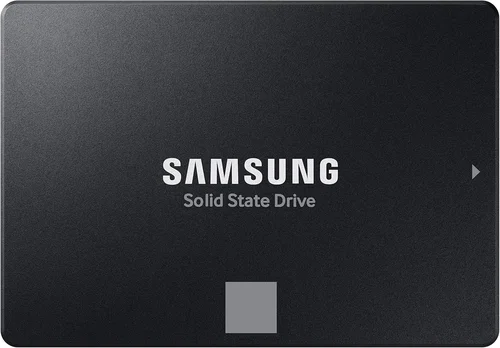
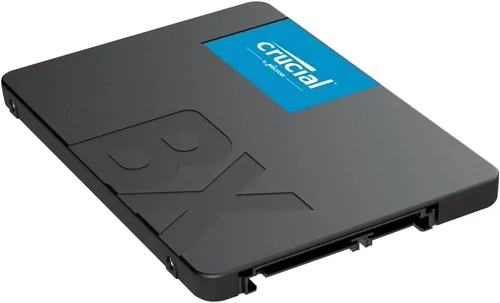
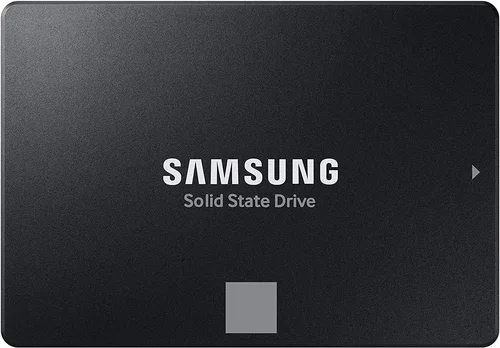
Samsung’s 990 PRO and 870 EVO series are widely regarded as benchmarks in the SSD world, offering excellent performance, reliability, and software tools. Western Digital’s Black SN850X and Blue SA510 lines cater to gamers and mainstream users alike. Crucial balances affordability with solid performance, making their MX500 and P5 Plus models popular among upgraders.
Avoid no-name or ultra-budget brands that cut corners on NAND quality or controller chips. These drives may fail prematurely or deliver inconsistent performance. Reading professional reviews from trusted sources like Tom’s Hardware, AnandTech, or StorageReview can help you identify which brands consistently deliver.
6. Warranty & Support
Warranty length and terms are strong indicators of a drive’s expected lifespan and the manufacturer’s confidence in its product. Most consumer SSDs come with 3–5 year limited warranties, while premium models may offer up to 10 years. HDDs typically carry 2–5 year warranties, though some enterprise models extend further.
Pay attention to whether the warranty is based on time, terabytes written (TBW), or both. For example, a 1TB SSD might have a 600 TBW rating—meaning you could write 600 terabytes of data over its lifetime before hitting the warranty limit. This is especially relevant for heavy users like content creators or developers.
Customer support quality varies widely. Brands like Samsung and Crucial offer responsive live chat and detailed troubleshooting guides, while lesser-known brands may leave you stranded. Before purchasing, check forums and review sites for reports of RMA (return merchandise authorization) experiences. A hassle-free return process can be a lifesaver if your drive fails early.
7. Size & Portability
Form factor plays a crucial role, especially in compact builds or mobile setups. The most common SSD form factors are 2.5-inch (for desktops and laptops), M.2 (compact, motherboard-mounted), and U.2 (enterprise-focused). M.2 drives, particularly NVMe variants, are ideal for thin laptops and small-form-factor PCs due to their tiny footprint—no cables or power connectors needed.
HDDs are almost exclusively available in 3.5-inch (desktop) and 2.5-inch (laptop) sizes. While 2.5-inch HDDs are portable, they’re bulkier and heavier than M.2 SSDs. External drives come in both HDD and SSD flavors, with SSD-based externals offering faster transfers and better drop resistance—perfect for photographers and videographers on the go.
If you’re building a sleek gaming rig or a minimalist workstation, prioritize M.2 NVMe SSDs. For NAS systems or media servers where space isn’t a constraint and capacity reigns supreme, 3.5-inch HDDs remain practical.
8. User Reviews & Ratings
Never rely solely on manufacturer claims. Real-world user feedback provides invaluable insights into long-term reliability, real-world performance, and potential quirks. Platforms like Amazon, Newegg, and Reddit’s r/buildapc community are goldmines for honest reviews.
Look for patterns: if multiple users report the same issue—like sudden disconnects, slow write speeds after filling the drive, or firmware bugs—it’s a red flag. Conversely, consistent praise for boot times, durability, or ease of installation reinforces a drive’s credibility. Pay special attention to reviews from users with similar use cases to yours (e.g., gaming, video editing, office work).
Also check professional benchmarking sites. Synthetic tests (like CrystalDiskMark) show peak performance, but real-world scenarios (game loading, file copying, OS responsiveness) matter more for daily use. A drive that scores high in benchmarks but receives poor user feedback may have optimization issues or compatibility problems.
Different Types of Buying Guide

Common Buying Mistakes to Avoid
❌ Mistake: Prioritizing Capacity Over Performance
Why it’s bad: Buying a massive 8TB HDD for your primary OS drive means sacrificing boot speed, app responsiveness, and overall system snappiness. You’ll spend more time waiting and less time being productive.
What to do instead: Use a smaller, faster SSD (500GB–1TB) for your operating system and frequently used apps, and pair it with a larger HDD for bulk storage. This hybrid approach gives you the best of both worlds.
❌ Mistake: Ignoring Interface Compatibility
Why it’s bad: Installing an NVMe SSD in a motherboard that only supports SATA M.2 slots—or vice versa—will result in a non-functional drive. Similarly, older systems may not support PCIe 4.0 or 5.0 speeds.
What to do instead: Check your motherboard manual or use tools like CPU-Z to confirm supported interfaces before purchasing. When in doubt, stick with SATA SSDs for maximum compatibility.
❌ Mistake: Choosing DRAM-less SSDs for Heavy Workloads
Why it’s bad: DRAM-less SSDs use system memory (HMB) for caching, which can lead to performance drops during sustained writes or when the drive is nearly full. They’re fine for light use but risky for video editing or database tasks.
What to do instead: Invest in an SSD with a dedicated DRAM cache if you plan to use it intensively. The performance and longevity benefits far outweigh the small price difference.
❌ Mistake: Overlooking Power Efficiency
Why it’s bad: High-performance NVMe SSDs can draw significant power and generate heat, especially PCIe 5.0 models. In laptops or small-form-factor PCs, this can reduce battery life and cause thermal throttling.
What to do instead: For mobile devices, choose power-efficient SSDs like the Samsung 980 (non-Pro) or WD Blue SN580. These offer great performance without excessive heat or drain.
❌ Mistake: Skipping Firmware Updates
Why it’s bad: Outdated firmware can cause compatibility issues, security vulnerabilities, or even data corruption. Many users never update their drive firmware, leaving them exposed.
What to do instead: Download the manufacturer’s SSD management tool (e.g., Samsung Magician, Crucial Storage Executive) and check for firmware updates regularly. Most updates are quick and risk-free.
❌ Mistake: Assuming All SSDs Are Equal
Why it’s bad: Two SSDs with the same capacity and interface can perform vastly differently based on NAND type (TLC vs. QLC), controller quality, and firmware optimization. A cheap QLC SSD may slow to a crawl when its cache fills up.
What to do instead: Research the NAND type and controller. TLC NAND is ideal for most users; avoid QLC unless you’re doing light, read-heavy tasks. Look for drives with strong sustained write performance.
❌ Mistake: Neglecting Backup Strategy
Why it’s bad: Even the most reliable drive can fail. Relying solely on a single drive—especially an SSD, which can fail suddenly without warning—puts your data at risk.
What to do instead: Follow the 3-2-1 backup rule: keep three copies of your data, on two different media, with one offsite (e.g., cloud or external drive). Treat your primary drive as volatile, not permanent.
Budget Guidelines: How Much Should You Spend?
Entry-Level ($30–$80): This tier is ideal for basic computing needs. A 500GB SATA SSD (like the Crucial MX500 or WD Blue SA510) offers excellent value for upgrading an old laptop or building a budget desktop. Alternatively, a 1TB 2.5″ HDD provides ample space for documents and media at rock-bottom prices. Expect modest performance—fine for web browsing, office apps, and light gaming—but avoid heavy multitasking.
Mid-Range ($80–$150): The sweet spot for most users. Here, you can get a 1TB NVMe SSD (PCIe 3.0 or 4.0) such as the Samsung 980 or Kingston NV2, delivering blazing-fast speeds for gaming, photo editing, and everyday productivity. This range also includes high-capacity 2TB–4TB HDDs for users who need bulk storage without premium SSD pricing. Balance is key: you get strong performance, good reliability, and reasonable capacity.
Premium ($150–$300): Designed for enthusiasts and professionals. Think PCIe 4.0 NVMe SSDs like the Samsung 990 PRO or WD Black SN850X, offering 7,000+ MB/s speeds perfect for 4K video editing, 3D rendering, and competitive gaming. You’ll also find enterprise-grade features like power-loss protection and extended warranties. This tier is where future-proofing meets real-world performance gains.
Luxury ($300+): For those who demand the absolute best. PCIe 5.0 SSDs (e.g., Corsair MP700, Seagate FireCuda 540) push speeds beyond 10,000 MB/s, though they require compatible motherboards and robust cooling. Large-capacity SSDs (4TB–8TB) also fall here, ideal for content creators or NAS builders who want SSD speed without sacrificing space. Only invest here if your workflow genuinely benefits from cutting-edge performance.
Expert Tips for Getting the Best Deal
1. Time Your Purchase Around Major Sales Events: Black Friday, Cyber Monday, Amazon Prime Day, and back-to-school seasons often feature deep discounts on storage drives. Sign up for price alerts on sites like CamelCamelCamel or Honey to catch flash deals.
2. Buy Directly from Reputable Retailers: Stick with trusted sellers like Amazon (sold by Amazon, not third parties), Newegg, Best Buy, or B&H Photo. Avoid unknown eBay or AliExpress vendors offering “too good to be true” prices—they often sell counterfeit or refurbished drives as new.
3. Consider Refurbished or Open-Box Options: Many manufacturers and retailers sell certified refurbished SSDs with full warranties at 20–40% off retail. These are rigorously tested and often indistinguishable from new units.
4. Bundle Drives with Other Components: When building a PC, look for motherboard or CPU bundles that include free or discounted SSDs. Retailers like Micro Center frequently offer these deals in-store.
5. Check Manufacturer Rebates and Promotions: Brands like Samsung and Crucial occasionally run mail-in rebate programs or bundle free software (e.g., Acronis True Image) with drive purchases. These can add significant value.
6. Test Before Committing Long-Term: If possible, test the drive in your system for a few days. Use tools like CrystalDiskInfo to monitor health and performance. Most retailers offer 30-day return windows—use them wisely.
7. Don’t Forget About Cloning Software: Upgrading from an old drive? Ensure your new SSD includes free cloning software (most do). This lets you transfer your OS and files seamlessly without reinstalling everything.
8. Monitor TBW and Health Metrics: Use SSD monitoring tools to track terabytes written and wear leveling. This helps you anticipate replacement needs and avoid surprise failures.

Frequently Asked Questions
Q: Should I get an HDD or SSD for my primary drive?
A: Always choose an SSD for your primary (OS) drive. The performance difference is night and day—faster boots, quicker app launches, and smoother overall operation. Reserve HDDs for secondary storage where capacity matters more than speed.
Q: Can I use both an SSD and HDD in the same system?
A: Absolutely! This is a common and recommended setup. Install your operating system and frequently used programs on the SSD, and use the HDD for documents, media, backups, and less critical files. Many motherboards support multiple drive connections.
Q: Are NVMe SSDs worth the extra cost over SATA SSDs?
A: For most users, yes—especially gamers, creators, and power users. NVMe drives are 5–10x faster than SATA SSDs, drastically reducing load times and improving workflow efficiency. However, if you’re on a tight budget or using an older system, a SATA SSD still offers a massive upgrade over an HDD.
Q: How long do SSDs really last?
A: Modern SSDs are incredibly durable. A typical 1TB TLC SSD with a 600 TBW rating could last over 10 years even with heavy daily use (writing 160GB per day). Most users will upgrade their system long before the drive wears out.
Q: Do I need to defragment an SSD?
A: No—and you shouldn’t. Defragmenting an SSD provides no benefit and actually reduces its lifespan by causing unnecessary write cycles. Windows and macOS automatically disable defrag for SSDs and use TRIM instead to maintain performance.
Q: What’s the difference between TLC, MLC, and QLC NAND?
A: These refer to how many bits are stored per memory cell. TLC (3-bit) offers the best balance of cost, performance, and endurance for most users. MLC (2-bit) is more durable but pricier, often found in enterprise drives. QLC (4-bit) is cheaper and denser but slower and less durable—best for read-heavy, light-use scenarios.
Q: Can I recover data from a failed SSD?
A: It’s possible but difficult and expensive. Unlike HDDs, SSDs often fail suddenly with little warning, and data recovery requires specialized tools and cleanroom environments. Prevention—via regular backups—is far better than cure.
Q: Are external SSDs worth it?
A: Yes, especially for photographers, videographers, and travelers. External SSDs like the Samsung T7 or SanDisk Extreme offer fast transfers, rugged designs, and compact sizes. They’re perfect for editing directly from the drive or backing up projects on location.
Q: Will a PCIe 5.0 SSD work in a PCIe 4.0 slot?
A: Yes, but it will run at PCIe 4.0 speeds. PCIe is backward compatible, so you won’t damage anything. However, you won’t benefit from the full speed potential unless your motherboard supports PCIe 5.0.
Q: How much storage do I really need?
A: It depends on your use case. For general use, 500GB–1TB is sufficient. Gamers should aim for 1TB–2TB due to large game files. Video editors may need 2TB–4TB or more. Always leave 10–20% free space for optimal SSD performance.
Our Final Recommendations
Best for Budget-Conscious Buyers: Crucial MX500 1TB SATA SSD – Reliable, DRAM-cached, and consistently praised for value. Perfect for upgrading older systems without overspending.
Best Overall Value: Samsung 980 1TB NVMe SSD – Excellent performance, low power consumption, and strong endurance. A near-perfect balance of speed, price, and reliability for most users.
Best Premium Option: Samsung 990 PRO 2TB NVMe SSD – Top-tier PCIe 4.0 performance with exceptional sustained write speeds and a 5-year warranty. Ideal for creators and enthusiasts.
Best for Beginners: WD Blue SA510 1TB SATA SSD – Simple installation, reliable performance, and bundled cloning software make this a stress-free choice for first-time upgraders.
Best for Advanced Users: Seagate FireCuda 540 2TB PCIe 5.0 SSD – Blazing 10,000 MB/s speeds, robust cooling support, and enterprise-grade features for those who demand maximum performance.
Conclusion: Making the Right Choice
Choosing between an HDD and an SSD—or deciding how to combine them—doesn’t have to be overwhelming. The key is aligning your storage solution with your actual needs, not marketing hype or peer pressure. If speed, responsiveness, and durability matter most, invest in a quality SSD. If you’re archiving terabytes of photos, videos, or backups and cost is the primary concern, an HDD still has a place in 2026.
Remember: there’s no one-size-fits-all answer. A student might thrive with a 500GB SSD and cloud storage, while a video editor needs a high-speed NVMe drive paired with a large HDD for project archives. Use the factors outlined in this guide—budget, performance, durability, features, brand, warranty, size, and user feedback—to narrow your options and make a confident decision.
Ultimately, the best drive is the one that disappears into the background, letting you focus on what you love—whether that’s gaming, creating, working, or simply enjoying a fast, smooth computing experience. Take your time, do your research, and don’t rush. Your data—and your sanity—will thank you.