
When it comes to upgrading your computer’s storage or building a new system from scratch, one of the most critical decisions you’ll face is choosing between a traditional hard disk drive (HDD) and a solid-state drive (SSD). This choice affects everything from boot times and application loading speeds to overall system responsiveness and long-term reliability. With technology evolving rapidly and prices shifting dramatically over the past decade, the once-clear divide between these two storage types has become more nuanced. Today, both HDDs and SSDs have their place in modern computing—but which one is right for you?
In this comprehensive 2026 guide, we’ll cut through the marketing noise and technical jargon to deliver an honest, expert-level comparison of hard drives versus SSDs. Whether you’re a casual user looking to store family photos, a gamer seeking faster load times, a content creator working with large video files, or a business professional needing reliable data backup, this article will help you make an informed decision. You’ll learn how to evaluate key factors like performance, durability, cost per gigabyte, form factor compatibility, and real-world usability. We’ll also debunk common myths, highlight frequent buying mistakes, and provide actionable tips to get the best value for your money.
The storage market in 2026 continues to evolve, with SSDs now dominating consumer desktops and laptops while HDDs remain relevant for high-capacity archival storage and budget builds. Advances in NAND flash technology, the rise of PCIe Gen5 SSDs, and the growing adoption of QLC (quad-level cell) memory have further blurred the lines. Meanwhile, HDD manufacturers are pushing the limits with helium-filled drives and shingled magnetic recording (SMR) to achieve capacities beyond 30TB. Understanding these trends—and how they impact your specific use case—is essential before making a purchase.

What to Look for When Buying Buying Guide
1. Budget & Price Range
Your budget is often the first and most decisive factor when choosing between an HDD and an SSD. As of 2026, SSDs remain more expensive per gigabyte than HDDs, though the gap has narrowed significantly. A 1TB SATA SSD typically costs between $60 and $100, while a comparable 1TB HDD can be found for as little as $35–$50. However, if you need large amounts of storage—say, 8TB or more—the cost difference becomes stark: an 8TB SSD may run $600–$900, whereas an 8TB HDD often falls under $200.
When evaluating price, consider not just the upfront cost but also long-term value. An SSD might cost more initially, but its faster performance can extend the usable life of your system by years, delaying the need for a full upgrade. Additionally, SSDs consume less power, generate less heat, and have no moving parts—factors that can reduce electricity bills and cooling needs in always-on systems like NAS devices or workstations.
2. Performance Specifications
Performance is where SSDs truly shine—and HDDs struggle to keep up. The primary metrics to compare are sequential read/write speeds and random I/O operations per second (IOPS).
– Sequential Speeds: These measure how quickly large files (like videos or game assets) can be read or written. Modern SATA SSDs deliver around 500–550 MB/s, while NVMe PCIe Gen4 SSDs can exceed 7,000 MB/s. PCIe Gen5 drives, now widely available in 2026, push past 12,000 MB/s. In contrast, even the fastest HDDs top out at about 200 MB/s.
– Random IOPS: This measures how well a drive handles many small, scattered file requests—critical for multitasking, booting the OS, or running databases. A typical SSD can handle tens or hundreds of thousands of IOPS, while an HDD might manage only 100–200 due to mechanical latency from spinning platters and moving read/write heads.
Real-world impact? An SSD-equipped PC boots in under 15 seconds, launches Photoshop in seconds, and loads open-world games like Cyberpunk 2077 in under a minute. An HDD-based system could take 3–5 times longer for the same tasks. For gamers, developers, video editors, or anyone who values responsiveness, SSD performance isn’t a luxury—it’s a necessity.
3. Build Quality & Durability
Durability matters, especially if your device is mobile or used in harsh environments. HDDs contain fragile mechanical components: spinning platters (usually made of aluminum or glass) and a motor-driven actuator arm with read/write heads that float nanometers above the surface. A sudden drop, vibration, or power loss during operation can cause head crashes—catastrophic failures that often result in permanent data loss.
SSDs, by contrast, have no moving parts. They’re built on NAND flash memory chips soldered to a circuit board, making them inherently more resistant to physical shock, temperature fluctuations, and electromagnetic interference. This makes SSDs ideal for laptops, ruggedized devices, and portable external drives. According to industry testing, most consumer SSDs can survive drops from 1 meter onto concrete without damage—something no HDD can claim.
That said, SSDs aren’t indestructible. NAND cells degrade with each write cycle, though modern controllers use wear leveling and over-provisioning to extend lifespan. For typical consumer workloads, a 1TB SSD with a 600TBW (terabytes written) endurance rating will last well over a decade. Heavy write workloads (e.g., video editing, server logging) may require enterprise-grade SSDs with higher endurance.
4. Features & Functionality
Beyond raw speed and durability, consider the features each drive type offers:
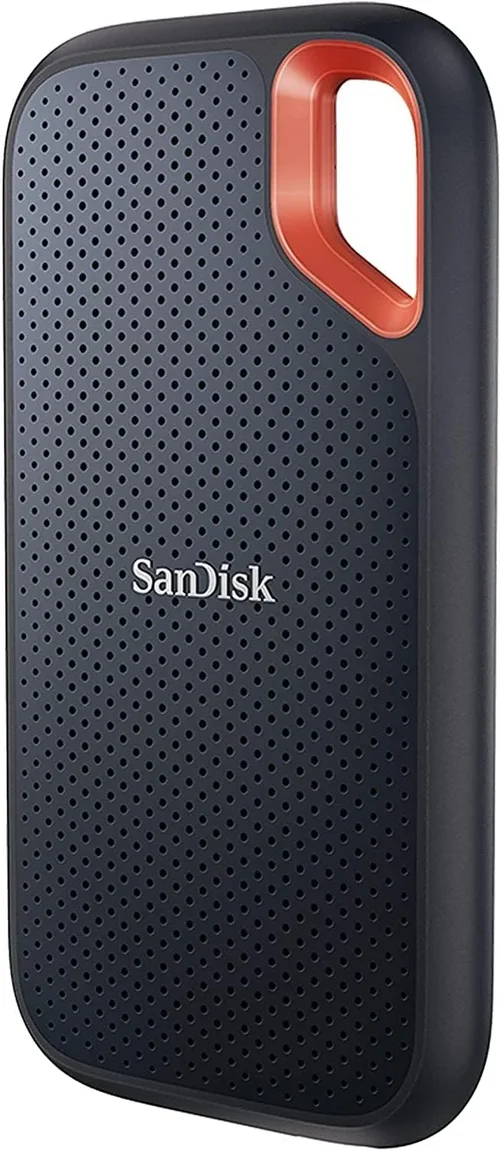
– Form Factors: SSDs come in multiple form factors—2.5-inch (for laptops and desktops), M.2 (compact, directly mounted on motherboards), and U.2 (enterprise-focused). HDDs are almost exclusively 3.5-inch (desktop) or 2.5-inch (laptop). M.2 NVMe SSDs save space and eliminate cables, making them perfect for slim laptops and small-form-factor PCs.
– Encryption & Security: Many modern SSDs support hardware-based encryption standards like TCG Opal and IEEE 1667, allowing for secure self-encrypting drives (SEDs) that protect data even if the drive is physically removed. While some enterprise HDDs offer similar features, consumer-grade HDDs rarely include robust encryption out of the box.
– Power Efficiency: SSDs draw significantly less power than HDDs—typically 2–5 watts under load versus 6–10 watts for an HDD. This translates to longer battery life in laptops and lower energy costs in always-on systems.
– Noise & Heat: HDDs produce audible noise from spinning platters and actuator movement, especially under heavy load. They also generate more heat due to mechanical friction. SSDs are completely silent and run cooler, contributing to quieter, more efficient systems.
5. Brand Reputation
Not all drives are created equal—even within the same category. Reputable brands invest heavily in R&D, quality control, firmware optimization, and customer support. For SSDs, top-tier manufacturers include Samsung, Crucial (Micron), Western Digital, Kingston, and SK Hynix. These companies offer consistent performance, reliable endurance ratings, and strong firmware ecosystems.
For HDDs, Western Digital, Seagate, and Toshiba dominate the market. Look for models from their mainstream or enterprise lines (e.g., WD Blue/Black, Seagate Barracuda/IronWolf) rather than ultra-budget or reconditioned drives, which may use lower-grade components or lack warranty coverage.
Avoid no-name or obscure brands, especially for SSDs. Counterfeit or poorly engineered drives can fail prematurely, corrupt data, or even damage your system. Always verify authenticity through the manufacturer’s website and purchase from authorized retailers.
6. Warranty & Support
Warranty terms reveal a lot about a drive’s expected lifespan and the manufacturer’s confidence in its product. Most consumer SSDs come with 3- to 5-year limited warranties, often tied to a maximum terabytes written (TBW) rating. For example, a 1TB Samsung 870 EVO has a 5-year warranty and 300TBW endurance. Enterprise SSDs may offer 5-year warranties with much higher TBW limits.
HDD warranties vary more widely. Consumer drives typically have 2- to 3-year coverage, while NAS-optimized or enterprise models (like WD Red Pro or Seagate Exos) offer 3- to 5-year warranties. Some manufacturers also provide data recovery services or expedited replacement programs for critical failures.
Always register your drive after purchase to activate the full warranty. Keep your receipt and check the manufacturer’s support portal for firmware updates—these can improve performance, fix bugs, and enhance security.
7. Size & Portability
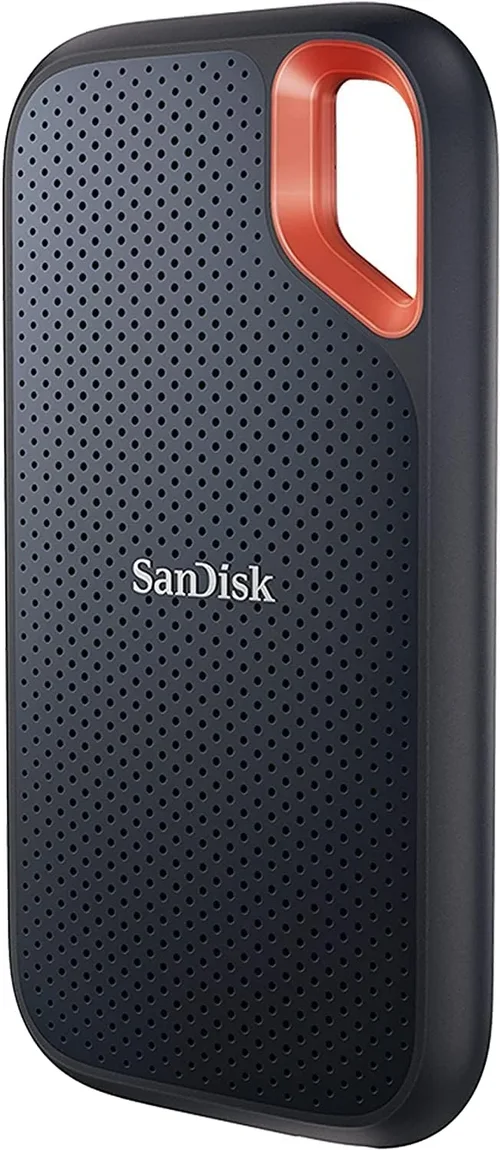
If you’re buying an external drive or upgrading a laptop, physical size and portability matter. 2.5-inch external SSDs (like the Samsung T7 or SanDisk Extreme) are pocket-sized, lightweight, and ideal for on-the-go professionals. Many connect via USB-C with speeds up to 1,050 MB/s—far faster than most external HDDs.
External HDDs are bulkier and heavier due to their mechanical internals and protective casing. While they offer massive capacity in a portable format (e.g., 5TB for under $120), they’re more prone to damage from drops or rough handling.
For internal upgrades, M.2 SSDs are the most space-efficient option, requiring no cables and fitting directly onto the motherboard. This is especially valuable in mini-ITX builds or ultrabooks where every millimeter counts.
8. User Reviews & Ratings
Before finalizing your purchase, consult real-world user feedback. Professional reviews provide controlled benchmarks, but user reviews reveal long-term reliability, compatibility quirks, and real-world performance under diverse conditions.
Look for patterns in reviews: Are multiple users reporting early failures? Do drivers work seamlessly with macOS or Linux? Is the drive prone to overheating under sustained load? Sites like Amazon, Newegg, and Reddit’s r/buildapc community offer valuable insights.
Be wary of fake reviews—especially overly positive ones with generic language. Genuine reviews often mention specific use cases, compare models, and note both pros and cons. A drive with 4.7 stars from 10,000+ verified purchases is generally more trustworthy than one with 5 stars from 50 reviews.
Different Types of Buying Guide
Common Buying Mistakes to Avoid
❌ Mistake: Choosing Based Solely on Price Per Gigabyte
Why it’s bad: Focusing only on cost per GB ignores performance, durability, and real-world usability. A cheap 4TB HDD might seem like a bargain, but if it slows down your entire system or fails after two years, you’ve wasted money and risked data loss.
What to do instead: Calculate total cost of ownership, including potential productivity gains from faster speeds and reduced downtime from failures. For primary drives, prioritize SSDs even if they cost more per GB.
❌ Mistake: Ignoring Form Factor Compatibility
Why it’s bad: Buying a 3.5-inch HDD for a slim laptop or an M.2 SSD that doesn’t match your motherboard’s keying (B-key vs. M-key) will result in a non-functional drive.
What to do instead: Check your device’s manual or use tools like Crucial’s Scanner to verify compatible form factors and interfaces before purchasing.
❌ Mistake: Overlooking Endurance Ratings for SSDs
Why it’s bad: Consumer SSDs have finite write lifespans. Using a low-endurance drive for heavy workloads (e.g., video editing, database logging) can lead to premature failure.
What to do instead: Match the drive’s TBW rating to your usage. For light use, 150–300TBW is sufficient. For professional workloads, choose drives with 600TBW or higher.
❌ Mistake: Assuming All SSDs Are Equally Fast
Why it’s bad: A SATA SSD won’t deliver the same performance as an NVMe drive, even if both are labeled “SSD.” Installing a SATA SSD in a system capable of PCIe Gen4 is a missed opportunity.
What to do instead: Use the fastest interface your system supports. If your motherboard has an M.2 slot, opt for NVMe over SATA whenever possible.
❌ Mistake: Skipping Firmware Updates
Why it’s bad: Outdated firmware can cause compatibility issues, performance throttling, or security vulnerabilities.
What to do instead: Download the manufacturer’s SSD management tool (e.g., Samsung Magician, WD Dashboard) and check for updates regularly.
❌ Mistake: Buying Used or Refurbished Drives Without Verification
Why it’s bad: Used SSDs may have high wear levels; used HDDs could be near end-of-life. Without SMART data or warranty, you’re taking a significant risk.
What to do instead: If buying used, request SMART reports and ensure the drive still has substantial warranty remaining. Better yet, stick to new drives from reputable sellers.
❌ Mistake: Neglecting Backup Strategy
Why it’s bad: No drive—SSD or HDD—is immune to failure. Relying solely on a single drive for critical data is reckless.
What to do instead: Follow the 3-2-1 backup rule: 3 copies of your data, on 2 different media, with 1 copy offsite (e.g., cloud or external drive stored elsewhere).
Budget Guidelines: How Much Should You Spend?
– Entry-Level ($30–$70): At this tier, you’ll find basic 1TB HDDs or 250GB–500GB SATA SSDs. Ideal for secondary storage or very light computing. Expect modest performance and shorter warranties (2 years). Avoid for primary OS drives unless absolutely necessary.
– Mid-Range ($70–$150): This is the sweet spot for most users. You can get a reliable 1TB SATA SSD, a 500GB–1TB NVMe SSD, or a high-capacity 2TB–4TB HDD. Performance, capacity, and warranty (3–5 years) are well-balanced here. Perfect for everyday computing, gaming, and moderate content creation.
– Premium ($150–$300): Target enthusiasts and professionals. Options include 2TB NVMe Gen4 SSDs, high-endurance SSDs for workstations, or 8TB+ NAS HDDs. Expect top-tier performance, robust build quality, and extended support.
– Luxury ($300+): Reserved for extreme use cases: PCIe Gen5 SSDs (2TB+), enterprise-grade storage arrays, or specialty drives like encrypted SEDs. Only justified for mission-critical applications or bleeding-edge builds.
Expert Tips for Getting the Best Deal
– Buy During Major Sales Events: Look for deals during Black Friday, Cyber Monday, Amazon Prime Day, and back-to-school seasons. SSD prices often drop 20–40% during these periods.
– Compare Retailers: Prices vary significantly between Newegg, Amazon, Best Buy, B&H, and direct-from-manufacturer stores. Use price-tracking tools like CamelCamelCamel or Honey to monitor historical lows.
– Consider Refurbished Units from OEMs: Samsung, Crucial, and WD often sell certified refurbished SSDs with full warranties at 20–30% off retail. These are rigorously tested and safe to buy.
– Check Return Policies: Ensure the retailer offers at least a 30-day return window. Some drives may have compatibility issues only discoverable after installation.
– Bundle with Other Components: When building a PC, some retailers offer discounts when you buy an SSD with a motherboard or CPU. Micro Center and Newegg frequently run such promotions.
– Monitor TBW and Warranty Together: A drive with a high TBW but short warranty (or vice versa) may not offer the best long-term value. Aim for both high endurance and long coverage.
– Use Manufacturer Tools: Samsung Magician, Crucial Storage Executive, and WD Dashboard provide health monitoring, firmware updates, and performance optimization—free utilities that extend drive life.
– Avoid “Too Good to Be True” Deals: If a 2TB NVMe SSD is listed for $99 from an unknown seller, it’s likely counterfeit or defective. Stick to authorized dealers.

Frequently Asked Questions
Q: Can I use both an SSD and an HDD in the same system?
A: Absolutely! This is a common and recommended setup. Install your operating system and frequently used applications on the SSD for speed, and use the HDD for storing large files like videos, photos, and backups. Most modern motherboards support multiple drives.
Q: Do SSDs slow down over time?
A: Yes, but modern SSDs use advanced controllers and TRIM commands to minimize slowdowns. Performance degradation is usually negligible for typical users. Running disk cleanup and ensuring at least 10–15% free space helps maintain speed.
Q: Are external SSDs worth the extra cost over external HDDs?
A: If you need speed, portability, and durability—yes. External SSDs are ideal for transferring large files quickly, editing videos on location, or running portable apps. For pure archival storage where speed isn’t critical, external HDDs still make sense.
Q: How long do SSDs really last?
A: For average users, a consumer SSD will last 7–10 years or more. Heavy writers (e.g., daily video editors) should monitor TBW usage via SMART tools. Most drives fail due to controller issues, not NAND wear.
Q: Can I recover data from a failed SSD?
A: It’s more difficult than with HDDs. SSDs often encrypt data internally, and failed controllers can render data inaccessible. Professional recovery services exist but are expensive. Prevention—via backups—is far better.
Q: Is NVMe always faster than SATA?
A: In terms of interface bandwidth, yes—but real-world differences depend on usage. For everyday tasks, the difference may not be noticeable. For large file transfers or gaming, NVMe provides a clear advantage.
Q: Do I need a heatsink for my M.2 SSD?
A: Not always. Most consumer workloads don’t generate enough heat to require one. However, if you’re doing sustained writes (e.g., video rendering) or using a high-end Gen4/Gen5 drive in a cramped case, a heatsink can prevent thermal throttling.
Q: Are QLC SSDs reliable?
A: QLC (quad-level cell) SSDs are cheaper and offer high capacities but have lower endurance and slower write speeds under heavy load. They’re fine for general use but not ideal for write-intensive tasks. TLC (triple-level cell) remains the best balance for most users.
Q: Can I upgrade my laptop’s HDD to an SSD?
A: In most cases, yes—especially if it uses a 2.5-inch SATA drive. Check your laptop’s service manual for compatibility. Some ultrabooks use soldered storage, which isn’t user-replaceable.
Q: What’s the difference between DRAM-less and DRAM-equipped SSDs?
A: DRAM-equipped SSDs have a dedicated cache chip for mapping data locations, improving speed and longevity. DRAM-less SSDs use system memory (HMB) or slower algorithms, which can impact performance under load. For primary drives, prefer models with DRAM.
Our Final Recommendations
– Best for Budget-Conscious Buyers: WD Blue 1TB SATA SSD – Reliable, affordable, and widely compatible. Great for upgrading older systems without breaking the bank.
– Best Overall Value: Crucial P5 Plus 1TB NVMe Gen4 SSD – Excellent performance, 5-year warranty, and competitive pricing. Ideal for gamers and general users wanting speed and capacity.
– Best Premium Option: Samsung 990 PRO 2TB NVMe Gen4 SSD – Top-tier speeds, exceptional endurance (1,200TBW), and Samsung’s proven reliability. Perfect for professionals and enthusiasts.
– Best for Beginners: Seagate Barracuda 2TB 7200 RPM HDD – Simple, high-capacity storage for those new to PC building or needing bulk space without complexity.
– Best for Advanced Users: Western Digital Black SN850X 2TB NVMe Gen4 SSD – Built for heavy workloads, with robust cooling support and optimized firmware for sustained performance.
Conclusion: Making the Right Choice
The debate between hard drives and SSDs isn’t about which technology is universally “better”—it’s about matching the right tool to your specific needs, budget, and usage patterns. In 2026, SSDs dominate as the preferred choice for primary storage due to their speed, silence, and durability, while HDDs remain indispensable for high-capacity, low-cost archival storage.
As you weigh your options, remember that storage is not just a commodity—it’s the foundation of your digital experience. A fast SSD can breathe new life into an aging PC, streamline your workflow, and reduce frustration. A reliable HDD can safeguard years of memories and projects. The smartest approach often combines both: speed where it matters, and capacity where it counts.
Prioritize your requirements. Ask yourself: What will I use this drive for? How important is speed versus space? Am I willing to pay more for longevity and performance? With the insights from this guide, you’re now equipped to make a confident, informed decision—one that balances performance, value, and peace of mind.
Don’t rush. Compare models. Read real reviews. And when you find the right drive, install it with confidence, knowing you’ve chosen wisely for your digital future.