
If you’re a Mac user, you already know how seamlessly your machine integrates into your creative workflow, whether you’re editing 4K video, managing massive photo libraries, or running resource-heavy applications. But as your digital footprint grows, so does the demand for fast, reliable, and portable storage. That’s where external SSDs come in—offering blazing-fast transfer speeds, compact designs, and the durability to keep up with your on-the-go lifestyle. Yet, with so many options flooding the market, choosing the right external SSD for your Mac can feel overwhelming. That’s exactly why this guide exists.
In this comprehensive buying guide, we’ll walk you through everything you need to know to make an informed decision. Whether you’re a student, a creative professional, or a casual user looking to expand your storage, we’ll help you navigate the technical jargon, compare real-world performance, and avoid common pitfalls. You’ll learn how to evaluate key factors like speed, compatibility, build quality, and value for money. We’ll also break down different types of external SSDs, highlight expert tips for getting the best deal, and provide clear recommendations tailored to various needs and budgets.
The external SSD market has evolved rapidly in recent years, with manufacturers pushing the boundaries of speed, capacity, and design. From rugged, drop-resistant drives built for fieldwork to sleek, minimalist models that match Apple’s aesthetic, there’s an SSD for every Mac user. But not all drives are created equal—some promise high speeds but fall short in real-world use, while others offer impressive specs but lack long-term reliability. By the end of this guide, you’ll have a clear understanding of what to prioritize, how to interpret marketing claims, and which models truly deliver on their promises. Let’s dive in and find the perfect external SSD for your Mac.

What to Look for When Buying Buying Guide
1. Performance Specifications
When it comes to external SSDs, performance is king—especially for Mac users who often work with large files like 4K video, RAW photos, or complex project folders. The two most critical performance metrics are read and write speeds, typically measured in megabytes per second (MB/s). For context, a standard USB 3.0 drive might offer around 100–150 MB/s, while a modern NVMe-based SSD over USB 3.2 Gen 2 can reach speeds of 1,000 MB/s or more. If you’re transferring multi-gigabyte video files or backing up your entire photo library, those extra seconds—or even minutes—add up quickly.
But speed isn’t just about raw numbers. You also need to consider the interface your Mac supports. Most newer Macs (2016 and later) come equipped with USB-C ports that support Thunderbolt 3 or USB 3.2 Gen 2 (10 Gbps). Thunderbolt 3 drives, like the Samsung X5 or LaCie Rugged SSD Pro, can deliver speeds up to 2,800 MB/s—perfect for professional video editors. However, these drives are significantly more expensive and may be overkill for everyday use. For most users, a USB 3.2 Gen 2 SSD with speeds around 1,050 MB/s offers the best balance of performance and affordability.
Another factor is the type of NAND flash memory used. TLC (Triple-Level Cell) is common and offers a good mix of speed and endurance, while QLC (Quad-Level Cell) is cheaper but slower and less durable over time. If you plan to use your SSD heavily—like daily backups or frequent file transfers—opt for TLC or even MLC (Multi-Level Cell) if available.
2. Compatibility with macOS
Not all external SSDs are created equal when it comes to macOS compatibility. While most modern drives are plug-and-play with Macs, some require formatting or additional software to work optimally. For example, drives formatted in exFAT will work across both Mac and Windows without issues, but they lack the advanced features of Apple’s native APFS (Apple File System). If you’re using macOS High Sierra or later, formatting your SSD to APFS can improve performance, especially with large files and encryption.
Another consideration is driver support. Some SSDs, particularly those with proprietary encryption or backup software, may require you to install additional utilities. While this isn’t usually a problem, it can be a hassle if you’re trying to use the drive on multiple Macs or want a truly seamless experience. Look for drives that are “Mac-ready” out of the box, or at least clearly state macOS compatibility in the product description.
Also, be mindful of macOS updates. Apple frequently changes how it handles external storage, especially with features like Time Machine and System Integrity Protection (SIP). A drive that worked perfectly last year might need a firmware update or reformatting after a major macOS upgrade. Check manufacturer websites for firmware updates and user forums for any known issues.
3. Build Quality & Durability
Mac users often value design and build quality as much as performance—and for good reason. An external SSD isn’t just a storage device; it’s a tool that travels with you, whether you’re commuting, traveling, or working from a coffee shop. That’s why durability matters. Look for drives with robust enclosures made from aluminum, magnesium alloy, or reinforced plastic. These materials not only look premium but also dissipate heat better and resist drops and scratches.
Many high-end SSDs now come with IP ratings for water and dust resistance. For example, the SanDisk Extreme Pro V2 is rated IP55, meaning it can withstand low-pressure water jets and limited dust ingress—ideal for outdoor photographers or travelers. Rugged drives like the LaCie Rugged SSD or OWC Envoy Pro FX also feature shock resistance up to 3 meters, making them perfect for fieldwork.
Heat management is another often-overlooked aspect. High-speed SSDs generate heat during sustained transfers, which can throttle performance over time. Drives with built-in heat sinks or passive cooling designs (like the Samsung T7 Shield) maintain consistent speeds even under heavy load. If you plan to use your SSD for long video exports or large backups, thermal performance is crucial.
4. Size & Portability
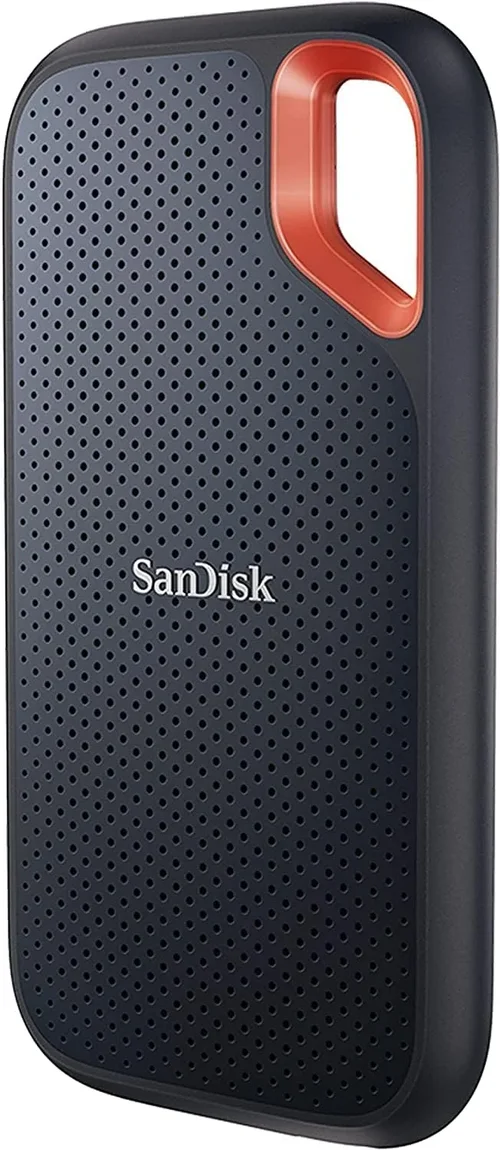
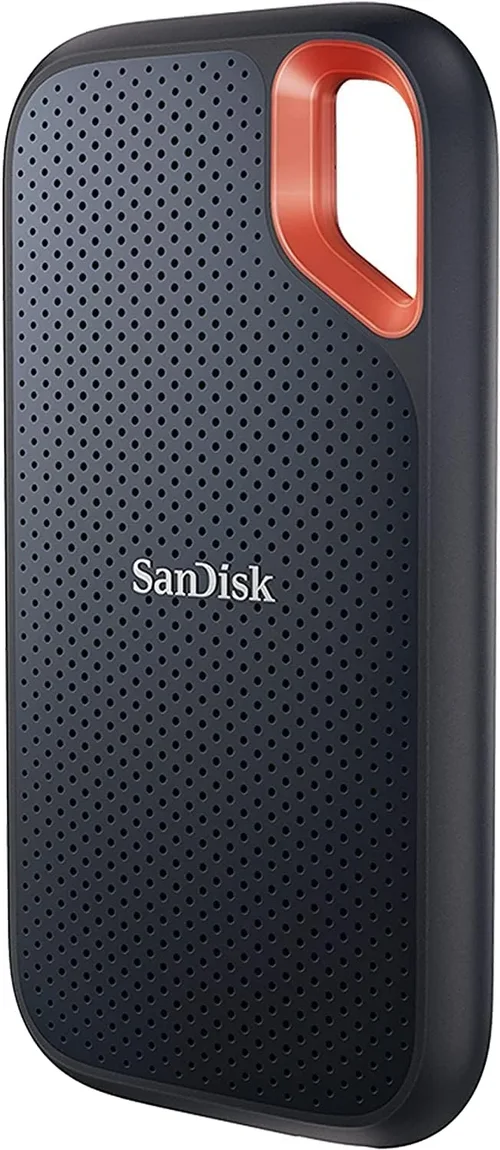
One of the biggest advantages of SSDs over traditional hard drives is their compact size. But even among SSDs, portability varies. Some drives are tiny—no larger than a USB flash drive—while others are bulkier due to added durability or larger capacities. For Mac users who value minimalism, a pocket-sized SSD like the Samsung T7 or SanDisk Extreme is ideal. These drives easily fit in a laptop bag, pocket, or even a wallet.
However, smaller drives often come with trade-offs. They may have fewer ports, less robust cooling, or limited capacity options. If you need 4TB or more of storage, you might have to compromise on size. Also, consider the cable. Some drives include a short USB-C cable, while others require you to use your own. A detachable or coiled cable can make a big difference in portability.
Weight is another factor, especially if you’re traveling frequently. Most external SSDs weigh between 50g and 150g, but rugged models can be heavier due to protective casings. If you’re backpacking or flying often, every gram counts.
5. Capacity & Scalability
Capacity is one of the most straightforward factors—but also one of the most important. External SSDs typically range from 250GB to 8TB, with 1TB and 2TB being the most popular for Mac users. But how much do you really need?
For casual users storing documents, music, and occasional photos, 500GB may be sufficient. But if you’re a photographer shooting in RAW, a videographer working with 4K footage, or a developer managing virtual machines, you’ll want at least 1TB—preferably 2TB or more. Keep in mind that SSDs perform best when they’re not nearly full. Apple recommends keeping at least 10–20% of your drive free for optimal performance and longevity.
Scalability is another consideration. Some drives allow you to daisy-chain multiple units or use RAID configurations for increased speed or redundancy. Others are standalone and not designed for expansion. If you anticipate needing more storage in the future, consider a drive that supports easy upgrades or works well in a multi-drive setup.
6. Features & Functionality
Beyond basic storage, many external SSDs come with extra features that enhance usability and security. Hardware encryption is a big one—especially for professionals handling sensitive data. Drives like the Samsung T7 Touch include a fingerprint sensor for biometric access, while others use AES-256 encryption with password protection. These features are invaluable if you’re traveling or storing confidential work.
Some SSDs also include bundled software for backup, encryption, or drive management. For example, WD’s My Passport SSD comes with WD Backup and WD Security tools, while SanDisk offers RescuePRO Deluxe for data recovery. These can be helpful, but they’re not essential—many Mac users prefer using Time Machine or third-party apps like Carbon Copy Cloner.
Other features to look for include:
– LED activity indicators (helpful for knowing when transfers are complete)
– Multi-platform compatibility (works with Mac, Windows, and sometimes consoles)
– Password protection and self-destruct modes (for high-security needs)
– Built-in cable storage (keeps your setup tidy)
7. Brand Reputation & Reliability
When investing in external storage, you’re not just buying a product—you’re trusting a brand with your data. Stick with reputable manufacturers known for quality and reliability. Top brands in the SSD space include Samsung, SanDisk (a Western Digital brand), Crucial (Micron), OWC (Other World Computing), and LaCie (Seagate). These companies have a proven track record of producing durable, high-performance drives with strong customer support.
Avoid no-name or ultra-cheap brands, especially those sold on third-party marketplaces with vague descriptions. These drives often use low-quality components, lack proper firmware updates, and may fail prematurely. Reading user reviews on trusted sites like Amazon, B&H, or MacRumors can give you insight into real-world reliability.
Also, consider the brand’s ecosystem. If you already use other products from a particular manufacturer (like a Samsung phone or SanDisk memory card), their SSD might integrate better with your existing setup.
8. Warranty & Support
A solid warranty is a strong indicator of a manufacturer’s confidence in their product. Most reputable SSDs come with a 3- to 5-year limited warranty, covering defects and premature failure. Some, like the Samsung T7 series, offer 5 years of coverage, while others may only provide 2 years.
But warranty terms matter. Check whether the warranty covers accidental damage, water exposure, or wear and tear. Also, see if the manufacturer offers data recovery services—some do, while others require you to use third-party services (which can be expensive).
Customer support is equally important. Look for brands with responsive support teams, detailed FAQs, and firmware update tools. OWC, for example, provides excellent Mac-specific support, including compatibility guides and migration tools.
Different Types of Buying Guide
Common Buying Mistakes to Avoid
❌ Mistake: Ignoring Interface Compatibility
Why it’s bad: Buying a Thunderbolt 3 SSD for a Mac with only USB 3.0 ports means you won’t get the advertised speeds. Similarly, using a USB 2.0 cable with a USB 3.2 drive bottlenecks performance.
What to do instead: Match your SSD’s interface to your Mac’s ports. Use Apple’s System Report to verify your port types and buy accordingly.
❌ Mistake: Overpaying for Unnecessary Speed
Why it’s bad: A 2,800 MB/s Thunderbolt drive is overkill if you’re only transferring documents or photos. You’re paying a premium for performance you won’t use.
What to do instead: Assess your actual needs. For most users, a 1,050 MB/s USB 3.2 Gen 2 SSD offers the best value.
❌ Mistake: Choosing Based on Capacity Alone
Why it’s bad: A 4TB drive may seem like a great deal, but if it’s slow, unreliable, or poorly built, it’s not worth it.
What to do instead: Balance capacity with speed, durability, and brand reputation. Sometimes a smaller, higher-quality drive is better.
❌ Mistake: Skipping Warranty and Support
Why it’s bad: Data loss can be catastrophic. Without a good warranty or recovery options, you’re taking a big risk.
What to do instead: Choose brands with strong warranties and consider backup solutions like Time Machine or cloud storage.
❌ Mistake: Not Formatting for macOS
Why it’s bad: Using a drive formatted for Windows (NTFS) on a Mac limits functionality—you can read but not write without third-party tools.
What to do instead: Format your SSD to APFS or exFAT using Disk Utility before use.
❌ Mistake: Buying the Cheapest Option
Why it’s bad: Ultra-low-cost SSDs often use inferior components and lack proper testing, leading to early failure.
What to do instead: Stick to trusted brands and read reviews. A slightly higher price often means better longevity.
Budget Guidelines: How Much Should You Spend?
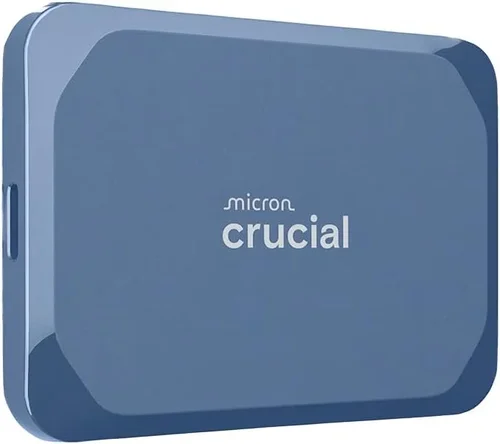
– Entry-Level ($50–$120): Ideal for casual users needing basic backup or extra storage. Expect speeds around 500–600 MB/s, limited durability, and shorter warranties. Examples: Kingston XS2000, Crucial X6.
– Mid-Range ($120–$250): The sweet spot for most Mac users. Offers 1,000+ MB/s speeds, solid build quality, and 3–5 year warranties. Examples: Samsung T7, SanDisk Extreme.
– Premium ($250–$500): For professionals and power users. Includes Thunderbolt support, rugged designs, and advanced features like encryption. Examples: Samsung X5, LaCie Rugged SSD Pro.
– Luxury ($500+): Top-tier performance and capacity, often with enterprise-grade reliability. Best for studios or heavy workloads. Examples: OWC Envoy Pro FX, G-Technology G-RAID.
Expert Tips for Getting the Best Deal
– Buy during sales: Look for discounts during Black Friday, Prime Day, or back-to-school season. Apple often has student discounts, and retailers like B&H and Adorama offer price drops.
– Check refurbished options: Certified refurbished SSDs from manufacturers like Samsung or OWC offer significant savings with full warranties.
– Compare retailers: Prices vary widely. Use tools like CamelCamelCamel or Honey to track price history and find the best deal.
– Read return policies: Ensure the seller offers at least a 30-day return window in case the drive doesn’t work as expected.
– Test before relying: Once you get your SSD, run a speed test (using Blackmagic Disk Speed Test) and verify it works with Time Machine.
– Consider future needs: Buying a slightly larger drive now can save you from upgrading later.
– Use Apple Trade-In: If you have an old drive, Apple may offer credit toward a new one.

Frequently Asked Questions
Q: Can I use an external SSD as a boot drive for my Mac?
A: Yes! You can install macOS on an external SSD and boot from it. This is great for testing new OS versions or running a clean system. Just ensure the drive is fast enough (USB 3.2 Gen 2 or Thunderbolt recommended) and formatted to APFS.
Q: Will an external SSD work with Time Machine?
A: Absolutely. In fact, SSDs are faster and more reliable than traditional hard drives for Time Machine backups. Just format the drive to APFS or Mac OS Extended (Journaled) using Disk Utility.
Q: Do I need a Thunderbolt SSD for my Mac?
A: Only if you need ultra-fast speeds for video editing or large file transfers. For everyday use, USB 3.2 Gen 2 is more than sufficient and much more affordable.
Q: How long do external SSDs last?
A: Most SSDs are rated for 150–600 TBW (terabytes written). With normal use, they can last 5–10 years. Heavy users should monitor wear using tools like DriveDx.
Q: Can I use the same SSD on Mac and Windows?
A: Yes, if it’s formatted in exFAT. APFS is Mac-only, and NTFS is Windows-only (read-only on Mac without third-party tools).
Q: Are external SSDs safe for travel?
A: Yes, especially rugged models. Look for shock resistance, water resistance, and a durable casing. Always back up important data before traveling.
Q: Should I encrypt my external SSD?
A: If you store sensitive data, yes. Use FileVault (for APFS) or the drive’s built-in encryption. Avoid unencrypted drives for confidential work.
Our Final Recommendations
– Best for Budget-Conscious Buyers: Samsung T7 (500GB–2TB) – Reliable, fast, and affordable with a sleek design.
– Best Overall Value: SanDisk Extreme Portable SSD V2 – Great speed, rugged build, and excellent price-to-performance ratio.
– Best Premium Option: Samsung X5 – Thunderbolt 3 speeds up to 2,800 MB/s, perfect for professionals.
– Best for Beginners: Crucial X8 – Easy setup, solid performance, and user-friendly design.
– Best for Advanced Users: OWC Envoy Pro FX – Thunderbolt 3, IP67 rating, and Mac-optimized software.
Conclusion: Making the Right Choice
Choosing the right external SSD for your Mac doesn’t have to be complicated. By focusing on your specific needs—whether that’s speed, durability, capacity, or budget—you can narrow down the options and find a drive that truly enhances your workflow. Remember to prioritize compatibility, build quality, and long-term reliability over flashy specs or low prices.
Take the time to assess how you’ll use the drive. Are you editing videos on location? Backing up your photo library? Expanding storage for apps? Your answers will guide your decision. And don’t forget to back up your data regularly—no drive lasts forever.
With the insights from this guide, you’re now equipped to make a confident, informed purchase. Whether you go for a budget-friendly portable SSD or a Thunderbolt powerhouse, the right choice will keep your Mac running smoothly for years to come. Happy shopping—and may your files always transfer at lightning speed.