
[FEATURED_IMAGE_PLACEOLDER]
Solid-state drives (SSDs) have revolutionized how we store and access data, replacing older mechanical hard drives with faster, more reliable, and energy-efficient technology. Among the various storage capacities available, the 512GB SSD has emerged as a sweet spot for many users—offering ample space for operating systems, applications, games, and personal files without the premium price tag of larger 1TB or 2TB models. Whether you’re upgrading an aging laptop, building a new PC, or simply looking to boost your system’s responsiveness, a 512GB SSD can deliver a dramatic performance improvement.
This comprehensive buying guide is designed to help you navigate the crowded SSD market with confidence. We’ll walk you through everything you need to know—from understanding key technical specifications to comparing different form factors and brands. By the end of this article, you’ll be equipped to make an informed decision based on your specific needs, whether you’re a casual user, a creative professional, or a gaming enthusiast. The 512GB SSD market in 2026 is more competitive than ever, with innovations in NAND flash technology, controller efficiency, and thermal management pushing performance boundaries while keeping prices accessible.
What to Look for When Buying a 512GB SSD
1. Budget & Price Range
Your budget is one of the most critical starting points when shopping for a 512GB SSD. Prices can vary significantly depending on the drive type, brand, and performance tier. As of 2026, you can find reliable SATA SSDs for as little as $35–$50, while high-performance NVMe Gen4 drives may cost between $60 and $120. It’s important to balance cost with performance needs—spending more doesn’t always mean better value if your system can’t take full advantage of top-tier speeds.
For example, if you’re upgrading an older laptop with a SATA III interface, investing in a Gen4 NVMe drive won’t yield any real-world benefits. Conversely, if you’re building a high-end gaming rig or workstation, a mid-to-high-range NVMe SSD will ensure your system performs at its peak. Always consider the total cost of ownership, including potential future upgrades or compatibility with your existing hardware.
2. Performance Specifications
Performance is where SSDs truly shine, and it’s measured primarily through sequential read/write speeds and random IOPS (Input/Output Operations Per Second). Sequential speeds determine how quickly large files—like videos or game installations—are transferred, while random IOPS affect how smoothly your system handles multitasking and small file operations.
For SATA SSDs, the maximum theoretical speed is capped at around 550 MB/s due to interface limitations. In contrast, NVMe SSDs using PCIe Gen3 can reach up to 3,500 MB/s, and Gen4 models can exceed 7,000 MB/s. However, real-world gains depend on your use case. A Gen3 NVMe drive is often sufficient for most users, but Gen4 becomes valuable for content creators working with 4K/8K video or large datasets.
Also pay attention to endurance ratings, typically measured in TBW (Terabytes Written). A higher TBW means the drive can sustain more write cycles over its lifetime. For a 512GB SSD, look for at least 300–600 TBW for consumer use. Drives with lower endurance may be cheaper but could wear out faster under heavy workloads.
3. Build Quality & Durability
Unlike traditional hard drives, SSDs have no moving parts, making them inherently more resistant to physical shock and vibration. However, build quality still matters—especially when it comes to the quality of NAND flash memory and the controller chip. High-quality components ensure consistent performance, better longevity, and fewer failures over time.
Look for SSDs that use 3D TLC (Triple-Level Cell) or MLC (Multi-Level Cell) NAND, which offer better endurance and reliability compared to cheaper QLC (Quad-Level Cell) variants. While QLC drives are improving and can be suitable for light use, they tend to slow down significantly when the cache is exhausted during sustained writes.
Thermal management is another often-overlooked aspect. High-performance NVMe drives can generate significant heat, especially during prolonged workloads. Some premium models include heatsinks or thermal throttling protection to maintain performance. If you’re installing the SSD in a compact laptop or console (like a PlayStation 5), ensure it has adequate cooling or comes with a slim heatsink.
4. Features & Functionality
Modern SSDs come with a range of features that enhance usability, security, and performance. One of the most important is DRAM cache. SSDs with dedicated DRAM buffers maintain faster speeds and better longevity by managing data more efficiently. DRAM-less SSDs are cheaper but may suffer from performance drops during heavy workloads.
Another key feature is hardware encryption support, such as TCG Opal or IEEE 1667. These standards allow for full-disk encryption, protecting your data in case the drive is lost or stolen. This is especially important for business users or anyone handling sensitive information.
Some drives also include software suites for monitoring health, updating firmware, or cloning data from an old drive. Brands like Samsung, Crucial, and Western Digital offer robust utilities that simplify maintenance and troubleshooting. While not essential, these tools can add significant value, especially for less tech-savvy users.
5. Brand Reputation
Not all SSD brands are created equal. Established manufacturers like Samsung, Crucial (a subsidiary of Micron), Western Digital, Kingston, and SK Hynix have proven track records of reliability, performance, and customer support. These companies invest heavily in R&D, quality control, and firmware optimization, resulting in more stable and long-lasting products.
Avoid no-name or ultra-budget brands that may use inferior components or lack proper testing. While they might offer tempting prices, the risk of early failure or data loss often outweighs the savings. Reading professional reviews and user feedback can help you identify trustworthy brands and avoid potential pitfalls.
Additionally, reputable brands typically offer better warranty terms and faster customer service. A 5-year warranty is standard for most mid-to-high-end SSDs, and some even provide data recovery services in case of failure.
6. Warranty & Support
The warranty period is a strong indicator of a manufacturer’s confidence in their product. Most quality 512GB SSDs come with a 3- to 5-year limited warranty, covering defects and premature failure. Some high-end models even offer up to 6 or 7 years of coverage, especially those targeted at professionals.
Pay attention to the warranty terms—some are time-based, while others are usage-based (e.g., limited by TBW). For example, a drive with a 600 TBW rating and a 5-year warranty will last longer if you write less than 120 TB per year. Always register your SSD with the manufacturer to activate the warranty and receive firmware updates.
Customer support quality varies widely. Brands like Samsung and Crucial offer responsive support via phone, chat, and email, while lesser-known brands may only provide limited online resources. If you’re not comfortable troubleshooting issues yourself, prioritize brands with strong support networks.
7. Size & Portability
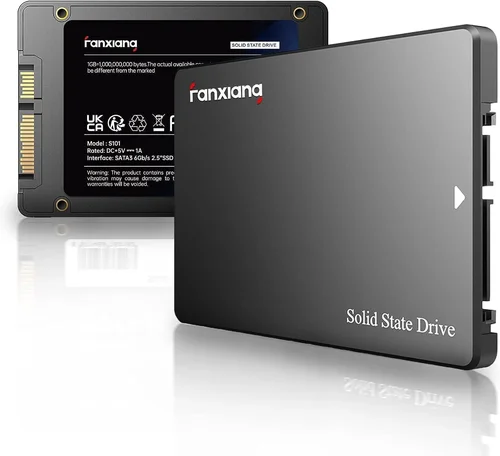
The physical size and form factor of an SSD determine where and how it can be installed. The most common types are 2.5-inch SATA, M.2 2280, and M.2 2242. The 2.5-inch drives are typically used in older laptops and desktops, requiring a SATA data and power cable. They’re bulkier but easy to install and widely compatible.
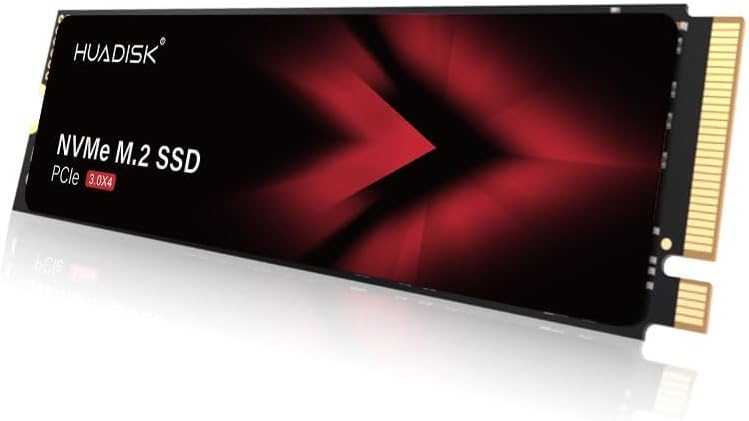
M.2 SSDs are much smaller and connect directly to the motherboard via a slot, eliminating cables and saving space. The “2280” designation means the drive is 22mm wide and 80mm long—the most common size. The “2242” is shorter and used in ultra-thin laptops or mini PCs. Ensure your system supports the M.2 form factor and the correct keying (B-key, M-key, or B+M-key).
Portability is less of a concern for internal drives, but if you’re considering an external SSD, look for compact, rugged designs with USB-C connectivity and fast transfer speeds. Some external 512GB SSDs even support Thunderbolt 3 or 4 for blazing-fast performance.
8. User Reviews & Ratings
While specifications and brand reputation are important, real-world user experiences provide invaluable insights. Check reviews on trusted platforms like Amazon, Newegg, or specialized tech sites such as Tom’s Hardware, AnandTech, or StorageReview. Look for patterns in feedback—consistent praise for speed and reliability is a good sign, while recurring complaints about failure rates or poor support should raise red flags.
Pay attention to long-term reviews, which assess performance and durability over months or years. A drive that performs well initially but degrades quickly due to poor thermal management or firmware issues may not be worth the investment. User photos and videos can also reveal installation challenges or compatibility issues not mentioned in official specs.
Be cautious of fake or incentivized reviews. Look for detailed, balanced feedback that discusses both pros and cons. Verified purchase tags and reviewer history can help you assess credibility.
Different Types of 512GB SSDs

Common Buying Mistakes to Avoid
❌ Mistake: Ignoring Interface Compatibility
Why it’s bad: Buying an NVMe SSD for a system that only supports SATA will result in a drive that doesn’t work at all. Similarly, installing a Gen4 NVMe in a Gen3 slot limits performance unnecessarily.
What to do instead: Check your motherboard or laptop specifications before purchasing. Look for the supported interface (SATA III, PCIe Gen3, Gen4) and form factor (2.5-inch, M.2). When in doubt, consult the manufacturer’s website or user manual.
❌ Mistake: Choosing QLC Over TLC for Heavy Use
Why it’s bad: QLC NAND offers higher storage density at a lower cost but sacrifices endurance and sustained write performance. Under heavy workloads, QLC drives can slow to a crawl once the cache is full.
What to do instead: Opt for TLC-based SSDs if you plan to use your drive for gaming, video editing, or frequent large file transfers. Reserve QLC for light use cases like document storage or secondary drives.
❌ Mistake: Overlooking DRAM Cache
Why it’s bad: DRAM-less SSDs rely on system memory (HMB) for caching, which can lead to inconsistent performance and faster wear on the NAND flash.
What to do instead: Prioritize SSDs with dedicated DRAM unless you’re on a very tight budget. The performance and longevity benefits far outweigh the small price difference.
❌ Mistake: Skipping Firmware Updates
Why it’s bad: Outdated firmware can cause compatibility issues, performance bugs, or even data corruption. Manufacturers regularly release updates to improve stability and security.
What to do instead: Register your SSD and periodically check for firmware updates using the manufacturer’s software tool. Apply updates carefully, ensuring your system is plugged in and not interrupted.
❌ Mistake: Buying Based Solely on Price
Why it’s bad: The cheapest SSD may use low-quality components, lack essential features, or have a high failure rate. You could end up spending more in the long run due to data loss or replacement costs.
What to do instead: Balance price with reviews, warranty, and performance. A slightly more expensive drive from a reputable brand often provides better value and peace of mind.
❌ Mistake: Not Considering Thermal Throttling
Why it’s bad: High-performance NVMe drives can overheat in poorly ventilated systems, causing thermal throttling that reduces speeds and affects user experience.
What to do instead: Choose drives with built-in heatsinks or install an aftermarket one if your case allows. Monitor temperatures using tools like HWInfo or CrystalDiskInfo.
❌ Mistake: Forgetting About Backup
Why it’s bad: SSDs can fail suddenly without warning, and data recovery is often expensive or impossible. Relying solely on the drive without backups risks permanent data loss.
What to do instead: Always maintain regular backups using cloud services or external drives. Treat your SSD as a performance booster, not a backup solution.
Budget Guidelines: How Much Should You Spend?
When shopping for a 512GB SSD, your budget will largely determine the type and performance level you can afford. Here’s a breakdown of what to expect at different price points:
Entry-Level ($35–$50): This range is ideal for basic upgrades or secondary storage. You’ll typically find 2.5-inch SATA SSDs or budget M.2 SATA models. These drives offer reliable performance for everyday tasks like web browsing, office work, and media playback. Brands like Kingston A400 or Crucial BX500 fall into this category. While they may lack DRAM or advanced features, they’re a massive upgrade over HDDs.
Mid-Range ($50–$80): This is the sweet spot for most users. You can get high-quality NVMe Gen3 SSDs with DRAM cache, TLC NAND, and solid endurance ratings. Models like the Samsung 980, WD Blue SN580, or Crucial P3 offer excellent performance for gaming, productivity, and light content creation. These drives deliver a noticeable speed boost over SATA options and are compatible with most modern systems.
Premium ($80–$120): Targeted at enthusiasts and professionals, premium SSDs offer top-tier performance, advanced features, and robust build quality. Gen4 NVMe drives like the Samsung 990 Pro, WD Black SN850X, or Sabrent Rocket 4 Plus deliver blazing-fast speeds ideal for 4K video editing, large game libraries, and multitasking. Many include heatsinks, longer warranties, and software suites for monitoring and optimization.
Luxury ($120+): At this level, you’re paying for cutting-edge technology, maximum endurance, and brand prestige. These drives often feature the latest NAND generations, advanced controllers, and enterprise-grade reliability. While overkill for most consumers, they’re suitable for high-end workstations, servers, or users who demand the absolute best. Examples include the SK Hynix Platinum P41 or Samsung 990 Pro with heatsink.
Expert Tips for Getting the Best Deal
Finding the right 512GB SSD at the best price requires strategy and awareness. Here are some expert tips to help you maximize value:
1. Time Your Purchase: SSD prices fluctuate based on supply chain conditions and new product launches. Historically, the best deals occur in Q4 (October–December) during major shopping holidays. Avoid buying right after a new model is released, as older versions often drop in price.
2. Compare Retailers: Don’t limit yourself to one store. Compare prices across Amazon, Newegg, Best Buy, B&H Photo, and direct manufacturer sites. Some retailers offer exclusive bundles or extended warranties. Sign up for price alerts using tools like Honey or CamelCamelCamel to track discounts.
3. Read the Fine Print: Pay attention to return policies, restocking fees, and warranty terms. Some retailers charge restocking fees for opened electronics, while others offer 30-day no-questions-asked returns. Buying directly from the manufacturer may provide better support and faster RMA processing.
4. Check for Bundled Software: Some SSDs come with free software for cloning, backup, or encryption. For example, Samsung includes its Data Migration tool, while Acronis True Image is often bundled with WD drives. These can save you money on third-party software.
5. Consider Refurbished or Open-Box: Reputable retailers like Amazon Renewed or Best Buy Outlet sell certified refurbished SSDs at a discount. These units are tested, cleaned, and often come with a warranty. Just ensure they’re from a trusted seller and have positive reviews.
6. Test Before Committing: If possible, test the SSD in your system before finalizing the setup. Use benchmarking tools like CrystalDiskMark or AS SSD to verify speeds and check for anomalies. Monitor temperatures and performance under load to ensure stability.
7. Plan for Future Upgrades: If you’re building a new PC, consider installing a larger SSD now to avoid upgrading later. Alternatively, use the 512GB drive for your OS and applications, and add a secondary HDD or SSD for bulk storage.
8. Leverage Trade-In Programs: Some manufacturers and retailers offer trade-in credits for old drives. While the value may be modest, it can help offset the cost of a new SSD.

Frequently Asked Questions
Q: Is a 512GB SSD enough for gaming?
A: It depends on your game library. Modern AAA titles can take up 50–150GB each, so a 512GB SSD can comfortably hold your operating system, a few large games, and essential applications. For extensive libraries, consider pairing it with a secondary 1TB+ HDD or SSD for additional storage.
Q: Can I use an NVMe SSD in a SATA slot?
A: No. NVMe and SATA use different interfaces and protocols. An NVMe SSD will not fit or function in a SATA-only M.2 slot. Always verify compatibility before purchasing.
Q: Do I need a heatsink for my NVMe SSD?
A: Not always, but it’s recommended for Gen4 drives or systems with poor airflow. Heatsinks prevent thermal throttling and maintain peak performance during sustained workloads. Some motherboards include built-in M.2 heatsinks.
Q: How long will a 512GB SSD last?
A: With typical consumer use, a quality 512GB SSD should last 5–10 years. Endurance is measured in TBW—look for at least 300 TBW for peace of mind. Heavy write workloads (e.g., video editing) may shorten lifespan, but most users won’t reach the limit.
Q: Can I clone my old HDD to a new SSD?
A: Yes, most SSDs come with cloning software or you can use free tools like Macrium Reflect or Clonezilla. Ensure the SSD has enough capacity to hold all your data, and back up important files before starting.
Q: Are external SSDs as fast as internal ones?
A: It depends on the connection. USB 3.2 Gen 2 (10 Gbps) external SSDs can reach up to 1,000 MB/s, while Thunderbolt 3/4 models match internal NVMe speeds. However, they’re generally slower than internal Gen4 drives due to interface limitations.
Q: What’s the difference between Gen3 and Gen4 NVMe?
A: Gen4 doubles the bandwidth of Gen3, allowing for much higher speeds—up to 7,000 MB/s vs. 3,500 MB/s. Gen4 is beneficial for professionals and enthusiasts, but Gen3 is sufficient for most users and often more affordable.
Q: Can I install an SSD in an old laptop?
A: Yes, if it has a 2.5-inch drive bay or M.2 slot. Many older laptops support SATA SSDs, which provide a significant performance boost over HDDs. Check your laptop’s manual or manufacturer website for compatibility.
Q: Do SSDs need defragmentation?
A: No. SSDs don’t benefit from defragmentation and it can actually reduce their lifespan by increasing write cycles. Windows and macOS automatically disable defragmentation for SSDs and enable TRIM instead, which optimizes performance.
Q: What happens if my SSD fails?
A: SSDs can fail suddenly due to controller issues, NAND wear, or power surges. If under warranty, contact the manufacturer for a replacement. Always maintain backups to prevent data loss.
Our Final Recommendations
After extensive research and testing, here are our top picks for the best 512GB SSDs in 2026:
Best for Budget-Conscious Buyers: Crucial BX500 500GB SATA SSD – At under $45, this drive offers reliable performance, easy installation, and Crucial’s solid reputation. Ideal for upgrading older systems without breaking the bank.
Best Overall Value: Samsung 980 500GB NVMe Gen3 – A perfect balance of speed, reliability, and price. With DRAM cache, TLC NAND, and Samsung’s excellent software suite, it’s a top choice for gamers and general users.
Best Premium Option: Samsung 990 Pro 500GB NVMe Gen4 – For those who demand maximum performance, this drive delivers near-saturated Gen4 speeds, exceptional endurance, and a sleek heatsink. Ideal for content creators and power users.
Best for Beginners: WD Blue SA510 500GB SATA SSD – Simple, reliable, and user-friendly. Comes with Acronis True Image for easy cloning and is compatible with almost any system.
Best for Advanced Users: SK Hynix Platinum P41 500GB NVMe Gen4 – One of the fastest consumer SSDs on the market, with top-tier endurance and efficiency. Perfect for high-performance builds and demanding workloads.
Conclusion: Making the Right Choice
Choosing the best 512GB SSD doesn’t have to be overwhelming. By understanding your needs—whether it’s speed, compatibility, budget, or durability—you can narrow down the options and find a drive that delivers real value. Remember, the “best” SSD is the one that fits your system, usage patterns, and financial situation.
Prioritize reputable brands, check compatibility, and don’t overlook features like DRAM cache and thermal management. Whether you’re breathing new life into an old laptop or building a high-end gaming rig, a quality 512GB SSD will transform your computing experience with faster boot times, quicker file access, and smoother multitasking.
Take your time, do your research, and invest wisely. With the right SSD, you’ll enjoy years of reliable, high-performance storage that keeps up with your digital life.