
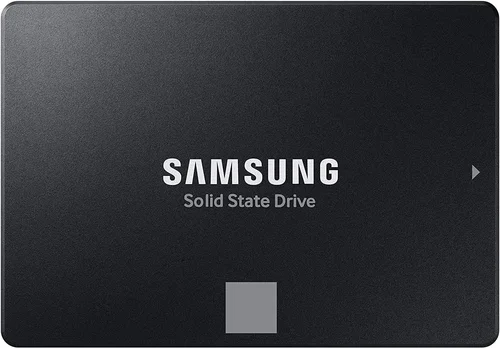
If you’re looking to upgrade your laptop, desktop, or even an older system that still uses traditional hard drives, choosing the right 2.5-inch SSD can feel overwhelming. With dozens of models flooding the market—each boasting different speeds, capacities, warranties, and price points—it’s easy to get lost in the technical jargon or end up with a drive that doesn’t quite meet your needs. That’s exactly why this guide exists: to cut through the noise and help you make a smart, informed decision based on real-world performance, reliability, and value.
In this comprehensive buying guide, we’ll walk you through everything you need to know about 2.5-inch SSDs in 2026. Whether you’re a casual user looking to breathe new life into an aging laptop, a gamer wanting faster load times, or a professional needing dependable storage for large files, we’ve got you covered. You’ll learn how to evaluate key specs like read/write speeds and endurance ratings, understand the differences between SATA and newer interfaces (even within the 2.5″ form factor), avoid common pitfalls, and find the best SSD for your budget and use case. By the end, you won’t just know which SSD to buy—you’ll understand why it’s the right choice for you.
The 2.5-inch SSD market has evolved significantly over the past few years. While NVMe M.2 drives have stolen much of the spotlight for their blazing speeds, 2.5-inch SSDs remain a cornerstone of storage solutions—especially for systems without M.2 slots or users who prefer the simplicity and compatibility of the traditional SATA interface. These drives are widely supported across laptops, desktops, external enclosures, and even some NAS devices. In 2026, manufacturers continue to refine 2.5-inch SSDs with better NAND technology, improved power efficiency, and enhanced durability, making them more relevant than ever—even in an era of ultra-fast PCIe Gen5 drives.

What to Look for When Buying Buying Guide
1. Interface Type: SATA vs. USB vs. U.2
The interface determines how your SSD connects to your system and directly impacts performance. Most 2.5-inch SSDs use the SATA III interface, which caps out at around 550–560 MB/s for sequential reads and writes. This is more than enough for everyday computing, gaming, and general productivity—but it’s far slower than modern NVMe drives. However, don’t dismiss SATA SSDs just yet: they’re universally compatible with nearly every laptop and desktop made in the last 15 years, making them ideal for upgrades.
Some newer 2.5-inch drives now support USB 3.2 Gen 2 or even Thunderbolt via external enclosures, effectively turning internal SSDs into high-speed portable drives. A smaller subset uses the enterprise-focused U.2 interface, which supports NVMe speeds but requires compatible motherboards—rare in consumer systems. For most users, a standard SATA III 2.5-inch SSD offers the best balance of speed, compatibility, and affordability.
2. Storage Capacity: Match It to Your Needs
Capacity is one of the most straightforward yet critical factors. 2.5-inch SSDs are available from as little as 120GB all the way up to 8TB (though 4TB is the practical sweet spot for most consumers in 2026). Choosing the right size depends on what you plan to store.
For basic web browsing, office work, and light media consumption, a 250GB–500GB drive is sufficient. Gamers should aim for at least 1TB, especially with modern titles easily exceeding 100GB each. Content creators, video editors, or anyone working with large datasets will benefit from 2TB or more. Keep in mind that SSDs perform best when they’re not nearly full—ideally keeping 10–20% free space for wear leveling and garbage collection.
Also consider future-proofing: buying a slightly larger drive now can save you from needing another upgrade in a year or two. Prices per gigabyte have dropped significantly, so stepping up from 500GB to 1TB often costs less than you’d expect.
3. Performance Specifications: Speed Matters—But Not Always
When evaluating performance, focus on two main metrics: sequential read/write speeds and random IOPS (Input/Output Operations Per Second). Sequential speeds matter most for large file transfers—like copying videos or loading game levels—while random IOPS affect everyday responsiveness, such as booting your OS or opening apps.
Most SATA 2.5-inch SSDs max out around 560 MB/s read and 530 MB/s write due to SATA III bandwidth limits. Within that constraint, some drives are faster than others thanks to better controllers and NAND flash. For example, Samsung’s 870 EVO consistently hits near the SATA ceiling, while budget drives might plateau at 500 MB/s.
Random 4K read/write performance is often more telling for real-world use. Look for drives rated at 90,000+ IOPS for reads and 80,000+ for writes—these will feel noticeably snappier during multitasking. Don’t obsess over peak numbers, though; consistency under load matters more. Some cheaper SSDs throttle heavily after their SLC cache fills up, causing performance to plummet during sustained writes.
4. NAND Flash Type: TLC, QLC, and Beyond
The type of NAND flash memory used in an SSD affects both performance and longevity. In 2026, the most common types are TLC (Triple-Level Cell) and QLC (Quad-Level Cell). TLC stores three bits per cell and offers a good balance of speed, endurance, and cost—it’s found in nearly all mid-range and premium 2.5-inch SSDs.
QLC stores four bits per cell, allowing for higher capacities at lower prices, but it’s slower and less durable. QLC drives often rely heavily on SLC caching (a small portion of memory acting as a fast buffer), which works well for short bursts but can falter during prolonged writes. For everyday users, QLC is acceptable—but if you frequently transfer large files or run disk-intensive applications, TLC is the safer bet.
A few high-end drives still use MLC (Multi-Level Cell) or even SLC (Single-Level Cell), but these are rare in consumer 2.5-inch form factors due to cost. Avoid drives that don’t specify their NAND type—they may be using outdated or inferior memory.
5. Endurance and TBW Rating
Endurance measures how much data you can write to an SSD over its lifetime, typically expressed in TBW (Terabytes Written). A higher TBW means the drive is built to last longer under heavy use. For example, a 1TB Samsung 870 EVO has a 600 TBW rating, while a budget QLC drive might only offer 200 TBW for the same capacity.
To put this in perspective: if you write 50GB of data per day, a 200 TBW drive would theoretically last about 11 years, while a 600 TBW drive could last over 33 years. Realistically, most users won’t come close to these limits—but professionals, servers, or频繁备份 users should prioritize higher TBW ratings.
Don’t confuse TBW with warranty length. A 5-year warranty doesn’t guarantee the drive will survive that long—it just means the manufacturer will replace it if it fails within that period. Always check both metrics.
6. Build Quality and Durability
Unlike mechanical hard drives, SSDs have no moving parts, making them inherently more resistant to shock, vibration, and temperature fluctuations. However, build quality still varies. Premium drives often feature metal casings for better heat dissipation and structural integrity, while budget models may use plastic shells that feel flimsy.
Look for drives with robust controllers (like Samsung’s MKX or Phison’s S12) and reputable NAND suppliers (Samsung, Micron, SK Hynix, Kioxia). Avoid no-name brands or drives sold without clear manufacturer information—these may use recycled or low-grade components.
Also consider operating temperature ranges. Most consumer SSDs operate safely between 0°C and 70°C, but if you’re using the drive in a hot environment (like inside a tightly packed laptop or external enclosure), ensure it has adequate thermal management.
7. Brand Reputation and Ecosystem
Stick with established brands known for reliability and consistent firmware updates. Samsung, Crucial, Western Digital, Kingston, and SanDisk dominate the 2.5-inch SSD market for good reason—they invest heavily in R&D, quality control, and customer support.
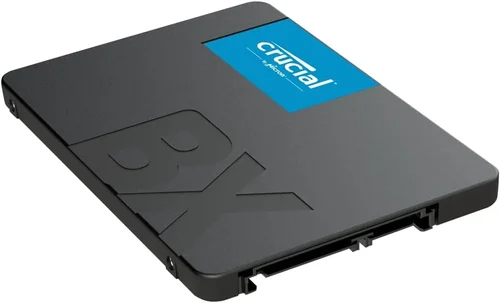
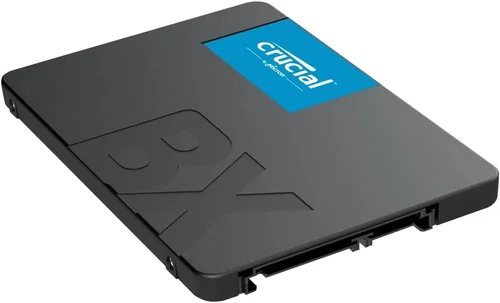
Samsung, for instance, produces its own NAND, controllers, and firmware, allowing for tight integration and optimization. Crucial (a Micron subsidiary) also controls its entire supply chain, resulting in dependable performance. Lesser-known brands might offer tempting prices, but they often lack long-term firmware support or fail to address performance bugs promptly.
Additionally, consider ecosystem compatibility. If you already own other devices from a particular brand (e.g., a Samsung laptop), sticking with the same SSD brand can simplify management through unified software tools like Samsung Magician.
8. Warranty and Customer Support
A solid warranty is a strong indicator of a manufacturer’s confidence in their product. Most reputable 2.5-inch SSDs come with 3- to 5-year limited warranties. Some, like the Samsung 870 EVO, even offer 5 years or up to the TBW limit—whichever comes first.
Check the fine print: some warranties require registration, proof of purchase, or restrict usage to non-commercial purposes. Also verify whether the warranty covers data recovery (spoiler: it almost never does—always back up your data!).
Customer support quality varies widely. Samsung and Crucial offer responsive live chat and detailed troubleshooting guides, while budget brands may only provide email support with slow response times. If reliability is a priority, choose a brand with proven support infrastructure.
Different Types of Buying Guide

Common Buying Mistakes to Avoid
❌ Mistake: Ignoring the Interface Compatibility
Why it’s bad: Buying a U.2 or NVMe-based 2.5-inch SSD for a system that only supports SATA will result in a paperweight. Even among SATA drives, some use proprietary connectors or require specific caddies.
What to do instead: Check your laptop or desktop manual to confirm the supported interface. When in doubt, SATA III is the safest bet for broad compatibility.
❌ Mistake: Prioritizing Capacity Over NAND Type
Why it’s bad: A 2TB QLC SSD might seem like a steal, but its slow write speeds and low endurance make it unsuitable for frequent large file transfers or sustained workloads.
What to do instead: For capacities above 1TB, prioritize TLC NAND unless you’re only using the drive for archival storage.
❌ Mistake: Overlooking the TBW Rating
Why it’s bad: A drive with a low TBW may fail prematurely if you’re a heavy writer—even if it’s still under warranty. Data loss is often irreversible.
What to do instead: Calculate your estimated daily write workload and choose a drive with at least 2–3x that amount in TBW headroom.
❌ Mistake: Buying Based Solely on Price
Why it’s bad: The cheapest SSDs often cut corners on components, firmware, and testing, leading to instability, data corruption, or early failure.
What to do instead: Aim for the best value—not the lowest price. Mid-range drives from reputable brands usually offer the optimal balance.
❌ Mistake: Skipping Firmware Updates
Why it’s bad: Outdated firmware can cause performance degradation, compatibility issues, or security vulnerabilities.
What to do instead: Download the manufacturer’s SSD management tool (e.g., Samsung Magician, Crucial Storage Executive) and enable automatic firmware checks.
❌ Mistake: Assuming All 2.5″ SSDs Are Interchangeable
Why it’s bad: Some laptops require specific thickness (7mm vs. 9.5mm) or have unique mounting points. A drive that’s too thick won’t fit.
What to do instead: Measure your existing drive or consult your device’s service manual before purchasing.
❌ Mistake: Neglecting Backup Strategies
Why it’s bad: SSDs can fail suddenly without warning signs—unlike HDDs, which often give audible cues. Relying solely on the SSD for critical data is risky.
What to do instead: Implement a 3-2-1 backup strategy: 3 copies of your data, on 2 different media, with 1 offsite.
Budget Guidelines: How Much Should You Spend?
– Entry-Level ($25–$60 for 500GB): Ideal for basic upgrades or secondary storage. Expect QLC NAND, modest speeds (~500 MB/s), and 3-year warranties. Great for older systems or light use. Examples: Kingston A400, SanDisk SSD Plus.
– Mid-Range ($50–$120 for 1TB): The sweet spot for most users. These drives use TLC NAND, deliver near-SATA-III speeds, and include 5-year warranties. Perfect for gaming, productivity, and general computing. Examples: Crucial MX500, Samsung 870 QVO (TLC variant), WD Blue SA510.
– Premium ($120–$300 for 2TB): Designed for power users and professionals. Features high-end controllers, excellent endurance (600+ TBW), and consistent performance under load. Often include advanced features like power-loss protection. Examples: Samsung 870 EVO, Crucial P3 Plus (in 2.5″ SATA enclosure), WD Black SN770 (external variant).
– Luxury ($300+ for 4TB+): For enthusiasts, content creators, or those needing maximum capacity and reliability. These drives push the limits of SATA performance and often come with extended warranties and enterprise-grade features. Examples: Samsung 870 PRO (rare but available), high-capacity enterprise SATA SSDs repurposed for prosumer use.
Expert Tips for Getting the Best Deal
– Buy during major sales events: Look for discounts in November (Black Friday/Cyber Monday), July (Amazon Prime Day), and January (post-holiday clearance). SSD prices often drop 20–40% during these periods.
– Compare retailers: Don’t limit yourself to one store. Check Amazon, Newegg, B&H, Micro Center, and even direct-from-manufacturer sites. Sometimes the manufacturer offers better warranties or bundled software.
– Watch for open-box or refurbished deals: Certified refurbished SSDs from reputable sellers (like Amazon Renewed or manufacturer outlets) can save you 20–30% with full warranty coverage.
– Check return policies: Ensure the retailer offers at least a 30-day return window. Some SSDs may have compatibility issues or DOA (dead on arrival) units.
– Test before committing: Once installed, run a quick benchmark (using CrystalDiskMark or AS SSD) to verify advertised speeds. Also check S.M.A.R.T. status with tools like HD Tune or the manufacturer’s utility.
– Register your warranty: Many manufacturers require online registration to activate the full warranty period. Do this immediately after purchase.
– Consider bundle deals: Some retailers offer SSD + USB enclosure or cloning software bundles at a discount—great if you’re upgrading and need to migrate your OS.
– Avoid “too good to be true” prices: If a 2TB SSD is selling for $40, it’s likely counterfeit or used. Stick to authorized sellers.
Frequently Asked Questions
Q: Can I use a 2.5-inch SSD in an external enclosure?
A: Absolutely! In fact, many users buy bare 2.5-inch SSDs and pair them with USB 3.2 Gen 2 enclosures to create fast, portable drives. Just ensure the enclosure supports SATA III and provides adequate power delivery.
Q: Will a 2.5-inch SSD improve my laptop’s battery life?
A: Yes, slightly. SSDs consume less power than HDDs because they have no spinning disks or moving heads. You might see a 15–30 minute increase in battery life, depending on usage.
Q: Do I need to enable TRIM on my SSD?
A: Yes—TRIM helps maintain SSD performance over time by allowing the OS to inform the drive which blocks of data are no longer in use. Windows, macOS, and Linux enable TRIM automatically for most SSDs, but you can verify it in disk management tools.
Q: Are 2.5-inch SSDs compatible with Macs?
A: Older MacBooks (pre-2016) often used 2.5-inch drives and can be upgraded easily. Newer Macs use proprietary SSDs, so check your model first. For external use, any 2.5-inch SSD in a USB-C enclosure works flawlessly with macOS.
Q: How do I clone my old HDD to a new SSD?
A: Use cloning software like Macrium Reflect (Windows), Carbon Copy Cloner (macOS), or the manufacturer’s tool (e.g., Samsung Data Migration). Connect both drives, clone the HDD to the SSD, then swap them in your system.
Q: Is it safe to defragment an SSD?
A: No—and you shouldn’t. Defragmentation is designed for HDDs and causes unnecessary wear on SSDs. Modern operating systems disable defrag for SSDs by default.
Q: What’s the difference between a 7mm and 9.5mm SSD?
A: These refer to the drive’s thickness. Most modern laptops use 7mm drives, while older systems may require 9.5mm. Always check your device specs—using the wrong thickness can prevent installation.
Q: Can I use a 2.5-inch SSD as a boot drive?
A: Yes! In fact, that’s one of the primary reasons people upgrade to SSDs. Install your OS on the SSD, and you’ll enjoy dramatically faster boot and load times.
Q: Do SSDs need cooling?
A: Generally, no—especially SATA SSDs, which run cool. However, if you’re using the drive in a tightly sealed external enclosure or under heavy sustained load, passive cooling (like a metal case) helps maintain performance.
Q: How long do 2.5-inch SSDs last?
A: Under normal use, most consumer SSDs last 5–10 years. The TBW rating and warranty period are good indicators, but real-world longevity depends on usage patterns, temperature, and manufacturing quality.
Our Final Recommendations
– Best for Budget-Conscious Buyers: Crucial MX500 (1TB) – Offers TLC NAND, excellent endurance (360 TBW), and near-top SATA speeds at a competitive price. Backed by a 5-year warranty and Micron’s reliability.
– Best Overall Value: Samsung 870 EVO (1TB) – The gold standard for SATA SSDs. Consistently hits 560 MB/s, uses high-quality TLC NAND, and boasts a 600 TBW rating. Ideal for almost any use case.
– Best Premium Option: Samsung 870 PRO (2TB) – Built for professionals with MLC-like endurance (1,200 TBW), power-loss protection, and rock-solid performance. Overkill for casual users but unmatched for demanding workloads.
– Best for Beginners: WD Blue SA510 (500GB) – Simple, reliable, and easy to install. Comes with WD Dashboard software for monitoring and updates. Great first SSD for new upgraders.
– Best for Advanced Users: Crucial P3 Plus in 2.5″ SATA Enclosure (1TB) – While technically an NVMe drive, placing it in a high-quality USB 3.2 Gen 2×2 enclosure turns it into a blistering-fast portable SSD—perfect for creators who need speed and portability.
Conclusion: Making the Right Choice
Choosing the best 2.5-inch SSD in 2026 isn’t about finding the fastest or cheapest drive—it’s about matching the right combination of performance, capacity, durability, and price to your specific needs. Whether you’re reviving an old laptop, building a budget gaming rig, or creating a portable workstation, the options are better than ever.
Remember to prioritize compatibility first, then consider your usage patterns. Don’t sacrifice NAND quality for extra gigabytes, and always factor in long-term reliability through TBW ratings and brand reputation. And whatever you do, back up your data regularly—no SSD is immune to failure.
By following the guidance in this guide, you’re not just buying a storage device—you’re investing in a smoother, faster, and more responsive computing experience. Take your time, compare your top contenders, and choose the SSD that aligns with both your current needs and future ambitions. Your system—and your patience—will thank you.