
Are you looking to get the most out of your SanDisk SSD, ensuring it performs at its peak and lasts for years to come? You’re in the right place! Solid State Drives (SSDs) are fantastic for boosting your computer’s speed, but understanding how to properly manage them can significantly extend their lifespan and maintain performance. By applying the right SanDisk 2026 best computer settings for SSD life, you can avoid common pitfalls and keep your drive humming along.
In this guide, we’ll dive into the essential computer settings you should be using for your SanDisk SSD. We’ll also review some of the best SanDisk SSDs available, highlighting how each can fit into an optimized setup. Whether you’re a gamer, a creative professional, or just someone who wants a faster, more reliable computer, read on to unlock the full potential of your SanDisk storage.
Understanding SSD Longevity: What You Need to Know
Unlike traditional hard drives, SSDs don’t have moving parts. They store data using NAND flash memory, which has a finite number of write cycles. This “wear” is why optimizing your computer settings is so crucial. Don’t worry, though; modern SSDs are incredibly robust, and with a few smart tweaks, you can make sure your investment lasts well into 2026 and beyond. Key technologies like TRIM and wear leveling are built-in to manage this wear, but your operating system settings play a big role in supporting these functions.
Essential Computer Settings for Maximizing Your SanDisk SSD Life
Implementing the SanDisk 2026 best computer settings for SSD life involves a few straightforward adjustments. These tips focus on reducing unnecessary writes, ensuring proper data management, and keeping your drive healthy.
1. Enable TRIM (If Not Already)
TRIM is vital! It allows your operating system to tell the SSD which data blocks are no longer in use and can be erased. This helps the SSD manage its free space more efficiently, which in turn reduces wear and improves write performance over time.
* Windows: TRIM is usually enabled by default on modern Windows versions when an SSD is detected. You can check its status by opening Command Prompt as administrator and typing fsutil behavior query DisableDeleteNotify. If it returns DisableDeleteNotify = 0, TRIM is enabled.
* macOS: macOS also enables TRIM automatically for Apple-branded SSDs. For third-party SSDs, you might need to enable it manually using sudo trimforce enable in Terminal.
2. Don’t Defragment Your SSD
Defragmentation is for traditional hard drives to physically reorder data for faster access. For an SSD, it’s completely unnecessary and actually detrimental. It causes many unnecessary write cycles, which wears down the NAND cells without any performance benefit. Your OS should automatically detect an SSD and disable defragmentation for it, but it’s worth double-checking.
3. Disable Superfetch/Prefetch & ReadyBoost
These Windows features try to predict which applications you’ll open and pre-load them into RAM. While helpful for HDDs, SSDs are fast enough that these features offer little to no benefit and can cause additional, unnecessary writes.
* You can disable them via the Services manager (type services.msc in Run) or by editing the Registry (exercise caution here).
4. Optimize Power Management
Ensure your computer’s power settings don’t aggressively shut down your SSD. While modern SSDs are efficient, sudden power loss can sometimes corrupt data or lead to minor issues. A balanced power plan is usually fine, but avoid settings that aggressively put storage devices to sleep.
5. Leave Some Free Space (Over-Provisioning)
While not a “setting,” ensuring your SSD isn’t completely full is a great practice. Many SSDs come with some built-in over-provisioning (extra space reserved for wear leveling and garbage collection), but leaving an additional 10-20% of your drive empty can significantly help its performance and longevity. This gives the controller more room to move data around efficiently.
6. Keep Your Firmware Updated
SSD manufacturers regularly release firmware updates to improve performance, fix bugs, and optimize wear-leveling algorithms. Check SanDisk’s official website for firmware updates for your specific model. This is one of the easiest ways to ensure your SanDisk 2026 best computer settings for SSD life strategy is effective.
7. Consider Disabling Hibernation (If You Don’t Use It)
Hibernation saves the entire contents of your RAM to your SSD, allowing for a fast resume. If you rarely use hibernation and prefer a full shutdown, disabling it can save a significant amount of write cycles, especially if you have a lot of RAM. In Windows, use Command Prompt as administrator and type powercfg.exe /hibernate off.
Top 10 SanDisk SSDs for Optimal Performance and Durability
Now that we’ve covered the essential settings, let’s look at some excellent SanDisk SSDs that, when combined with these practices, will offer stellar performance and durability for years to come.
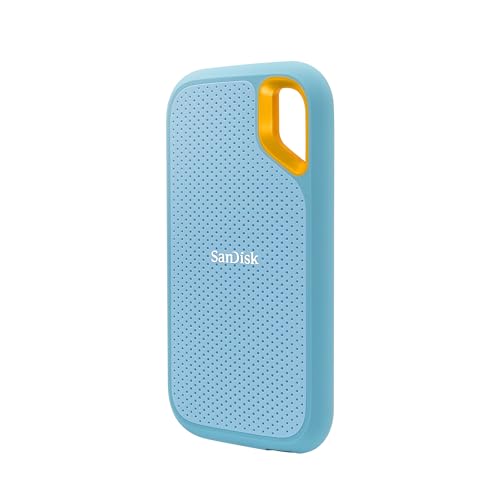
SanDisk 1TB Extreme Portable SSD – Up to 1050MB/s, USB-C

This portable powerhouse is perfect for content creators, photographers, and anyone who needs blazing-fast external storage that can keep up with their demanding workflow. Its rugged design means you can take it anywhere, confident that your data is safe, while its NVMe performance ensures quick transfers, making it a fantastic companion for systems optimized with the right SanDisk 2026 best computer settings for SSD life.
- Get NVMe solid state performance with up to 1050MB/s read and 1000MB/s write speeds.
- Up to 3-meter drop protection and IP65 water and dust resistance.
- Handy carabiner loop for securing it to your gear.
- Password protection featuring 256-bit AES hardware encryption.
- Easily manage files and automatically free up space with the SanDisk Memory Zone app.
Pros:
– Exceptional speed for large file transfers.
– Highly durable and resistant to water, dust, and drops.
– Compact and portable with a secure loop.
– Hardware encryption adds a layer of security.
Cons:
– Can be more expensive than traditional external HDDs.
– Performance can vary slightly depending on the host device.
User Impressions: Users frequently praise its incredible speed and robust build quality, highlighting its reliability in various outdoor and professional scenarios. Many find the carabiner loop surprisingly useful.
SanDisk 1TB Portable SSD – Up to 800MB/s, USB-C, USB

A fantastic choice for everyday users seeking a balance of speed, portability, and durability. This SanDisk portable SSD offers a solid performance boost over traditional hard drives, making it ideal for backing up important files or extending your laptop’s storage on the go. Its rugged nature complements good computer settings, contributing to overall storage longevity.
- Solid state performance with up to 800MB/s read speeds.
- Back up content and memories on a storage solution that fits your mobile lifestyle.
- Up to two-meter drop protection for durability.
- Tough rubber hook for secure attachment to bags.
- From SanDisk, a trusted brand for professionals.
Pros:
– Good balance of speed and affordability for a portable SSD.
– Durable design with drop protection.
– Very compact and lightweight.
– Reliable brand reputation.
Cons:
– Slower than NVMe-based portable SSDs.
– Lacks hardware encryption found in the Extreme series.
User Impressions: Customers appreciate its straightforward, reliable performance and how easy it is to carry around. It’s often recommended for general backup and quick file transfers for everyday use.
SANDISK SSD Plus 250GB Internal Solid State Drive – SATA

For those looking to breathe new life into an older desktop or laptop, the SanDisk SSD Plus 250GB is an excellent entry-level internal upgrade. It offers a noticeable speed improvement over traditional hard drives, making boots faster and applications launch quicker. Pairing this with optimized SanDisk 2026 best computer settings for SSD life will make a significant difference.
- Easy upgrade for fast boots and application launches.
- High capacities available for applications and large media files (though this specific model is 250GB).
- Sequential Read speeds of up to 545MB/s and write speeds of up to 515MB/s.
- Shock-resistant for proven durability.
Pros:
– Very affordable way to upgrade an older system.
– Significantly faster than a traditional HDD.
– Simple installation process.
– Durable against everyday bumps and drops.
Cons:
– Limited capacity for modern needs (250GB).
– Performance is capped by the SATA III interface.
User Impressions: Users frequently report a “night and day” difference in system responsiveness after upgrading from an HDD. It’s often praised as a cost-effective solution for giving old computers a new lease on life.
SANDISK SSD Plus 2TB Internal Solid State Drive – SATA
The 2TB SanDisk SSD Plus is a superb internal storage solution for users who need ample space without breaking the bank. It offers the same reliable performance as its smaller counterparts but with enough room for a massive game library, extensive media files, or multiple operating systems. This is a solid foundation for any computer, especially when managed with the proper SanDisk 2026 best computer settings for SSD life.
- Easy upgrade for fast boots and application launches.
- High capacities for applications and large media files.
- Sequential Read speeds of up to 545MB/s and write speeds of up to 515MB/s.
- Shock-resistant for proven durability.
Pros:
– Large 2TB capacity at a competitive price point.
– Reliable performance for everyday computing.
– Significantly improves boot and application load times.
– Durable and shock-resistant.
Cons:
– Limited by SATA III speeds, not as fast as NVMe drives.
– Might be overkill for basic users who don’t need this much space.
User Impressions: Reviewers are consistently impressed with the value this drive offers, providing massive SSD storage at an accessible price. Many use it as a primary game drive or for storing large media collections.
SANDISK SSD Plus 500GB Internal Solid State Drive – SATA
A sweet spot for many users, the 500GB SanDisk SSD Plus offers a great balance of capacity and affordability for an internal drive upgrade. It’s enough space for your operating system, essential applications, and a decent chunk of your files, all while providing that sought-after SSD speed. It’s a smart choice for anyone looking to implement SanDisk 2026 best computer settings for SSD life on a budget.
- Easy upgrade for fast boots and application launches.
- High capacities for applications and large media files.
- Sequential Read speeds of up to 545MB/s and write speeds of up to 515MB/s.
- Shock-resistant for proven durability.
Pros:
– Excellent price-to-performance ratio for an internal SATA SSD.
– Good capacity for OS, programs, and some games.
– Reliable and durable.
– Easy to install.
Cons:
– Not as fast as NVMe M.2 drives.
– May become insufficient if you have a very large game library or extensive video editing needs.
User Impressions: This model is a popular upgrade choice, with users frequently noting the dramatic improvement in boot times and overall system snappiness. It’s considered a reliable workhorse for general computing.
SanDisk 1TB Extreme PRO Portable SSD – Up to 2000MB/s
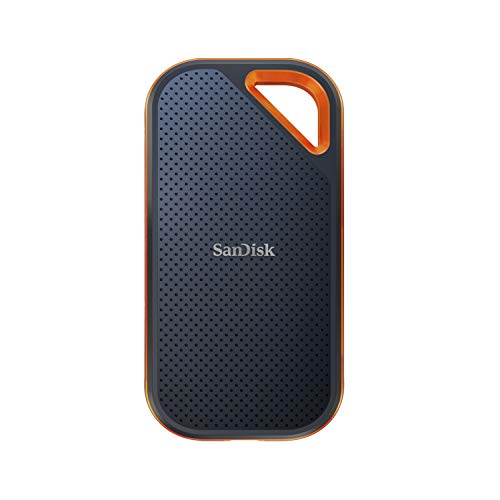
Stepping up the game, the SanDisk Extreme PRO Portable SSD is for professionals who demand the absolute fastest external storage. With scorching read/write speeds, it handles 4K, 8K, and high-res photo editing with ease. Its robust aluminum chassis also acts as a heatsink, ensuring sustained performance, making it an ideal choice for a meticulously optimized setup focused on SanDisk 2026 best computer settings for SSD life.
- Powerful NVMe solid state performance featuring up to 2000MB/s read/write speeds.
- Forged aluminum chassis acts as a heatsink for higher sustained speeds.
- Up to 3-meter drop protection and IP65 water and dust resistance.
- Password protection featuring 256-bit AES hardware encryption.
- Manage files and automatically free up space with the SanDisk Memory Zone app.
Pros:
– Extremely high read/write speeds, excellent for professional use.
– Superior heat dissipation due to the aluminum chassis.
– Top-tier durability and water/dust resistance.
– Hardware encryption for secure data.
Cons:
– Premium price point.
– Requires a USB 3.2 Gen 2×2 port for maximum speeds.
User Impressions: Professionals rave about its blistering speed and ability to handle large files and demanding workflows without breaking a sweat. Its ruggedness is also a major plus for those working in the field.
SanDisk 256GB Extreme PRO USB 3.2 Solid State Flash Drive

This isn’t your average USB flash drive; it’s a pocket-sized portable SSD in a convenient stick form factor. Offering incredible speeds usually reserved for external SSDs, it’s perfect for quickly transferring huge files, running portable applications, or creating a bootable recovery drive. Its durable aluminum casing is built to last, complementing smart computer settings for drive longevity.
- Blazing-fast performance for super-speedy transfer of photos and 4K video.
- Premium performance and huge capacities (for a flash drive).
- Durable aluminum metal casing.
- SanDisk SecureAccess encryption software.
- Included RescuePRO Deluxe data recovery software offer.
- USB 2.0 and 3.0 backward-compatibility.
Pros:
– SSD-level performance in a thumb drive form factor.
– Extremely convenient for portability.
– Robust metal casing.
– Includes data recovery and encryption software.
Cons:
– Smaller capacity than dedicated external SSDs (256GB).
– Can get warm during extended high-speed transfers.
User Impressions: Users are astonished by its speed, often stating it’s the fastest flash drive they’ve ever used. It’s particularly popular for transferring large video files or for IT professionals.
SanDisk SSD PLUS 480GB Internal SSD – SATA III 6

Another solid contender in the internal SATA SSD market, the 480GB SanDisk SSD PLUS offers a reliable and significant performance upgrade over traditional hard drives. With nearly 500GB of space, it’s an excellent choice for a primary drive, holding your OS, programs, and a good selection of games or project files. Optimizing your system with the SanDisk 2026 best computer settings for SSD life will ensure this drive continues to perform well.
- Easy upgrade for faster boot-up, shutdown, application load and response.
- Boosts burst write performance.
- The perfect balance of performance and reliability.
- Read/write speeds of up to 535MB/s/445MB/s.
- Shock-resistant for proven durability.
- 3-year limited manufacturer warranty.
Pros:
– Good capacity for a primary boot drive.
– Noticeable speed improvement over HDDs.
– Reputable brand with a decent warranty.
– Durable and resistant to shocks.
Cons:
– Performance is limited by the SATA interface.
– Might not be enough space for users with vast multimedia collections.
User Impressions: This drive is a consistent favorite for budget-conscious upgrades, with many users highlighting its ease of installation and the immediate boost in system speed.
SanDisk Ultra 3D NAND 1TB Internal SSD – SATA III

The SanDisk Ultra 3D NAND SSD represents a step up in internal SATA drive technology. Leveraging 3D NAND, it offers improved endurance, better performance, and lower power usage compared to older 2D NAND drives. This 1TB model provides ample space and zippy speeds, making it an excellent long-term investment for any system, especially when paired with the SanDisk 2026 best computer settings for SSD life practices.
- Sequential read/write speeds of up to 560MB/s/520MB/s.
- Faster app load and response times; faster boot-up and shut-down.
- Greater drive endurance and reliability, plus lower power usage with new 3D NAND technology.
- nCache 2.0 technology delivers blazing-fast speeds.
- Shock-resistant to help keep your data safe.
Pros:
– Enhanced endurance and reliability due to 3D NAND.
– Very good SATA performance, close to the interface’s limits.
– Lower power consumption, beneficial for laptops.
– Good balance of speed, capacity, and price.
Cons:
– Still limited by the SATA III interface compared to NVMe.
– Not a drastic speed increase over the SSD Plus series for typical users.
User Impressions: Users frequently commend its consistent, fast performance and the peace of mind offered by the 3D NAND technology, expecting a longer lifespan compared to older models.
SanDisk 2TB Extreme PRO Portable SSD with USB4, Up to

Future-proof your external storage with the SanDisk 2TB Extreme PRO Portable SSD featuring USB4. This drive is a beast, offering incredibly high read speeds that push the boundaries of portable storage. It’s designed for the most demanding tasks, like uncompressed video editing or working with massive datasets on the go. Its rugged design ensures data safety, making it a top-tier choice for professionals who know the value of optimized SanDisk 2026 best computer settings for SSD life coupled with cutting-edge hardware.
- Work at a turbocharged pace with next-gen USB4 with read speeds of 3800 MB/s.
- Store and move data across older USB 3.2 and USB 2.0 devices, and supports Thunderbolt 4.
- Help protect your data in various terrain with a rugged silicone shell and forged aluminum chassis.
- A 5-year limited warranty ensures your storage is backed by a professional-grade guarantee.
Pros:
– Blazing-fast USB4/Thunderbolt 4 performance, ideal for high-bandwidth tasks.
– Excellent backward compatibility.
– Extremely rugged and durable design.
– Long 5-year warranty provides great peace of mind.
Cons:
– Very premium price.
– Requires a USB4 or Thunderbolt 4 port to achieve maximum speeds.
User Impressions: Professionals in creative fields are thrilled with the performance, noting how it significantly cuts down transfer and rendering times for large files. The durability and warranty are also highly valued.
Conclusion
Optimizing your SanDisk SSD with the right computer settings is a smart move that pays dividends in performance and longevity. By enabling TRIM, disabling unnecessary features like defragmentation, and keeping your firmware updated, you’re not just maintaining your drive; you’re actively extending its effective lifespan and ensuring it remains responsive.
Whether you choose a lightning-fast SanDisk Extreme PRO for professional work or a reliable SanDisk SSD Plus for a system upgrade, pairing it with the SanDisk 2026 best computer settings for SSD life practices outlined here will ensure you get the most out of your investment. So go ahead, tweak those settings, grab an excellent SanDisk SSD, and enjoy a faster, more reliable computing experience for years to come!
FAQ Section
Q1: What is “SSD life” and why is it important to optimize it?
A1: SSD life refers to the lifespan of your Solid State Drive, which is typically measured by the total amount of data that can be written to it before the NAND flash memory cells start to degrade. Optimizing it is important because it extends how long your SSD will perform reliably, prevents data loss, and ensures you get the maximum value from your investment.
Q2: Is defragmenting an SSD bad?
A2: Yes, absolutely! Defragmentation is designed for traditional hard drives with spinning platters to consolidate fragmented files. For an SSD, defragmentation causes unnecessary write cycles, which wears down the finite write capacity of its NAND flash cells without providing any performance benefit. Your operating system should automatically disable it for SSDs.
Q3: How does TRIM help extend SSD life?
A3: TRIM is a command that allows your operating system to tell the SSD which data blocks are no longer in use (because a file has been deleted, for example). This helps the SSD’s controller manage its free space more efficiently. Instead of having to erase an entire block before writing new data, the SSD already knows which blocks are empty, reducing wear and improving write performance over time.
Q4: Should I always leave some free space on my SanDisk SSD?
A4: Yes, it’s a good practice to leave 10-20% of your SSD’s capacity empty. This extra space (often called user-managed over-provisioning) gives the SSD controller more room to perform crucial background tasks like wear leveling, garbage collection, and bad block management. This helps maintain consistent performance and extends the drive’s lifespan by evenly distributing write operations.
Q5: How often should I check for SanDisk SSD firmware updates?
A5: It’s a good idea to check for firmware updates every few months or if you notice any unusual performance issues. SSD manufacturers like SanDisk regularly release firmware updates that can improve performance, fix bugs, and optimize wear-leveling algorithms, all of which contribute to the drive’s longevity and stability.
Q6: Can I use these optimization tips for any brand of SSD, or just SanDisk?
A6: While this article specifically focuses on “SanDisk 2026 best computer settings for SSD life,” most of the optimization tips provided (like enabling TRIM, disabling defragmentation, and updating firmware) are universally applicable to all brands of SSDs. These are general best practices for maintaining the health and performance of any Solid State Drive.
Q7: Does filling an SSD to capacity significantly reduce its life?
A7: Yes, filling an SSD too close to its maximum capacity can negatively impact its performance and potentially shorten its lifespan. When an SSD is nearly full, its controller has less free space to perform wear-leveling and garbage collection efficiently, which can lead to performance slowdowns and increased wear on the existing cells. Aim to keep at least 10-20% of the drive free.