
So, you’re looking to securely wipe your Samsung PM810 SSD? Whether you’re upgrading, selling, or just need a fresh start, properly erasing your Solid State Drive (SSD) is absolutely critical. Unlike traditional Hard Disk Drives (HDDs) that can be degaussed or physically destroyed, SSDs require a different approach for true data sanitization. Just hitting “delete” or formatting your drive won’t cut it – the data often remains recoverable. That’s why finding the best erasure method for Samsung PM810 SSD is so important for your data privacy and security.
The Samsung PM810 is an older SATA-based SSD, and while it might not be the latest and greatest, ensuring its data is irrecoverable before disposal or repurposing is paramount. Let’s dive into the most effective strategies to get the job done right.
Why Securely Erase Your Samsung PM810 SSD?
Before we get into the “how,” let’s quickly touch on the “why.” Your old SSD, even if it seems empty, can still hold sensitive personal, financial, or confidential information. Simply formatting the drive only removes the pointers to the data, not the data itself. Data recovery tools can often piece together what you thought was gone. A proper SSD data sanitization ensures that your data is truly unreadable, protecting you from potential identity theft or corporate espionage.
For your Samsung PM810 SSD, a secure erase command is generally the most recommended and effective method.
The Best Erasure Method for Samsung PM810 SSD: Leveraging Software Solutions
When it comes to the best erasure method for Samsung PM810 SSD, software-based secure erase tools are often the go-to. These tools send a specific ATA Secure Erase command directly to the SSD’s firmware, which triggers an internal, irreversible data-wiping process. This method is highly effective because it leverages the SSD’s own controller to erase all data blocks and reset the drive to its factory default state.
Why is this superior?
* Completeness: It erases all user data areas, including hidden sectors.
* Efficiency: It’s fast, as the drive’s firmware handles the process directly.
* Longevity: It doesn’t put unnecessary wear on the drive, unlike repeated overwrite methods.
While the PM810 itself doesn’t come with its own dedicated secure erase utility in the same way modern Samsung SSDs do, you can often use third-party tools or general secure erase utilities that support the ATA Secure Erase command. However, if you’re dealing with any Samsung SSD, including potentially upgrading to a newer model, understanding their management software is key.
Featured Solution: Samsung Magician Software (Compatible with Modern Samsung SSDs)
While the Samsung PM810 is an older model, understanding the capabilities of Samsung’s current SSD management software, Samsung Magician, is crucial for anyone dealing with Samsung SSDs. While the PM810 might not be directly supported by the latest Magician versions for firmware updates, the principles of secure data management and the software’s Secure Erase feature (for compatible drives) represent the gold standard for secure data wiping on Samsung SSDs.
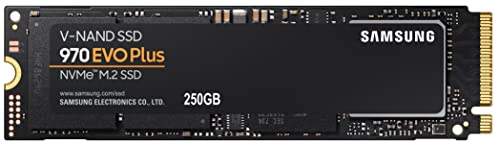
If you’re upgrading from your PM810, or simply want to understand the modern approach to SSD management and erasure, consider how Samsung’s current line-up, like the 970 EVO Plus, integrates with their powerful Magician software. This software is widely considered one of the best erasure method for Samsung PM810 SSD (if you were comparing it to a newer drive’s capabilities) and for other Samsung SSDs due to its comprehensive features.
SAMSUNG 970 EVO Plus SSD 250GB NVMe M.2 Internal Solid…

The Samsung 970 EVO Plus isn’t an erasure tool itself, but it represents the cutting-edge of Samsung’s SSD technology, and its integration with Samsung Magician software highlights the robust data management and secure erase capabilities available for modern Samsung drives. This NVMe M.2 internal solid-state drive is a powerhouse, offering blistering speeds and reliability that make it ideal for high-performance computing, gaming, and content creation. What truly sets it apart is the seamless experience provided by Samsung Magician, which offers not just performance optimization and automatic firmware updates but also a critical “Secure Erase” feature for supported drives, ensuring thorough data sanitization when needed.
- INNOVATIVE V-NAND TECHNOLOGY: Powered by Samsung V-NAND Technology, the 970 EVO Plus SSD’s NVMe interface (PCIe Gen 3.0 x4 NVMe 1.3) offers enhanced bandwidth, low latency, and power efficiency ideal for tech enthusiasts, high end gamers, and 4K & 3D content designers.
- BREAKTHROUGH READ WRITE SPEEDS: Sequential read and write performance levels of up to 3,500MB/s and 3,300MB/s, respectively; Random Read (4KB, QD32): Up to 600,000 IOPS Random Read.
- PERFORMANCE OPTIMIZATION AND DATA SECURITY: Seamless cloning and file transfers with Samsung Magician Software, the ideal SSD management solution for performance optimization and data security with automatic firmware updates.
- SUPERIOR HEAT DISSIPATION: Samsung’s Dynamic Thermal Guard automatically monitors and maintains optimal operating temperatures to minimize performance drops. WWN not supported.
Pros:
– Blazing-fast NVMe performance significantly boosts system responsiveness.
– Excellent reliability and endurance backed by Samsung’s reputation.
– Samsung Magician software provides comprehensive tools, including Secure Erase (for compatible drives), performance optimization, and health monitoring.
– Dynamic Thermal Guard ensures consistent performance by preventing overheating.
– Easy to install in compatible M.2 slots.
Cons:
– NVMe drives require a compatible motherboard M.2 slot.
– Can be more expensive than SATA SSDs (like the PM810) per gigabyte.
– The 250GB capacity might be small for users with large game libraries or media collections.
User Impressions:
Customers consistently praise the 970 EVO Plus for its incredible speed and reliability. Many highlight how easy it is to manage with Samsung Magician, appreciating the health checks and performance tweaks. The secure erase feature, while not always the primary focus for new buyers, is a significant peace of mind for those needing to re-purpose or sell their drive later. Users report a noticeable improvement in boot times and application loading compared to older SATA SSDs.
See it on Amazon here: [SEE_ON_AMAZON_HERE]
Alternative Erasure Methods for Samsung PM810 SSD (and General SSDs)
Since the PM810 might not be directly supported by the latest Samsung Magician, here are other reliable secure erase options:
- BIOS/UEFI Secure Erase: Many modern motherboards (and some older ones) have a built-in Secure Erase utility within their BIOS or UEFI settings. You’ll need to connect the PM810 directly to a SATA port on the motherboard. Look for “Secure Erase” or “SSD Erase” under tools or storage utilities. This method is highly effective as it bypasses the operating system entirely.
- Parted Magic (Bootable USB/CD): This is a Linux-based utility suite that includes a powerful “Secure Erase” option for SSDs. It’s a paid tool but highly recommended for its effectiveness and wide compatibility with various SSDs. You boot your computer from the Parted Magic USB/CD, select the drive, and initiate the secure erase command. Make sure the drive is in a “frozen” state (usually achieved by a quick power cycle after booting Parted Magic).
- Manufacturer-Specific Tools (Older Versions): While the latest Samsung Magician might not fully support the PM810, sometimes older versions of manufacturer tools (or general SSD tools) can still issue the ATA Secure Erase command. Research thoroughly to find compatible, reputable tools.
Important Considerations Before Erasing:
- Backup Your Data: This might seem obvious, but once you perform a secure erase, your data is gone forever. Ensure you’ve backed up everything you need from your PM810 SSD.
- Connect Directly: For the most reliable secure erase, connect your PM810 directly to a SATA port on your motherboard, not via a USB adapter or external enclosure. External connections can sometimes interfere with the ATA Secure Erase command.
- Power Cycle: If an SSD is in a “frozen” state (a security feature), you might need to perform a quick power cycle (unplug and replug the SATA power cable while the PC is on but before initiating the erase) to unlock it before the erase command can be sent.
- Not a Data Shredder: Secure Erase is different from data shredding software. While secure erase is the recommended method for SSDs, traditional shredding software (which repeatedly overwrites data) is generally not recommended for SSDs as it causes unnecessary wear and doesn’t guarantee full erasure due to wear-leveling algorithms.
By choosing the right erasure method for Samsung PM810 SSD, you can confidently dispose of or repurpose your drive knowing your sensitive data is truly gone.
FAQ Section
Q1: Is formatting an SSD enough to erase my data securely?
A1: No, simply formatting an SSD is not enough. Formatting only removes the file system and pointers to your data, making the space available for new data, but the old data remains recoverable with specialized tools. For true data security, you need to use a secure erase utility.
Q2: What is “Secure Erase” and why is it recommended for SSDs?
A2: Secure Erase is an ATA command built into the firmware of most SSDs. When activated, it instructs the SSD’s controller to internally wipe all data, including hidden areas, and reset the drive to its factory state. It’s recommended because it’s fast, effective, and causes minimal wear on the drive compared to repeated overwrites.
Q3: Can I use a traditional hard drive wiping tool on my Samsung PM810 SSD?
A3: While some traditional hard drive wiping tools might claim to work, they are generally not recommended for SSDs. These tools often rely on repeatedly overwriting data, which can cause unnecessary wear on the SSD’s flash memory and isn’t as effective as an SSD’s built-in Secure Erase feature due to wear-leveling algorithms.
Q4: Do I need special software for my Samsung PM810 SSD, or will any secure erase tool work?
A4: While some older Samsung SSDs like the PM810 might not be fully supported by the very latest Samsung Magician software, many universal Secure Erase tools (like those found in Parted Magic or some motherboard BIOS/UEFI utilities) can send the necessary ATA Secure Erase command. Always ensure the tool explicitly supports your specific SSD model or the general ATA Secure Erase standard.
Q5: What is the “frozen” state, and how do I “unfreeze” my SSD?
A5: The “frozen” state is a security measure in some SSDs that prevents write commands, including secure erase, when the drive is hot-plugged or certain conditions are met. To “unfreeze” it, you usually need to perform a quick power cycle: with your computer on, unplug the SATA power cable from the SSD for a few seconds, then plug it back in. This often unlocks the drive without needing to reboot the system.
Q6: Does performing a secure erase reduce the lifespan of my Samsung PM810 SSD?
A6: No, quite the opposite. Secure Erase is designed to be efficient and doesn’t write to every cell multiple times. It leverages the SSD’s internal controller to perform the wipe, which is much less taxing than repeated overwrites. In fact, it can sometimes even help restore peak performance to an older SSD by resetting its internal mappings.
Q7: Can I recover data after performing a secure erase on my PM810 SSD?
A7: No. The primary purpose of Secure Erase is to make data permanently unrecoverable. Once the process is successfully completed, your data is gone for good. This is why it’s crucial to back up any necessary files before initiating the process.